
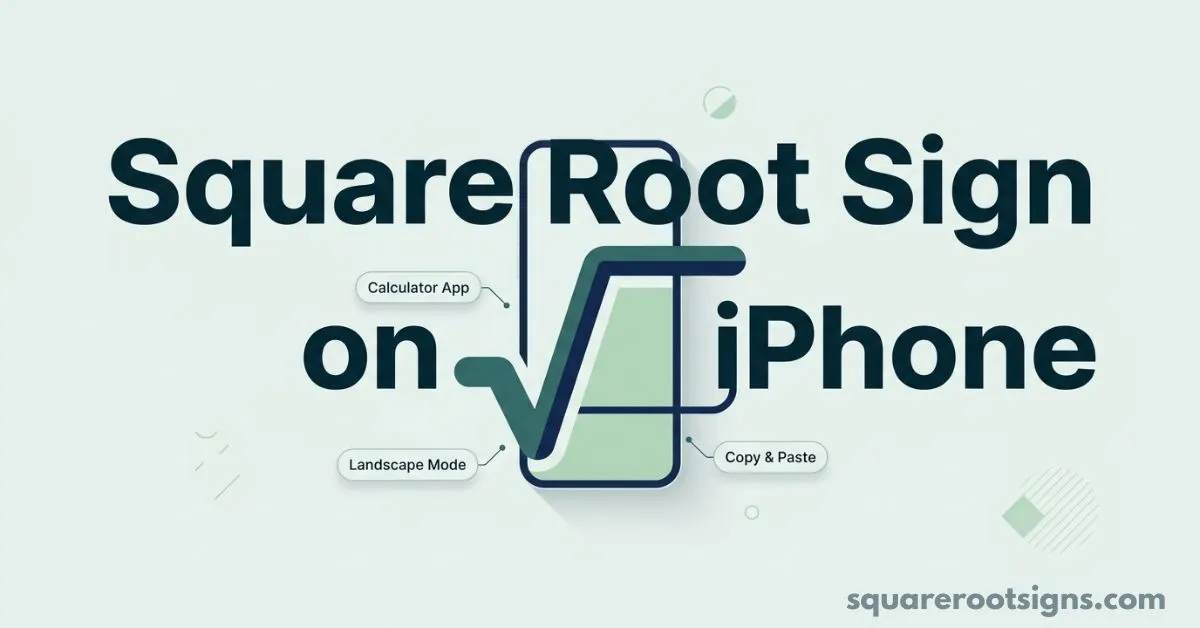
Square Root Sign on iPhone: How to Type √ (Copy & Paste)
The square root sign on iPhone is not a dedicated key on the standard iPhone keyboard, but you can type it quickly by copying √ or creating a Text Replacement shortcut. You can also use the iPhone Calculator’s Scientific mode when you need to calculate square roots rather than type the symbol.
Copy the square root sign: √
Quick navigation: [Copy √] · [Set up a shortcut] · [Use Calculator] · [More math symbols] · [FAQ]
How do you type the square root sign on an iPhone?
The easiest method is to copy the symbol from this page:
√
Tap and hold the symbol, select Copy, then paste it into Notes, Messages, Safari, email, documents, or another text field.
If you use the radical sign frequently, a Text Replacement shortcut is more convenient.
How do you set up a √ shortcut on iPhone?
You can create a Text Replacement that turns a short shortcut into the square root symbol.
- Open Settings.
- Tap General.
- Tap Keyboard.
- Tap Text Replacement.
- Tap the + button.
- In Phrase, enter √.
- In Shortcut, enter a distinctive shortcut such as sqrtx.
- Tap Save.
Apple documents Text Replacement as a way to enter longer words or phrases by typing a shorter shortcut.
Which shortcut should you use?
I recommend sqrtx rather than simply sqrt if you sometimes write mathematical formulas, code, or spreadsheet functions. The goal is to choose a shortcut that you are unlikely to type accidentally.
For example:
Phrase: √
Shortcut: sqrtx
Then, when you need the symbol, type your shortcut in a text field and use the replacement offered by iOS.
If the shortcut behaves unexpectedly, go back to Settings → General → Keyboard → Text Replacement and choose a more distinctive shortcut.
Can you use √ in Notes, Messages, and other apps?

Yes. Once you have copied √, you can paste it into most apps that accept normal text.
A Text Replacement shortcut is also useful when you regularly write mathematical content in apps such as Notes, Messages, Mail, or other text editors. Apple describes Text Replacement as a system keyboard feature rather than a feature limited to one particular app.
Where is the square root button on the iPhone Calculator?
If you want to calculate a square root rather than type the √ character, use the Scientific Calculator.
- Open the Calculator app.
- Tap the Change Mode button.
- Select Scientific.
- Enter the number you want to calculate.
- Use the square-root function.
Apple’s current iPhone documentation says Scientific mode includes square root, cube root, and other root functions.
For example, to calculate the square root of 49, enter 49 and use the square-root function. The result is 7.
Do you need to rotate your iPhone?
Not for the current Calculator instructions. Apple’s current guide directs users to Calculator → Change Mode → Scientific. The scientific calculator can be used in portrait or landscape orientation, although some keys may appear in different positions depending on the orientation.
Some older online guides tell users to rotate the iPhone to landscape to access scientific functions. The current Apple instructions are clearer: use the Change Mode control and select Scientific.
What other math symbols can you copy on an iPhone?
The square root symbol is only one of many mathematical characters you may need.
| Symbol | Meaning |
| √ | Square root / radical sign |
| ∛ | Cube root |
| ∜ | Fourth root |
| ² | Squared |
| ³ | Cubed |
| π | Pi |
| ≈ | Approximately equal |
| ≠ | Not equal |
These are useful when you need special characters or math symbols that are not obvious on the standard iPhone keyboard.
Unicode for the square root symbol
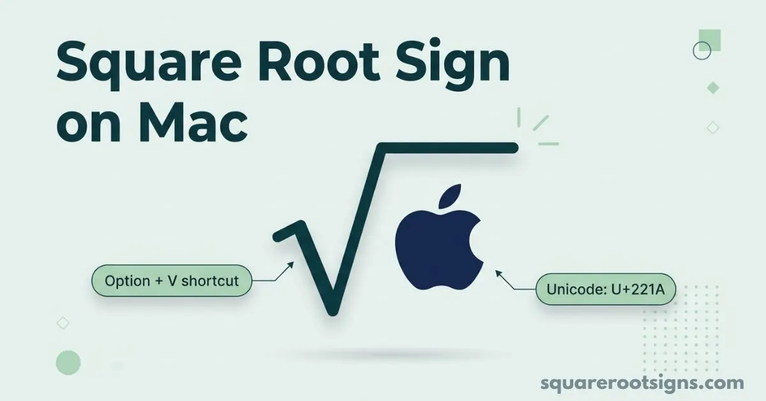
The character √ is the Unicode square root symbol, U+221A.
If you need the character itself for copying, the quickest option is still:
√
Does the same method work on iPad?
Yes. iPad also supports keyboard settings and text replacement. Apple provides the same general Text Replacement path through Settings → General → Keyboard → Text Replacement.
That means you can create a shortcut such as sqrtx → √ on an iPad as well.
If you use an external keyboard with an iPad, keyboard settings can differ from the onscreen keyboard, but Text Replacement remains available as part of Apple’s typing features.
How do you type square root in Excel on iPhone?
If you are using Excel to calculate a square root, you do not need to type the √ character.
For example:
=SQRT(49)
returns:
7
This is different from inserting the √ symbol into ordinary text. Use the symbol when you are writing mathematical notation; use SQRT() when you are performing a calculation in a spreadsheet.
What if you need √ in Word on iPhone?
For ordinary text, the easiest option is to copy and paste √ or use an iPhone Text Replacement shortcut.
For mathematical equations, the available equation-editing features can depend on the Word app and version you are using. If your goal is simply to insert the square root character into a sentence or document, the copy-and-paste method is the most straightforward.
Common mistakes when typing √ on iPhone
1. Looking for a dedicated √ key
The standard iPhone keyboard does not provide an obvious dedicated square-root key. Copying the character or creating Text Replacement is usually faster.
2. Choosing a shortcut you already type
Avoid shortcuts such as sqrt if you frequently use that text for formulas or technical writing. A distinctive shortcut such as sqrtx can reduce accidental replacements.
3. Confusing the symbol with the calculation
Typing √ only inserts the character. It does not calculate a square root.
For calculation, use the iPhone’s Scientific Calculator.
4. Using an outdated Calculator instruction
If an older guide tells you that landscape mode is the only way to find scientific functions, check the current Calculator interface instead. Apple currently documents Change Mode → Scientific.
Can you use Math Notes for square-root calculations?
On supported versions of iOS, Apple’s Calculator includes Math Notes, which can be used to write and evaluate mathematical expressions. Apple currently documents Math Notes as a Calculator mode alongside Basic, Scientific, and other modes.
This is useful when your goal is to work with a mathematical expression, rather than simply insert the √ character into text.
Frequently Asked Questions
Is there a square root symbol on the iPhone keyboard?
There is no obvious dedicated √ key on the standard iPhone keyboard. You can copy √ or create a Text Replacement shortcut for faster access.
How do I type √ in Notes or Messages?
Copy √ and paste it into the text field, or create a Text Replacement such as sqrtx → √.
How do I calculate a square root on iPhone?
Open Calculator → Change Mode → Scientific, then use the square-root function.
Can I use a Text Replacement for √?
Yes. Go to Settings → General → Keyboard → Text Replacement, add √ as the phrase, and choose your preferred shortcut.
What is the Unicode for √?
The square root symbol √ is Unicode U+221A.
Does the √ shortcut work on iPad?
Yes. iPad supports Text Replacement through its keyboard settings, so you can create the same type of shortcut.
Final Answer
If you only need the character, copy this:
√
If you use it frequently, create a Text Replacement such as:
sqrtx → √
And if you need to calculate a square root, use the iPhone Calculator’s Scientific mode.

Jack Harrison is a contributor at Square Root Signs, sharing creative ideas, useful information, and engaging content to help readers discover something valuable with every visit.

One Comment