Square Root Sign on Mac: How to Type √, Copy It, and Fix Shortcuts
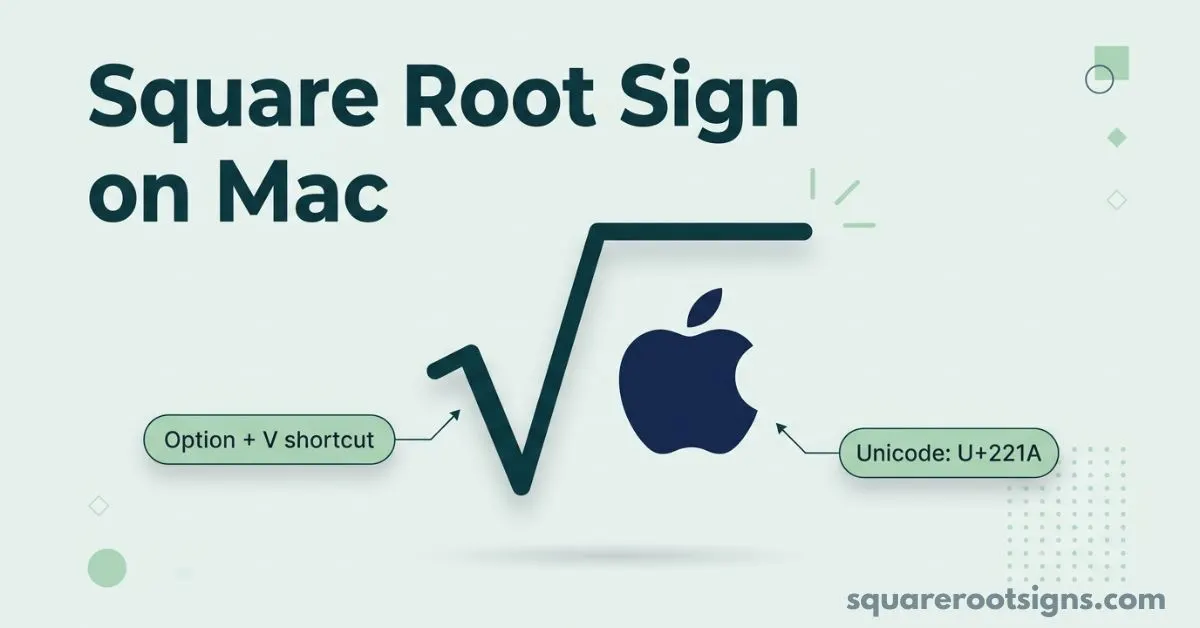
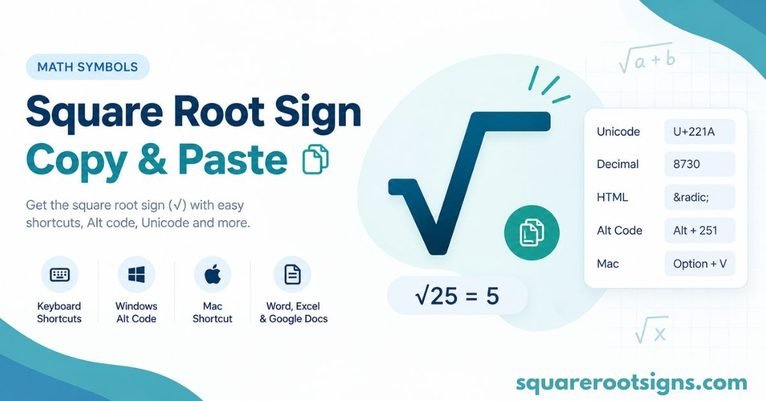
If you need the square root sign on Mac, press Option + V to type √. If the shortcut does not work, open the Character Viewer with Control + Command + Space, search for “square root,” and insert the symbol manually. You can also copy the ready-to-use symbol here: √. Apple documents Option + V as the square-root shortcut in Mac Calculator and Grapher, while Character Viewer provides another way to insert mathematical symbols.
The √ symbol, also called the radical sign or square root symbol, is useful in math homework, Microsoft Word, Pages, spreadsheets, websites, coding references, and everyday text. This guide shows the fastest Mac keyboard shortcut, a copy-and-paste option, Character Viewer, Keyboard Viewer, troubleshooting steps, and ways to write expressions such as √25 = 5 or √(x + 4) correctly.
How to Type √ on Mac with Option + V
The quickest way to type the square root sign on a Mac is:
Option + V → √
Place your cursor where you want the symbol, hold the Option (⌥) key, and press V. The character should appear immediately. Apple lists Option-V for square root in its Mac Calculator documentation and for the square-root operator in Grapher.
You can use the result in ordinary text, notes, documents, messages, and many applications that accept standard text input. For example:
√9 = 3
√16 = 4
√25 = 5
√2 ≈ 1.414
Quick Mac Shortcut
| What you need | Mac shortcut |
| Square root √ | Option + V |
| Character Viewer | Control + Command + Space |
| Copy | Command + C |
| Paste | Command + V |
Important: keyboard shortcuts can depend on the active language or input source. Apple notes that some shortcuts may change when multiple input sources are enabled, so a shortcut that behaves differently should be checked against the active keyboard layout.
Copy and Paste the Square Root Symbol
If you do not want to remember a keyboard shortcut, simply copy the symbol below:
√
Square root symbol: √
Unicode: U+221A
HTML: √
Decimal HTML: √
You can copy √ and paste it anywhere that supports normal text.
Here are a few related mathematical symbols:
| Symbol | Name | Unicode |
| √ | Square root | U+221A |
| ∛ | Cube root | U+221B |
| ∜ | Fourth root | U+221C |
| ² | Superscript two | U+00B2 |
| ³ | Superscript three | U+00B3 |
| π | Pi | U+03C0 |
| ∞ | Infinity | U+221E |
| ≠ | Not equal | U+2260 |
| ≤ | Less than or equal | U+2264 |
| ≥ | Greater than or equal | U+2265 |
For a symbol website, this is also a useful place to internally link to dedicated pages for cube root symbol, square symbol, pi symbol, infinity symbol, and other mathematical characters.
Insert √ with Character Viewer
Character Viewer is the best visual alternative when Option + V is inconvenient or unavailable. Apple provides Character Viewer for inserting emoji, symbols, and special characters on Mac. The standard shortcut is Control + Command + Space; Apple also lists Fn-E as another way to open it.
Follow these steps
- Click where you want to insert the symbol.
- Press Control + Command + Space.
- Search for square root or radical.
- Select √ from the results.
- Double-click the character to insert it.
Character Viewer is particularly useful when you need less common mathematical characters such as ∛, ∜, √, ∞, or comparison symbols.
Option + V Not Working? Try These Fixes
If Option + V does not produce √, do not assume your Mac keyboard is broken. The active input source or keyboard layout can affect how shortcuts behave. Apple specifically recommends checking the current input source and using Keyboard Viewer when shortcuts do not behave as expected.
Check Your Input Source
Look at the Input menu in the Mac menu bar. If you have multiple keyboard layouts or languages enabled, switch to the layout you normally use and test Option + V again.
To manage input sources:
Apple menu → System Settings → Keyboard → Text Input → Edit
Apple explains that the Input menu can be used to switch between enabled input sources and access Keyboard Viewer and Character Viewer.
Use Keyboard Viewer
Keyboard Viewer lets you see which characters are assigned to your current keyboard layout.
To open it:
- Open the Input menu in the menu bar.
- Choose Show Keyboard Viewer.
- Hold the Option key.
- Inspect the characters shown on the on-screen keyboard.
If you cannot see the Input menu, Apple says you can enable it through System Settings → Keyboard → Text Input → Edit, then turn on Show Input menu in menu bar.
This is a useful troubleshooting method because it shows the actual layout currently active on your Mac rather than assuming a particular keyboard configuration.
Show What’s Inside the Root: √x vs. √(x + 4)
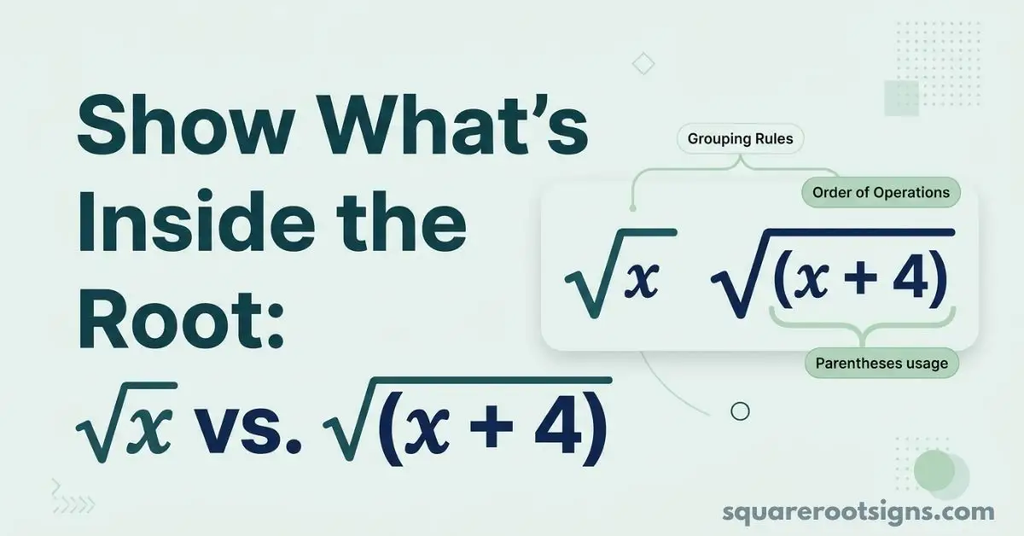
The plain √ character is not the same as a complete mathematical equation editor. In ordinary text, the radical symbol does not automatically create a horizontal bar over everything that follows.
For a simple expression, you can write:
√9 = 3
But for a longer expression, plain text is clearer when you use parentheses:
√(x + 4)
This tells the reader exactly what belongs inside the square root.
If you are writing formal mathematics in an equation editor, use the application’s equation or math-formatting tools when you need a properly extended radical bar over a complete expression.
Use the Square Root Sign in Word, Pages, and Excel
The Option + V shortcut is convenient when the application accepts normal Mac text input. However, document and spreadsheet applications may also provide their own mathematical or symbol tools.
Microsoft Word on Mac
For a simple inline symbol, place the cursor where you want the radical and try:
Option + V → √
For more complex mathematical expressions, use Word’s Equation features rather than relying on a plain text √ character. This gives you better control over fractions, roots, exponents, and other mathematical notation.
Apple Pages
In Pages, you can insert the square root character through the Mac Character Viewer:
Control + Command + Space → search “square root” → √
For more advanced equations, Pages also provides mathematical equation tools.
Microsoft Excel
If you only need the symbol as text, you can insert √ with the Mac shortcut or paste it from above.
If you need to calculate a square root, use Excel’s mathematical functions instead of treating the √ character as a calculation operator. For example, a spreadsheet formula can calculate the square root of a number directly.
Use √ on iPhone and iPad
If you move between your Mac and an iPhone or iPad, the easiest solution is often to copy the symbol from this page:
√
Tap and hold the character, select it, copy it, and paste it wherever you need it.
For frequent use, saving the symbol in a text replacement can be more convenient than repeatedly searching for it.
Create a Text Replacement for √
If you frequently type mathematical symbols, macOS can save you time by replacing a short phrase with the character you want.
For example, you could create a personal shortcut such as:
Typing: sqrt
Replacement: √
The exact setup can be managed through your Mac’s keyboard text replacement settings.
This approach is especially useful for students, teachers, developers, researchers, and anyone who repeatedly types mathematical notation.
What Is the Square Root Symbol?
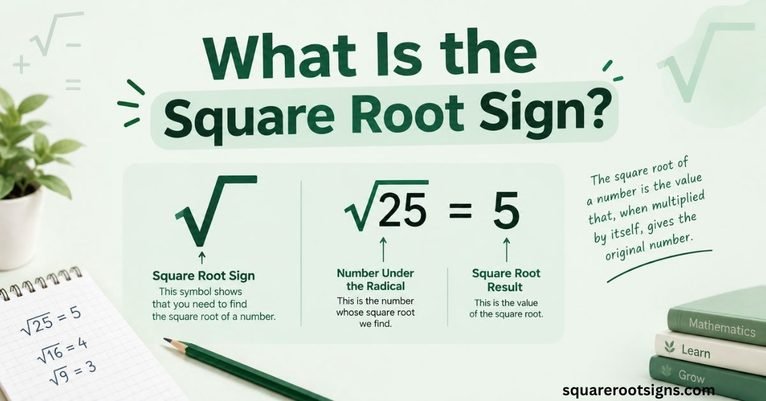
The square root symbol √ is called the radical sign. It indicates that you want the principal square root of a number or expression.
For example:
√25 = 5
because 5 × 5 = 25.
Similarly:
√49 = 7
because 7 × 7 = 49.
The symbol itself is represented in Unicode as U+221A, which makes it possible to use the same character across many modern systems and applications.
Square Root vs. Cube Root and Other Roots
The square root uses:
√
A cube root uses:
∛
A fourth root uses:
∜
The mathematical idea is similar, but the index changes the type of root. For example:
∛8 = 2
because 2 × 2 × 2 = 8.
When you need roots beyond the standard square root, Character Viewer is often easier than memorizing individual keyboard shortcuts. Apple provides Character Viewer specifically for accessing symbols that are not directly visible on the keyboard.
√ Is Not the Same as a Checkmark
The square root symbol √ can look similar to a checkmark ✓, but they are different Unicode characters with different meanings.
Square root: √
Checkmark: ✓
The radical sign is used in mathematics, while the checkmark normally indicates confirmation, completion, correctness, or selection.
If you are copying a symbol from a website, make sure you select the actual character you need rather than relying only on its visual appearance.
Square Root Sign on Mac: Quick Reference
| Question | Answer |
| What is the Mac shortcut for √? | Option + V |
| What is the square root symbol? | √ |
| What is its Unicode? | U+221A |
| How do I open Character Viewer? | Control + Command + Space |
| Can I copy √ directly? | Yes: √ |
| What if Option + V does not work? | Check your active input source and Keyboard Viewer |
| How do I write a longer root in plain text? | Use parentheses, e.g. √(x + 4) |
| What is the cube root symbol? | ∛ |
| Is √ the same as ✓? | No |
FAQs
What is the shortcut for the square root sign on Mac?
Press Option + V to enter the square root symbol √. Apple documents Option-V as the square-root shortcut in Mac Calculator and Grapher.
How do I insert √ without a keyboard shortcut?
Open Character Viewer with Control + Command + Space, search for “square root,” and select √. You can also copy the symbol directly from this page.
Why is Option + V not working on my Mac?
Your active input source or keyboard layout may affect shortcut behavior. Check the Input menu and use Keyboard Viewer to see your current layout. Apple notes that some shortcuts can change when multiple input sources are enabled.
What is the Unicode for the square root symbol?
The Unicode code point for √ is U+221A.
How do I type √ in Word on a Mac?
For a simple symbol, try Option + V. For complex mathematical expressions, use Word’s built-in Equation tools so the radical and its contents are formatted correctly.
How do I put a bar over everything under the root?
A plain √ character does not automatically extend a radical bar over a long expression. For plain text, write something such as √(x + 4). For professionally formatted mathematics, use an equation editor.
Is √ a checkmark?
No. √ is the square root/radical symbol, while ✓ is a checkmark. They may look similar but represent different characters.
Can I copy the square root symbol?
Yes. Copy this character:
√
Its Unicode code point is U+221A.
Related Mac Symbol Guides
If your website covers copy-and-paste symbols, this article can naturally connect to related pages such as:
- Cube Root Symbol Copy and Paste: ∛
- Fourth Root Symbol: ∜
- Square Symbol: ²
- Cube Symbol: ³
- Pi Symbol: π
- Infinity Symbol: ∞
- Not Equal Symbol: ≠
- Less Than or Equal Symbol: ≤
- Greater Than or Equal Symbol: ≥
- Mac Keyboard Symbols and Shortcuts
- Square Root Sign on Windows
- Square Root Symbol in Word
These links create a logical mathematical-symbol cluster instead of forcing unrelated internal links into the article.
Final Answer
For the square root sign on Mac, the fastest shortcut is:
Option + V → √
If that does not work, use:
Control + Command + Space → search “square root” → √
Or simply copy this:
√
For longer expressions, remember that plain text may not create an extended radical bar, so √(x + 4) is clearer than typing √ followed by an ungrouped expression. If the keyboard shortcut behaves unexpectedly, check your active input source and use Apple’s Keyboard Viewer to confirm the current layout.

Jack Harrison is a contributor at Square Root Signs, sharing creative ideas, useful information, and engaging content to help readers discover something valuable with every visit.
2 Comments