How to Type Square Root Sign (√) on Windows, Mac & Phone
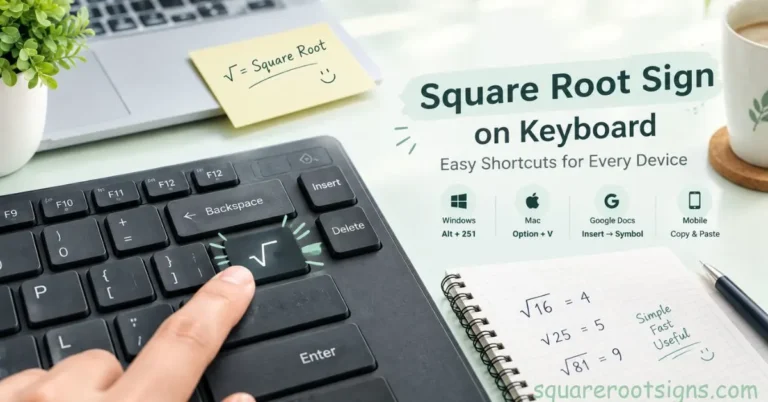
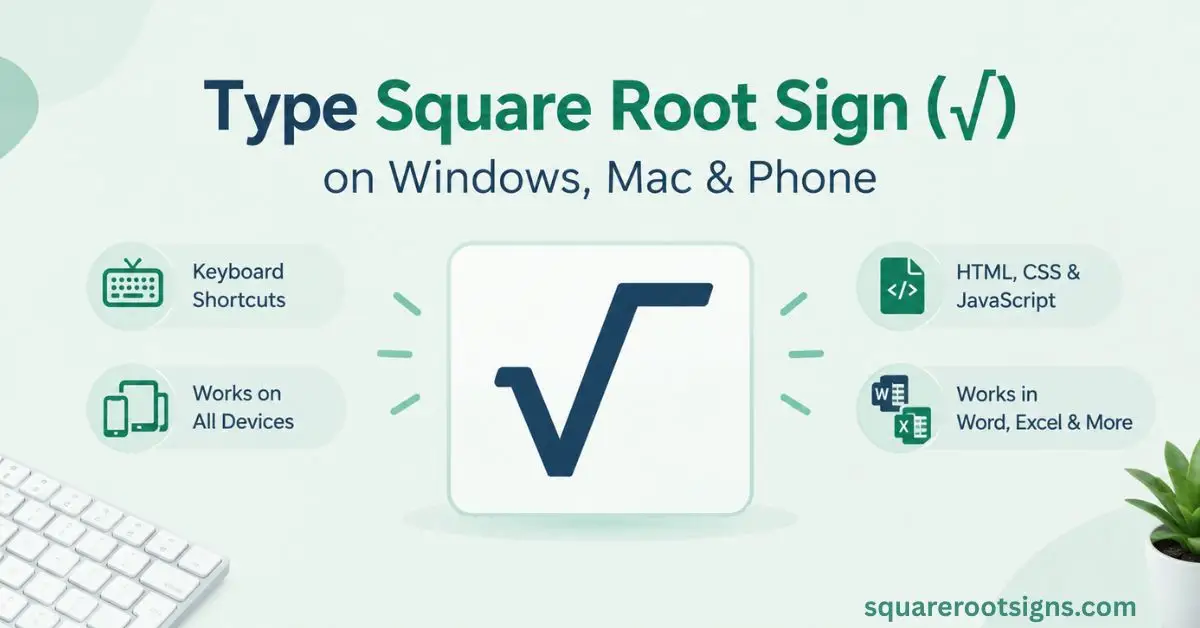
To type the square root sign (√), press Alt + 251 on a compatible Windows numeric keypad or Option + V on a US Mac keyboard. You can also copy and paste √ directly or insert it using Character Map, Character Viewer, or Microsoft Word. The best method depends on your device and application.
Copy the square root symbol:
√
If you frequently work with mathematical expressions, knowing how to insert the square root symbol can save time. Whether you’re writing a school assignment, editing a spreadsheet, or preparing a presentation, this guide explains the available keyboard shortcuts, Unicode methods, and alternatives for Windows, Mac, iPhone, Android, and other devices.
Square Root Symbol Keyboard Shortcut Matrix
The square root symbol has several keyboard shortcuts and insertion methods. Windows users can use an Alt code or Character Map, while Mac users can use Option + V with a US keyboard layout. For mobile devices, copying and pasting is often the simplest option.
| Device or application | Shortcut or method | Result |
| Windows | Alt + 251 (numeric keypad) | √ |
| Windows Character Map | Search for square root | √ |
| Windows symbol panel | Windows + . | √ |
| Mac (US keyboard) | Option + V | √ |
| Microsoft Word | 221A, then Alt + X | √ |
| Google Docs | Insert → Special characters | √ |
| iPhone | Copy and paste | √ |
| Android | Copy and paste | √ |
| Linux | Ctrl + Shift + U, then 221A | √ |
| HTML | √ | √ |
| Unicode | U+221A | √ |
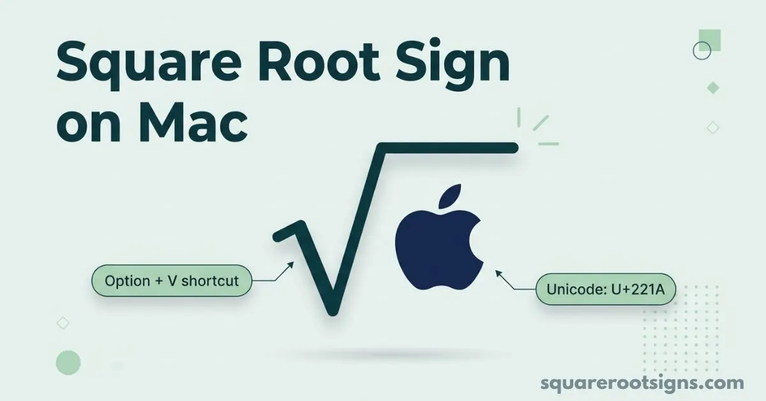
The symbol is officially named SQUARE ROOT in Unicode. Its code point is U+221A, and its decimal value is 8730. These identifiers help you find or insert the same character in different applications, although the available keyboard shortcuts vary by operating system.
How to Type the Square Root Sign on Windows (3 Methods)
Windows offers several ways to insert the square root sign. The Alt code is convenient if your keyboard has a numeric keypad. If you’re using a laptop without one, the Windows symbol panel and Character Map provide alternatives.
The method you choose also depends on the application you’re using. Some applications support keyboard shortcuts that others don’t. If an Alt code fails, try the symbol panel or Character Map instead of repeatedly entering the same combination.
Method 1: Windows Alt Code (Alt + 251)
To type √ using the traditional Windows Alt code, turn on Num Lock, hold the Alt key, and enter 251 on the numeric keypad. Release Alt to insert the symbol. Use the dedicated numeric keypad rather than the number row above the letters.
This method may not work on every laptop or application. Some laptops have embedded numeric keypads that require an additional function key. If your keyboard doesn’t support the required input, use Character Map or the Windows symbol panel instead.
Method 2: Windows Emoji & Symbol Panel (Windows + .)
Press the Windows key and the period key together to open the Windows symbol panel. Navigate to the symbols section and look for mathematical symbols. Select the square root sign to insert it into the active text field.
The symbol panel is useful when your keyboard doesn’t have a numeric keypad. Its layout can vary between Windows versions. If you can’t find √, try Character Map, where you can search for the character by its name or Unicode value.
Method 3: Windows Character Map
Character Map is a built-in Windows utility that lets you find and copy special characters. Open the Start menu, search for Character Map, and launch it. Select a font that supports mathematical symbols, locate √, and click Select followed by Copy.
You can now paste the square root symbol into Word, a browser, a spreadsheet, or another application. Character Map is particularly useful when keyboard shortcuts aren’t available or when you need other mathematical symbols.
How to Type the Square Root Sign on Mac (Option + V)
On a Mac with a US keyboard layout, press Option + V to insert the square root sign. The symbol should appear at the cursor in most standard text fields. This shortcut is convenient for writing mathematical expressions, notes, and documents.
If Option + V produces a different character, your keyboard layout may be different. You can use macOS Character Viewer instead. Press Control + Command + Space, search for “square root,” and double-click the symbol to insert it.
Character Viewer also provides access to other mathematical characters. This is helpful if you need a cube root sign, a fourth root sign, or another symbol that isn’t available through your keyboard shortcut.
How to Type the Square Root Sign on iPhone and Android
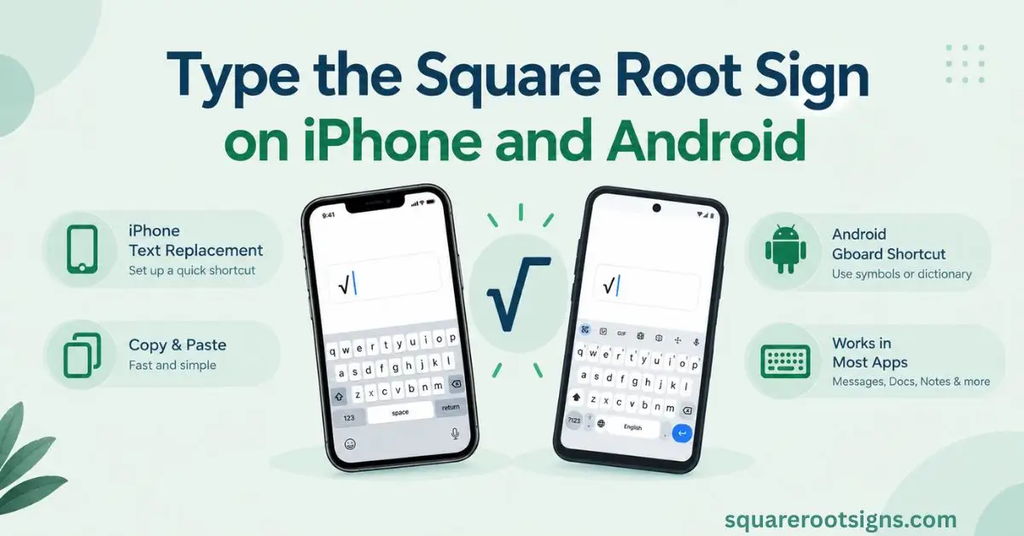
On an iPhone or Android phone, copying and pasting √ is a simple way to insert the symbol. Copy it from the box near the beginning of this article, open your messaging or document app, and paste it into the text field.
If you use the symbol regularly, you can also create a keyboard shortcut. The exact options depend on your phone, operating system, and keyboard application.
iPhone Text Replacement
You can create a text replacement shortcut on an iPhone so that a short phrase automatically expands into the square root symbol.
- Open Settings.
- Select General.
- Tap Keyboard.
- Select Text Replacement.
- Tap the plus (+) button.
- Enter √ in the Phrase field.
- Enter a short shortcut, such as sqrt.
- Save your new shortcut.
When you type your chosen shortcut in a supported text field, your iPhone can replace it with √.
Android and Gboard
On Android, you can use Gboard’s clipboard or personal dictionary to insert the square root sign. Copy √ from this page and paste it into your text field. If you frequently use the symbol, you can also create a personal dictionary shortcut.
To create a shortcut in Gboard, open its settings, select Dictionary, and choose Personal dictionary. Select your language, tap the plus (+) button, and enter √ as the word. Add a short phrase as the shortcut.
Some Android keyboards also provide mathematical symbols through their symbols menus. The available options depend on the keyboard and device.
Using a Mathematical Keyboard
Some third-party mathematical keyboards provide quick access to symbols such as √, ∛, and ∜. Availability and functionality vary by application. If you install a third-party keyboard, check its permissions and privacy information before using it.
For occasional use, copying and pasting the symbol is usually sufficient. A dedicated keyboard may be more convenient if you regularly enter complex mathematical expressions.
How to Type the Square Root Sign in Microsoft Word (221A + Alt + X)
Microsoft Word supports Unicode conversion, allowing you to insert the square root sign without opening the symbol menu. Type 221A at the desired position and immediately press Alt + X. Word converts the hexadecimal code into √.
If you want to display a complete mathematical expression, use Word’s equation editor. A standalone square root character is suitable for simple text, but a formatted equation can extend the radical bar over an entire expression.
For example, an equation editor can display the square root of x + 5 with a properly extended radical bar. This is useful for mathematical assignments, textbooks, and technical documents.
How to Insert the Square Root Sign in Excel, PowerPoint, and Google Docs
Different applications offer different methods for inserting mathematical symbols. Microsoft Word supports Unicode conversion, Excel supports both symbol insertion and mathematical functions, and Google Docs provides a special-character menu.
| Application | How to insert √ | Additional functionality |
| Microsoft Word | Type 221A, then press Alt + X | Equation editor |
| Microsoft Excel | Use Insert → Symbol | =SQRT() and =UNICHAR() |
| Microsoft PowerPoint | Insert → Symbol | Equation editor |
| Google Docs | Insert → Special characters | Equation editor |
| Google Sheets | Use =UNICHAR(8730) | =SQRT() |
Microsoft Excel
If you want to display the square root sign in an Excel cell, use the formula:
=UNICHAR(8730)
This returns √ as a character.
If you want to calculate the square root of a number, use the SQRT function instead. For example, =SQRT(64) returns 8.
The distinction is important: UNICHAR inserts a symbol, while SQRT performs a mathematical calculation.
Google Docs
To insert √ in Google Docs, open the document and select Insert → Special characters. Search for “square root” and select the symbol.
You can also copy and paste √ directly. For more complicated expressions, use the equation editor to create a properly formatted mathematical expression.
Microsoft PowerPoint
In PowerPoint, select Insert → Symbol and find the square root character. Insert it into your text box or presentation.
For equations involving variables or multiple terms, use PowerPoint’s equation editor. It provides mathematical formatting that a standalone character cannot reproduce.
How to Type the Square Root Sign on Linux and Chromebook
Linux and Chromebook users can also insert the square root symbol, although the available methods vary by desktop environment and keyboard settings.
On many Linux desktop environments that support Unicode input, press Ctrl + Shift + U, type 221A, and press Enter or Space. This inserts √ in supported text fields.
On a Chromebook, you can use the built-in special-character tools where available or copy and paste the symbol. The exact keyboard options depend on the ChromeOS version and application.
If the Unicode input method doesn’t work in a particular application, use the application’s symbol insertion feature or paste the character directly.
How to Type Square Root and Other Mathematical Symbols
The square root symbol is part of a larger group of mathematical characters. If you’re writing equations, you may also need cube roots, fourth roots, or superscript numbers.
| Symbol | Name | Unicode |
| √ | Square root | U+221A |
| ∛ | Cube root | U+221B |
| ∜ | Fourth root | U+221C |
| ² | Superscript two | U+00B2 |
| ³ | Superscript three | U+00B3 |
You can copy these characters directly when needed. However, if you’re writing a complex mathematical expression, use an equation editor instead of combining individual characters manually.
Square Root Sign vs. Radical Bar
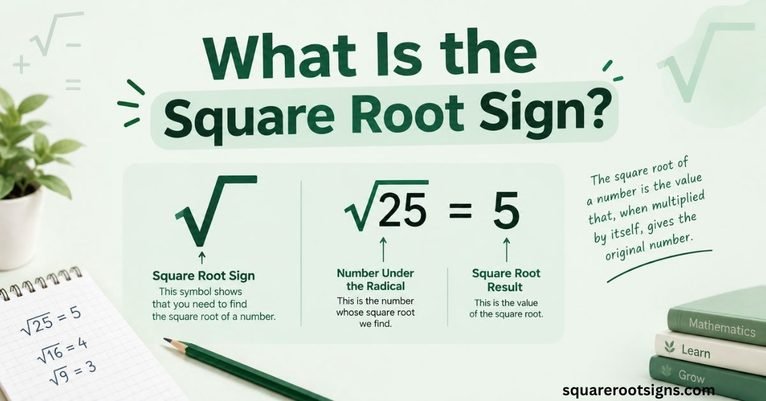
The square root sign (√) is the character that indicates a square root operation. The radical bar is the horizontal line that extends over the number or expression inside the radical.
For example, in √25, the symbol indicates the square root operation, while the horizontal bar extends over 25. In a longer expression such as √(x + 5), the bar needs to extend over the entire expression.
A standalone √ character may not provide the correct formatting for complex equations. Use an equation editor when the radical bar needs to cover multiple characters or mathematical terms.
How to Type the Square Root Sign in HTML, CSS, and JavaScript
Web developers can insert the square root symbol using HTML character references, CSS escapes, or JavaScript Unicode strings. These methods are useful when displaying mathematical symbols on webpages.
| Method | Code | Output |
| HTML named entity | √ | √ |
| HTML decimal reference | √ | √ |
| HTML hexadecimal reference | √ | √ |
| CSS hexadecimal escape | \221A | √ |
| JavaScript Unicode escape | \u221A | √ |
HTML
You can display the square root sign using the named HTML entity:
√
You can also use the decimal reference √ or hexadecimal reference √. All three methods represent the same Unicode character.
CSS
In CSS, you can use a hexadecimal escape to display the symbol in generated content.
For example:
.sqrt::before { content: “\221A”; }
This inserts the square root character before the content of an element with the sqrt class.
JavaScript
JavaScript supports Unicode escape sequences. You can represent the square root symbol using “\u221A”.
For example:
const symbol = “\u221A”;
This assigns the square root character to a JavaScript string.
Conclusion
To type the square root sign (√), use Alt + 251 on a compatible Windows numeric keypad or Option + V on a US Mac keyboard. You can also use Character Map, Character Viewer, Microsoft Word’s Unicode conversion, or copy and paste the symbol.
For mobile devices, copying and pasting is usually the easiest method. If you regularly use mathematical expressions, consider creating a keyboard shortcut or using an equation editor. Choose the method that works best for your device and application.
Frequently Asked Questions
What is the Alt code for the square root sign?
The traditional Windows Alt code for the square root sign is Alt + 251. Hold the Alt key and enter 251 using the numeric keypad, then release Alt. This method depends on your keyboard and application. If it doesn’t work, use Character Map or the Windows symbol panel.
What is the Mac shortcut for √?
On a Mac using the US keyboard layout, press Option + V to insert √. If the shortcut doesn’t work, open Character Viewer with Control + Command + Space. Search for “square root” and double-click the symbol to insert it into your document.
How do I type √ on my phone?
The easiest way to type √ on an iPhone or Android phone is to copy the symbol and paste it into your text field. If you use it regularly, you can create a text replacement shortcut on iPhone or a personal dictionary shortcut with Gboard on Android.
What is the Unicode for the square root symbol?
The Unicode code point for the square root symbol is U+221A. Its decimal value is 8730. You can use this code in supported applications, HTML character references, and programming languages to represent the square root character.
Why doesn’t Alt + 251 work on my laptop?
Alt + 251 may not work if your laptop lacks a numeric keypad or the application doesn’t support the traditional Alt code. Some laptops require a special function key to activate an embedded numeric keypad. You can use Windows Character Map, the symbol panel, or copy and paste √ instead.

Jack Harrison is a contributor at Square Root Signs, sharing creative ideas, useful information, and engaging content to help readers discover something valuable with every visit.