Square Root Sign on Chromebook: Type √ Fast (6 Ways)
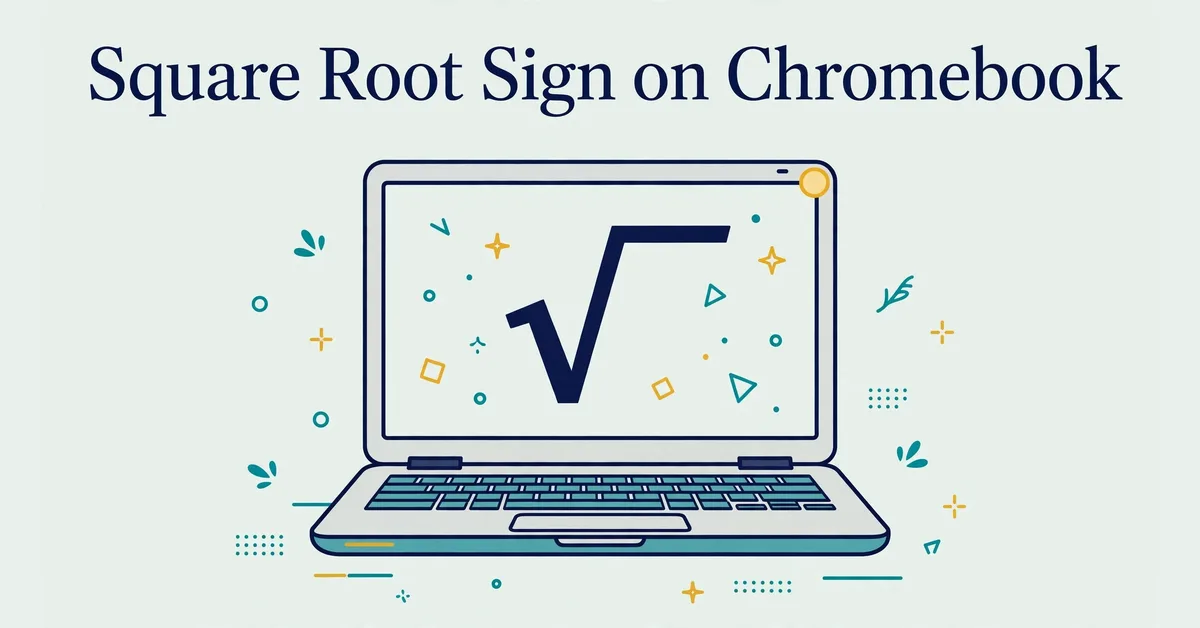
The square root sign on Chromebook is typed with a short Unicode shortcut that takes about two seconds once you know it. Chromebooks have no dedicated √ key, no numeric keypad and no Alt code system, so the Windows tricks you may have seen online do not apply here. Instead, ChromeOS gives you its own built in Unicode input: press Ctrl Shift U, type 221a, then press Enter or Space, and √ appears.
This guide covers that shortcut step by step, plus every backup that works on a Chromebook: copy and paste, Google Docs, Google Sheets, and the on-screen keyboard. It also fixes the two mistakes most rival guides repeat, and ends with troubleshooting for the cases where Ctrl Shift U refuses to work.
What Is the Square Root Sign on a Chromebook?
The square root sign, written √ and called the radical sign, means find the number that, multiplied by itself, gives the number under the bar. So √144 = 12, because 12 × 12 = 144. In Unicode the symbol is U+221A, the code ChromeOS uses to produce it.
A Chromebook keyboard differs in a few ways: no numeric keypad, no Windows key, and shortcut keys instead of function keys on the top row. None of this stops you typing √, because ChromeOS includes a Unicode input mode that works in most text fields, in the browser, in Google Docs and in many Android and Linux apps.
One warning saves time: several popular guides tell Chromebook owners to hold Alt and type 251 on a numeric keypad. That is a Windows Alt code, and it does not work on ChromeOS, which has no Alt code system and usually no numeric keypad at all. The methods below are the ones that actually work.
Type Square Root on Chromebook with Ctrl Shift U
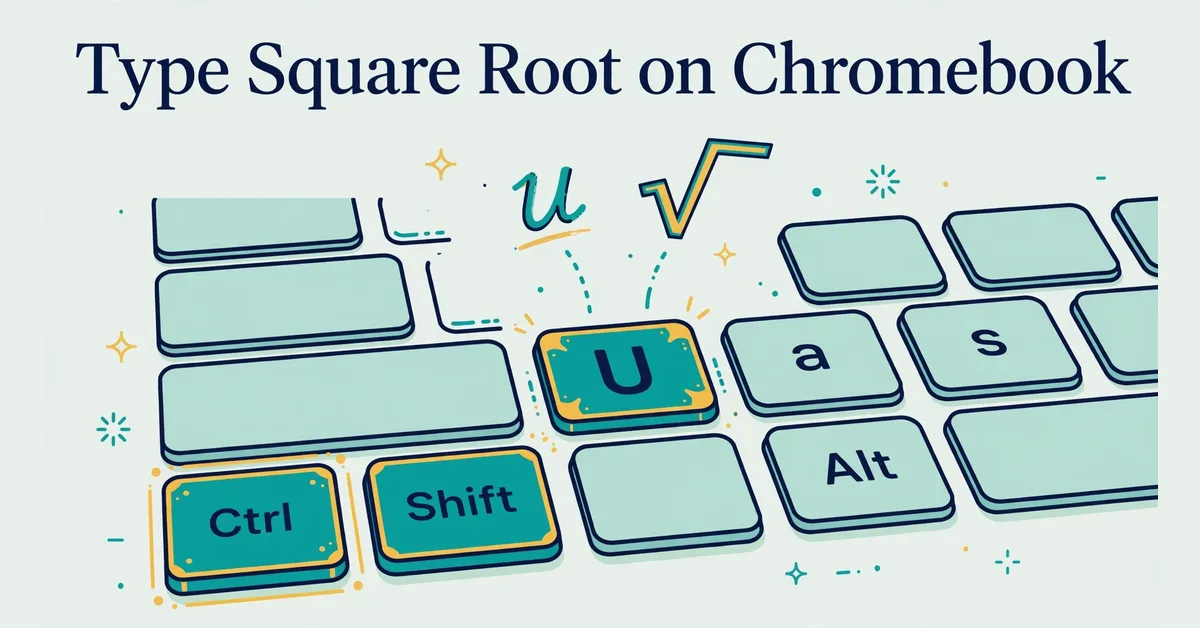
This is the fastest method, and the one to learn first. ChromeOS has a built in Unicode entry mode: press Ctrl Shift U, type the four digit hex code of the symbol, then press Enter or Space. For the square root sign the code is 221a, from U+221A.
Follow these steps exactly:
- Click into the text field where the symbol should go, in any app or web page.
- Press and release Ctrl Shift U together. Do not hold them down. A small underlined u appears where you are typing.
- Type 221a. The letters appear underlined next to the u. Lowercase works, and uppercase 221A works too.
- Press Enter or the Spacebar. The underlined text turns into √ at once.
The underlined u shows Unicode input mode is active. If you do not see it, click the text field again and retry, and remember the keys are a trigger, not a hold: press them, let go, then type the code.
| Step | Keys | What you should see |
|---|---|---|
| 1 | Click the text field | Cursor blinking in the field |
| 2 | Ctrl Shift U, then release | Underlined u appears |
| 3 | Type 221a | Underlined u221a |
| 4 | Enter or Space | √ appears |
This shortcut works system wide on ChromeOS: in the browser address bar, in text fields on websites, in Google Docs and in most Linux apps. A few apps block it, and the troubleshooting section below covers those.
Copy and Paste the Square Root Sign √
Copy and paste is the simplest backup, and it never fails because it skips the keyboard entirely. Select the symbol here, copy it, and paste it wherever you need it:
√
To copy it, drag across the √ above to highlight it, then press Ctrl C. Click where the symbol should go and press Ctrl V. If the pasted symbol arrives in a different font or size, paste again with Ctrl Shift V, which pastes plain text.
ChromeOS also keeps a clipboard history. Press Search V, or Launcher V on newer models, and a small panel shows your recent copies. Click the √ entry and it pastes at the cursor. Copy √ once at the start of a homework session, then pull it back from history each time you need it.
Keep a copy in a note you always have open, or bookmark our guide to copying the square root sign, where the symbol sits ready to copy in one click. Paste also works in apps where the shortcut does not, including web forms and Android apps that ignore Ctrl Shift U. Phones work differently, and our guide to the square root sign on iPhone covers the Apple route.
Square Root in Google Docs on Chromebook
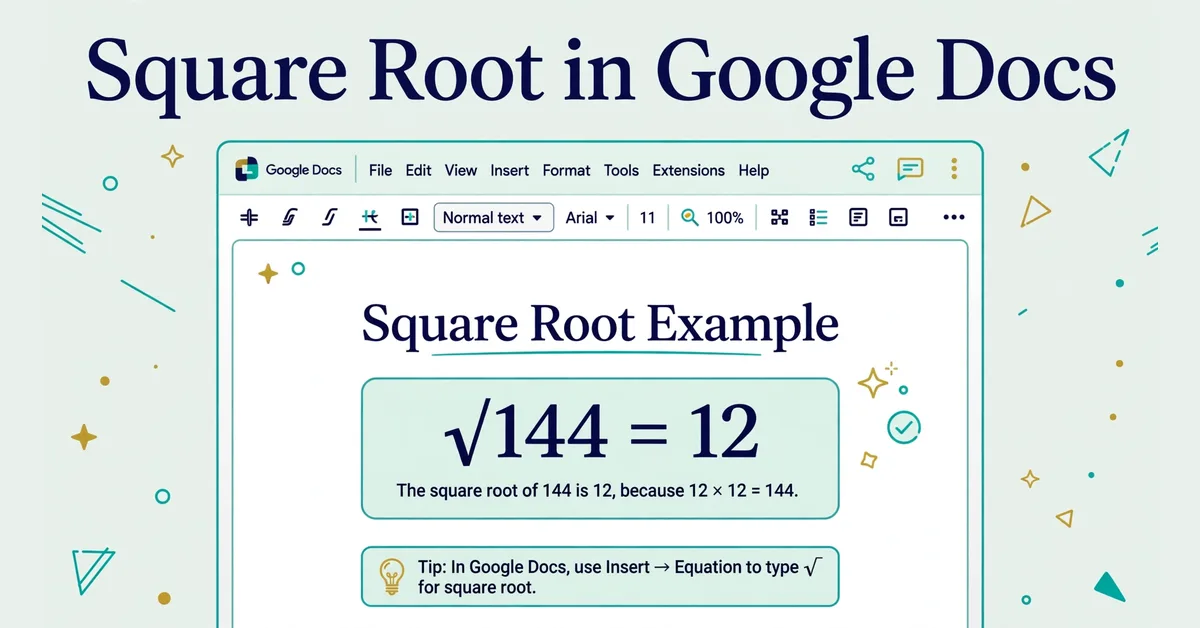
Google Docs is where most Chromebook owners need the square root sign. Docs gives you two routes: the special characters picker for a plain √, and the equation editor for a formatted root.
Insert a plain √ with Special Characters
For a quick √ inside a sentence, use the special characters picker:
- Click where the symbol should go in your document.
- Open Insert, then Symbols, then Special characters.
- In the search box, type square root. The √ symbol appears in the results.
- Click the √ symbol and it is inserted at the cursor.
- Close the picker and keep typing. The symbol behaves like an ordinary character, so you can type 144 right after it to write √144.
Build a proper equation with the Equation Editor
For homework that needs a real formatted root, with the number tucked under the √ bar, use the equation editor:
- Click where the equation should go.
- Open Insert, then Symbols, then Equation. An equation box appears with a toolbar.
- Type sqrt and press Space. The equation turns into a radical sign with a slot under the bar.
- Type your number, for example 144, into the slot.
- Click outside the equation box to finish. The result reads as a proper √144, formatted like a textbook.
You can also pick the radical from the Math operators menu instead of typing sqrt. Google’s own help page on using equations in a document lists the same steps.
Square Root in Google Sheets on Chromebook
Google Sheets needs two different things: the √ symbol as text in a cell, and the calculation of a square root. Sheets handles both, with different tools.
To calculate a square root, use the SQRT function. Click a cell and type =SQRT(144), then press Enter, and the cell shows 12. For a value already in another cell, point at it instead: if 144 sits in A1, type =SQRT(A1). Sheets gives the positive root, so =SQRT(144) is 12, never -12.
To type the √ symbol itself in a cell, double click the cell to edit it, press Ctrl Shift U, type 221a, then press Space to turn the code into √, then press Enter to confirm the cell. The Sheets guide at The Bricks notes the same sequence, and also gives the CHAR function as another route: =CHAR(8730) puts a √ in the cell, because 8730 is the decimal form of U+221A.
One Sheets habit catches people out: =SQRT(144) shows the answer, because Sheets treats it as a formula. For the text √144 instead, type the symbol first with Ctrl Shift U, then the digits, and never start with an equals sign.
Use the On-Screen Keyboard on a Chromebook
When a Chromebook is flipped into tablet mode, or the physical keyboard is not working, the on-screen keyboard takes over. It is off by default, so enable it first: open Settings, go to Accessibility, open Keyboard and text input, and turn on On-screen keyboard. A keyboard icon appears in the shelf; tap it to open the virtual keyboard. If the labels have moved, search Settings for “on-screen keyboard”.
One catch first: the standard on-screen keyboard hides the Ctrl key. To add it, open Settings, search for “input method”, open Inputs and keyboard, choose Manage input methods and tick US Extended keyboard. Then tap EXTD beside the space bar on the on-screen keyboard to switch to the extended layout, which shows the Ctrl key.
With the extended layout showing, tap into your text field, then tap Ctrl, Shift and U in the same order as the physical shortcut, then type 221a and tap Enter. If a key stays highlighted, tap it once more to release it. If the extended layout is too much trouble, copy and paste is the simpler tablet mode route.
Which Method Should You Use?
Five methods all produce the same √, so the best one depends on where you are working. Use this comparison to pick in seconds:
| Method | Best for | Speed | Needs |
|---|---|---|---|
| Ctrl Shift U, 221a, Enter | Any text field, anywhere | Fastest, about 2 seconds | Nothing extra |
| Copy and paste √ | Apps that block the shortcut | Fast, about 5 seconds | A copied √ to paste from |
| Docs Special characters | Quick √ inside a sentence | Medium, about 10 seconds | Google Docs open |
| Docs Equation editor | Formatted maths homework | Medium, about 15 seconds | Google Docs open |
| Sheets SQRT function | Calculating roots in a spreadsheet | Fast, about 5 seconds | Google Sheets open |
| On-screen keyboard | Tablet mode, broken keyboard | Slower, about 15 seconds | On-screen keyboard plus US Extended layout |
For everyday typing, learn Ctrl Shift U and keep copy and paste as the backup. For school work in Docs, the equation editor is worth the extra clicks. For spreadsheets, use =SQRT() instead of the symbol.
Worked Examples
Here are five roots typed the Chromebook way, with Ctrl Shift U and the code 221a. Each answer is checked by squaring it, a habit worth copying for homework.
| Root | How to type it | Answer | Check (answer × answer) |
|---|---|---|---|
| √25 | Ctrl Shift U, 221a, Enter, then 25 | 5 | 5 × 5 = 25 |
| √81 | Ctrl Shift U, 221a, Enter, then 81 | 9 | 9 × 9 = 81 |
| √144 | Ctrl Shift U, 221a, Enter, then 144 | 12 | 12 × 12 = 144 |
| √2 | Ctrl Shift U, 221a, Enter, then 2 | 1.414 (to 3 decimal places) | 1.414 × 1.414 ≈ 2 |
| √0.25 | Ctrl Shift U, 221a, Enter, then 0.25 | 0.5 | 0.5 × 0.5 = 0.25 |
The last row shows the root of a number smaller than 1 is bigger than the number itself, so √0.25 = 0.5 is correct. If a result surprises you, square it.
What Other Guides Get Wrong
Two mistakes appear again and again in rival Chromebook guides, and both waste your time. Knowing them also tells you which guides to trust.
Alt 251 is not a Chromebook shortcut. One well ranked guide tells Dell Chromebook owners to hold Alt and type 251 on a numeric keypad. That is the Windows Alt code for √, and it has no meaning on ChromeOS: Chromebooks do not process Alt codes, and most have no numeric keypad to type 251 on. The same guide then offers the on-screen numeric keypad as a workaround, which does not fix the problem, because the missing piece is the Alt code system itself. If a guide leads with Alt 251 for a Chromebook, stop reading it.
Google Docs does not auto-format a pasted √ into an equation. Another guide claims that typing a number after a pasted √ makes Docs format it into a proper root automatically. It does not. A pasted √ stays a plain character on the text line, and the digits after it stay ordinary digits. A formatted root only comes from the equation editor. Pasted symbols are fine for quick mentions, but they are not equations.
A smaller slip is the claim that Ctrl Shift U works in every field. Some web apps and Android apps swallow it or use it for their own command. The fix is copy and paste. Our guide on how to type the square root sign covers the same shortcut on Windows, Mac and phones.
Troubleshooting
Ctrl Shift U does nothing, and no underlined u appears. First, click the text field again, because the shortcut only works where the cursor is blinking. Second, check Caps Lock: press Alt Search to turn it off and retry. Third, check your keyboard layout in Settings under Languages and input: the shortcut expects a US layout. If the field is in an Android app, try the Chrome browser first, to see whether the problem is the app.
An underlined u appears, but typing 221a gives letters, not √. You pressed Enter or Space too early, or a key that closed Unicode mode before the code was complete. Start again, type all four characters 221a without pressing anything else, then press Enter once. Check you typed the digit 1, not the letter l: the code is 2, 2, 1, a.
The symbol appears as a box, a question mark or a blank space. The app or font cannot display U+221A, which happens in a few older Android apps and web forms. Paste √ from a Google Doc instead, or switch to Docs or the Chrome browser. The character is fine; the display font is the problem.
The shortcut works in Chrome but not in my school app. School managed Chromebooks sometimes restrict input methods, and some classroom apps capture Ctrl Shift U. Copy and paste is the workaround: keep √ in a note, copy it once, and paste it into the school app.
Conclusion
The square root sign on Chromebook is typed with Ctrl Shift U, then 221a, then Enter or Space, a two second shortcut built into ChromeOS that works in most text fields, in the browser and in Google Docs. Copy and paste is the backup that never fails, with clipboard history keeping √ one tap away. In Google Docs, the special characters picker gives a quick plain √, while the equation editor with the sqrt shortcut builds a properly formatted root for homework. In Google Sheets, the SQRT function does the calculating, and Ctrl Shift U or CHAR(8730) supplies the symbol itself. The on-screen keyboard covers tablet mode once the US Extended layout adds the Ctrl key. Ignore any guide that offers Alt 251, a Windows code with no meaning on ChromeOS, and when the shortcut refuses to work, check Caps Lock and the app before falling back to paste.
Frequently Asked Questions
How do you type the square root symbol on a Chromebook?
Click into a text field, press and release Ctrl Shift U, type 221a, then press Enter or Space. ChromeOS turns the code into √. The symbol is Unicode U+221A, so the same code works in the browser, in Google Docs and in most apps.
What is the Unicode code for the square root sign?
The square root sign √ is Unicode U+221A, which is decimal 8730. On a Chromebook you type the hex code 221a after Ctrl Shift U. In Google Sheets you can also use =CHAR(8730) to put the symbol in a cell.
Why does Ctrl Shift U not work on my Chromebook?
Usually because the text field is not focused, Caps Lock is on, the keyboard layout is not US, or the app blocks Unicode input. Click the field first, turn Caps Lock off with Alt Search, and retry. If the app still blocks it, copy √ and paste it instead.
How do I insert a square root in Google Docs on a Chromebook?
For a plain √, open Insert, Symbols, Special characters, search “square root” and click the symbol. For a formatted root, open Insert, Symbols, Equation, type sqrt and press Space, then type the number under the bar. The equation route is best for homework.
How do I calculate a square root in Google Sheets on a Chromebook?
Use the SQRT function: type =SQRT(144) in a cell and press Enter to get 12. To show the √ symbol itself, use Ctrl Shift U, type 221a and press Space, or use =CHAR(8730). Do not start with an equals sign when you only want the symbol as text.
Can I copy and paste the square root sign on a Chromebook?
Yes. Select √, press Ctrl C, then press Ctrl V where it should go. Use Ctrl Shift V to paste it without the original formatting. ChromeOS clipboard history, opened with Search V, keeps a copied √ available for the rest of your session.
Is there a square root key on a Chromebook keyboard?
No. Chromebook keyboards have no dedicated square root key and no numeric keypad. The symbol is typed with Ctrl Shift U, then 221a, then Enter, or copied and pasted, or picked from the Google Docs special characters menu.
How do I type a square root on a Chromebook in tablet mode?
Enable the on-screen keyboard in Settings, Accessibility, Keyboard and text input. The standard on-screen keyboard hides the Ctrl key, so first enable the US Extended keyboard under Inputs and keyboard in Settings, then tap EXTD on the virtual keyboard to show Ctrl. Then tap Ctrl, Shift and U, type 221a and tap Enter. Tablet mode opens the on-screen keyboard automatically when you tap a text field.
What is the Alt code for the square root sign on a Chromebook?
There is none. Alt codes such as Alt 251 are a Windows system, and ChromeOS does not process them. On a Chromebook use Ctrl Shift U, then 221a, then Enter, which is the ChromeOS Unicode input method for the same U+221A symbol.
How do I type a cube root on a Chromebook?
Type the cube root sign ∛ with the same Unicode method: press Ctrl Shift U, type 221b, then press Enter. In Google Docs, use the equation editor and pick the indexed root from the Math operators menu, which lets you put a small 3 in the root index.

Jack Harrison is a contributor at Square Root Signs, sharing creative ideas, useful information, and engaging content to help readers discover something valuable with every visit.