Square Root Sign on Calculator: Where It Is and How to Use It
The square root sign on calculator keyboards is the √ key, and on most scientific models it sits near the x² key in the top function rows. On a Casio it is a key of its own, printed as √ with a small box beside it. On a TI-84 it hides above the x² key, so you reach it by pressing 2nd first.
What catches people out is the order of the keys. Some calculators want the √ key first and the number second, while others want the number first and the √ key after it. This guide walks through the two orders on Casio, Texas Instruments, phone, Windows, Mac and online calculators, with worked examples and fixes.
Where Is the Square Root Sign on a Calculator?
On a scientific calculator, look in the upper half of the keypad, among the function keys rather than the number keys. The square root sign on calculator models from Casio, Texas Instruments, Sharp and Canon almost always sits near the x² key, because squaring and square rooting are opposite operations. On many Casio models the √ key is printed directly on a key. On TI graphing calculators it is printed above the x² key in the colour of the 2nd key, which means it is a second function.
Second functions are the extra labels printed above the main keys. Casio calls its second function key SHIFT, Texas Instruments calls it 2nd, and other brands use 2ndF. Pressing that key once makes the next key press use its upper label instead, so if √ is printed above a key, press SHIFT or 2nd first, then that key. Basic calculators often have a √ key too, in the top row near % and division. If you need the √ symbol itself for a document rather than a calculation, our guide to copying the square root sign gives you the symbol in one click.
Calculators split into two families by input order:
- Function first: press √, then type the number, then press = or ENTER. Modern Casio models, the TI-84 and most phone apps work this way.
- Number first: type the number, then press √, and the answer appears at once. Basic calculators and the Windows and Mac calculator apps work this way.
Neither order is better; you only need to know which family your calculator belongs to, and the sections below name the order for each model.
Casio Calculators: The fx-991 Way
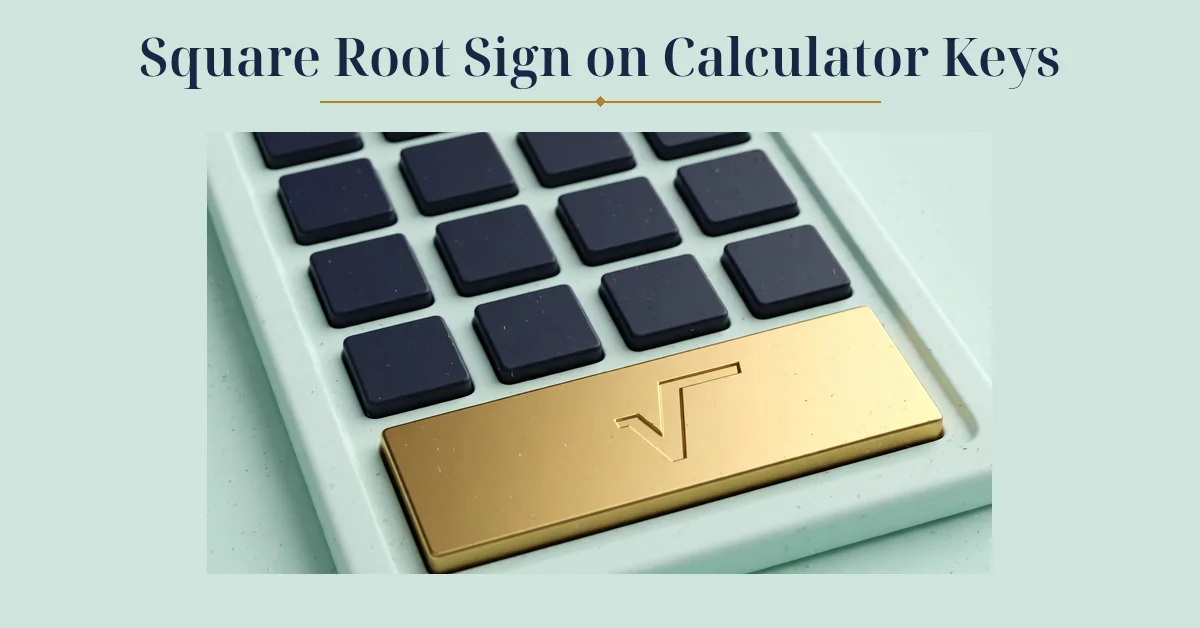
Casio makes the most common classroom scientific calculators, and the fx-991 series (fx-991ES Plus, fx-991EX ClassWiz and the newer fx-991CW) all follow the same pattern. The square root sign on calculator models from Casio is a dedicated key printed as √■, in the function keys above the number pad. The small box is a clue to how it works: the key opens a template, and your number goes inside the box, under the bar of the √ sign.
Casio uses the function first order:
- Press the √ key. A √ symbol with an empty box appears on screen.
- Type your number inside the box, for example 144.
- Press the right cursor key to step out of the box if you want to continue the calculation, or simply press =.
- The display shows 12.
So √144 = 12, entered as √, then 144, then =. The official Casio fx-991EX Quick Start Guide shows the same radical entry, and notes that the bar of the √ stretches automatically as you type longer numbers or expressions. You can even put a whole expression under the bar, such as √(25 + 119), and the calculator works out the inside first.
One Casio habit surprises new users. In the default MathI/MathO setup, the fx-991 gives exact answers in radical form when the result is not a whole number. Enter √72 and the screen shows 6√2, not a decimal. Press the S⇔D key, just above DEL, to switch the same answer to its decimal form, 8.485281374, and press S⇔D again to switch back.
The cheaper fx-82 and fx-85 lines are function first too, just without the box: press √, type the number, then press =. Only basic desk and pocket calculators with a plain √ key are number first. If pressing √ shows a template or a √ symbol on the entry line, your model is function first.
Texas Instruments TI-84: The 2nd + x² Method
The TI-84 Plus family, the calculator most US high school students carry, has no separate √ key. The square root sign on calculator models from Texas Instruments is printed in blue above the x² key, on the left side of the keypad. Blue labels are second functions, reached with the blue 2nd key in the top left corner.
The TI-84 uses the function first order:
- Press 2nd, then x². The screen shows √( with the cursor waiting inside the brackets.
- Type your number, for example 144.
- Type the closing bracket ) to finish the entry.
- Press ENTER. The display shows 12.
In MathPrint mode the entry looks like a textbook square root, with the number under a proper √ bar, and you use the right arrow key to move out of the root before typing anything after it. Texas Instruments covers roots in its own TI-84 knowledge base article on powers and roots, which also explains the general root command described below.
One TI-84 detail is worth knowing: the calculator always shows the positive root, so √144 gives 12, never -12. If a question asks for both roots of an equation, write the negative one yourself.
Other Scientific Calculators
Sharp, Canon, HP and own brand scientific calculators all place the square root sign in the same neighbourhood, near x², and follow one of the two input orders above. A few general rules will get you through almost any model:
- Find x² first. The √ function is either the same key’s second function or the key right beside it. On Sharp models it is often the second function of the x² key, reached with 2ndF.
- Read the colour. If √ is printed in the same colour as the SHIFT or 2nd key label, you must press that key first.
- Test with 144. Try one order with a number whose root you know. If √144 shows 12, you have the right order. If the display errors, clear it and try the other order.
- Watch for a template. A √ with a box or an opening bracket on screen means function first. A blank screen waiting for input usually means number first.
- HP calculators with RPN entry are number first by design: key in the number, then press the √x key, with no equals key needed. Desk and printing calculators with a √ key work the same way.
Square Root on Phone Calculators
Phone calculator apps hide the square root sign until you switch them into scientific mode, which is why so many people think their phone cannot do roots at all.
On an iPhone, open the Calculator app and turn the phone sideways into landscape. As long as Rotation Lock is off, the keypad expands into a scientific calculator with a √x key in the left hand block of function keys. The iPhone works number first: type the number, then tap √x. Our dedicated guide to the square root sign on iPhone covers the scientific layout in detail, including the cube root key in the same row as √x.
On Android, open the Calculator app and tap the small arrow or dots icon to expand the scientific panel (on some phones turning the phone sideways does the same). The √ key appears in the scientific rows. Google’s calculator is function first: tap √, type the number, then tap =. Samsung’s calculator behaves in a similar way once the panel is open. Our step by step guide to the square root sign on Android walks through both brands.
Windows and Mac Calculator
The calculator apps built into Windows and macOS both include a square root sign, but only in their scientific modes.
In the Windows Calculator (Windows 10 and 11), click the menu button in the top left and choose Scientific. The keypad grows extra rows, and the square root button, labelled √x, sits in the function area above the number keys. Windows is number first: type your number, for example 144, then click √x, and 12 appears. There is also a keyboard route: with the app in scientific mode, type the number and press the @ key to apply the square root at once.
In the Mac Calculator, choose View, then Scientific from the menu bar (or press Command+2). The window widens to show the scientific keys, including a √ key with a ∛ cube root key beside it. The Mac is also number first: type the number, click √, and read the result. A 2nd button on the left swaps several other keys to their alternate forms, such as the inverse trig functions.
Both desktop apps accept pasted numbers, so you can paste a figure straight in, press √, and copy the answer back. If you need the symbol itself in a document rather than the answer, our guide on how to type the square root sign covers the keyboard shortcuts for Windows, Mac and phones.
Google and Online Calculators
The fastest square root sign on calculator duty often needs no calculator at all. Type sqrt(144) or square root of 144 into Google search and the answer, 12, appears in Google’s own calculator card at the top of the results, with a full keypad under it for follow-up calculations.
Dedicated online calculators work the same simple way: type the number into the box, press the √ button or the calculate button, and read the root, often with the working shown underneath. They are handy on a borrowed computer, and most handle decimals and very large numbers without complaint. One caution: some round to a few decimal places, so check how many digits the tool shows before trusting the last figure.
Worked Examples
Here are five roots worked the calculator way. The key steps use the Casio function first order; on a number first calculator, type the number before the √ key and the answers are the same. Each answer is checked by squaring it, a habit worth copying for exams.
| Problem | Keys to press | Answer | Check (answer × answer) |
|---|---|---|---|
| √49 | √, 4, 9, = | 7 | 7 × 7 = 49 |
| √81 | √, 8, 1, = | 9 | 9 × 9 = 81 |
| √144 | √, 1, 4, 4, = | 12 | 12 × 12 = 144 |
| √2 | √, 2, = | 1.414 (to 3 decimal places) | 1.414 × 1.414 ≈ 2 |
| √0.25 | √, 0, ., 2, 5, = | 0.5 | 0.5 × 0.5 = 0.25 |
Notice the last two rows. A root can be a decimal, and the root of a number smaller than 1 is bigger than the number itself. Neither of those is an error.
Square Root vs Square and Cube Root
Three keys cause most of the confusion on a scientific keypad, so it helps to separate them clearly.
Squaring uses the x² key and is number first everywhere: type 12, press x², and you get 144. Square rooting is the exact opposite journey, from 144 back to 12. If you press x² when you meant √, your answer grows instead of shrinking, which is the quickest way to spot the mistake.
Cube root, written ∛, asks which number multiplied by itself three times gives the target, so ∛27 = 3 because 3 × 3 × 3 = 27. On a Casio fx-991 the cube root is the SHIFT function of the √ key: press SHIFT, then √, and a ∛ template appears. On a TI-84 it lives in the MATH menu as option 4, and option 5 gives the general x√ command for fourth roots and beyond: type the root number first, then MATH 5, then the number. On phone and desktop apps, cube root usually hides behind a 2nd button or a functions row, labelled ∛x or x√y.
Troubleshooting
My calculator shows ERROR when I take a square root. Almost always, the number under the root is negative. Real square roots of negative numbers do not exist, so a Casio shows Math ERROR and a TI-84 in Real mode shows ERR:NONREAL ANS. Check for a stray minus sign and check your brackets: √(9 – 16) errors, while √9 – 16 is fine. On a TI-84, switching MODE to a+bi gives an imaginary result instead, such as 2i for √(-4).
My Casio shows the answer as 6√2 instead of a decimal. That is the exact form, and it is a feature, not a fault. Press S⇔D to toggle to the decimal. To make decimals the default, change the setup: SHIFT, then MENU (SETUP), then Input/Output, then choose MathI/DecimalO.
The root of a decimal looks wrong. It usually is not. √0.25 = 0.5, because 0.5 × 0.5 = 0.25. Roots of numbers between 0 and 1 are always larger than the starting number. Square the answer to check it whenever a result surprises you.
I pressed √ and nothing happened. Your calculator is probably number first: clear the display, type the number, then press √. If √ is a second function, remember the SHIFT or 2nd press before it.
My answer has too few decimal places. Scientific calculators show up to 10 digits, and the full value is kept internally even when the display rounds. Rounding to 2 or 3 decimal places is all most homework asks.
Conclusion
The square root sign on calculator keypads is always the √ symbol, found near the x² key on scientific models, as a key of its own on Casio calculators, and as the 2nd function of x² on the TI-84. The one skill that matters is the input order: function first on modern Casio, TI and Google calculators, number first on basic models, Windows and Mac. Phone apps reveal the √ key in scientific mode, in landscape on iPhone and through the expandable panel on Android. When an answer looks odd, square it to check, and remember that an exact form such as 6√2 on a Casio is the same answer as its decimal, one S⇔D press away.
Frequently Asked Questions
Where is the square root sign on a calculator?
On a scientific calculator it sits in the function keys near the x² key. Casio models give it a key of its own printed √■, while on the TI-84 it is the blue second function above the x² key, reached by pressing 2nd then x².
Do you press the square root key before or after the number?
It depends on the model. Modern Casio calculators, the TI-84 and Google’s calculator are function first: press √, type the number, then press = or ENTER. Basic calculators, plus the Windows and Mac apps, are number first: type the number, then press √. Test yours with √144, which should give 12.
How do you do a square root on a Casio calculator?
On an fx-991, press the √ key, type the number inside the box that appears, then press =. For √144, press √, then 144, then =, and the display shows 12. If the answer appears in exact form, such as 6√2, press the S⇔D key to see the decimal version.
How do you find the square root on a TI-84?
Press 2nd, then the x² key, which puts √( on screen. Type the number, close the bracket, and press ENTER. For example, 2nd, x², 144, ), ENTER gives 12. The square root symbol is printed in blue above the x² key because it is a second function.
Why does my calculator show an error for a square root?
Usually because the number under the root is negative. Square roots of negative numbers are not real numbers, so a Casio shows Math ERROR and a TI-84 in Real mode shows ERR:NONREAL ANS. Check for a misplaced minus sign or brackets that put a negative value inside the root.
How do you get a square root on a phone calculator?
Switch the app to scientific mode first. On an iPhone, turn the phone sideways with Rotation Lock off and the √x key appears. On Android, expand the scientific panel with the arrow icon and tap √. The √ key is never shown in the basic portrait layout.
How do I do a square root on the Windows calculator?
Open the menu in the top left of the Windows Calculator app and choose Scientific mode. Type your number, then click the √x button in the function area, and the root replaces the number on screen. The Windows calculator is number first, so the √x click comes after typing.
What does the √ symbol on a calculator mean?
The √ symbol is called the radical sign, and it means: find the number that, multiplied by itself, gives the number under the bar. So √144 = 12 because 12 × 12 = 144. Calculators always show the positive root, even though -12 also squares to 144.
How do you do a cube root on a calculator?
On a Casio fx-991, press SHIFT then the √ key to open the cube root template, type the number, and press =. On a TI-84, open the MATH menu and choose option 4. For fourth roots and higher, the TI-84 uses MATH option 5, the general root command.
Why does my Casio show answers like 6√2 instead of a decimal?
Because the default MathI/MathO setup gives exact answers, and 6√2 is the exact form of √72. Press the S⇔D key, just above DEL, to switch the display to the decimal 8.485281374, and press it again to switch back.

Jack Harrison is a contributor at Square Root Signs, sharing creative ideas, useful information, and engaging content to help readers discover something valuable with every visit.