Square Root Sign on Android: How to Type √ on Your Phone
The quickest way to get the square root sign on Android is to copy it from right here: √. Or type it yourself from the keyboard. On Gboard, tap ?123, then tap =<, and tap √ on the math symbols page that opens, among π, ÷ and ×.
This guide walks through every working method for the square root sign on Android: the Gboard steps, Samsung Keyboard, SwiftKey, simple copy and paste, Google Sheets formulas, the calculator app, and a personal dictionary shortcut that types √ whenever you enter one short word. Choose the method that fits your phone and the symbol will never slow you down again.
Copy and Paste the Square Root Sign
Copy and paste is the fastest method of all, and it works in every app, because √ is a normal text character, not an image or a font trick.
√
How to copy it: long-press the √ above until the selection handles appear, tap Copy, then go to your app, long-press the text field and tap Paste. The symbol pastes as plain text, so it works in WhatsApp, Gmail, Notes, Google Docs and everywhere else you can type.
Handy tip: if you paste √ often, pin it. Copy the symbol, open Gboard, tap the Clipboard icon above the keys, long-press the √ entry and tap Pin. It then stays in your clipboard permanently, one tap away. Our square root sign copy page also keeps the symbol ready in your browser.
While you are here, the related symbols below are the ones people usually need alongside √ in homework, messages and spreadsheets. Every one of them can be copied from this table in exactly the same way.
| Symbol | Name | Unicode |
|---|---|---|
| √ | Square root | U+221A |
| ∛ | Cube root | U+221B |
| ∜ | Fourth root | U+221C |
| ² | Squared | U+00B2 |
| ³ | Cubed | U+00B3 |
| ± | Plus-minus | U+00B1 |
| ÷ | Divide | U+00F7 |
| × | Multiply | U+00D7 |
| π | Pi | U+03C0 |
| ∞ | Infinity | U+221E |
How to Type the Square Root Sign on Gboard
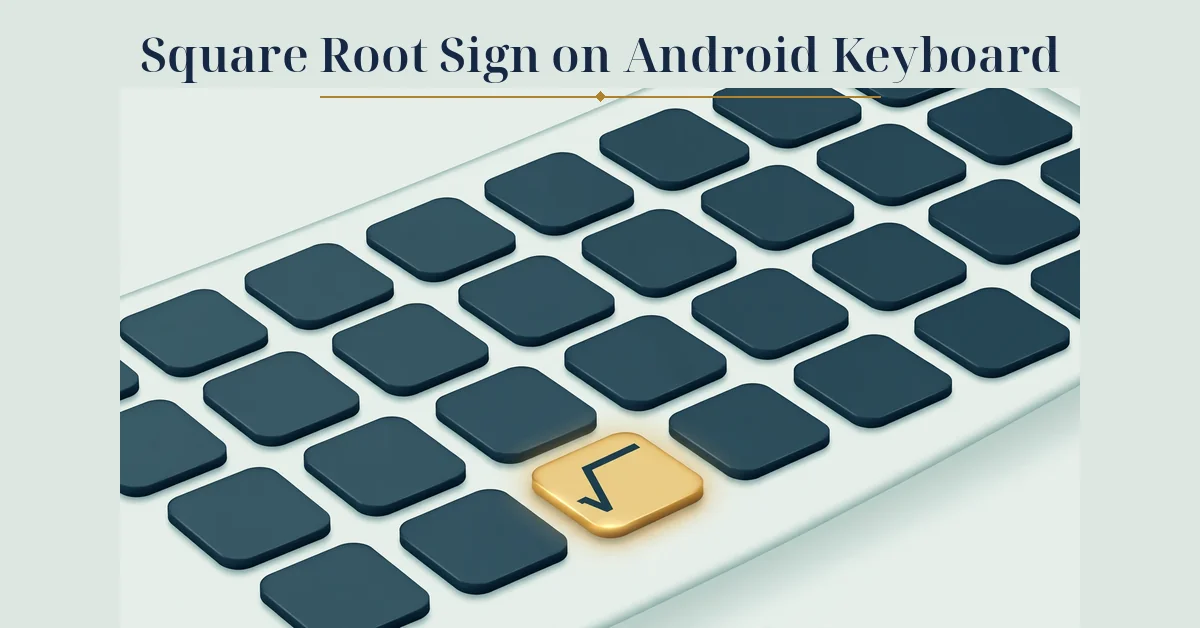
Gboard is Google’s keyboard. It comes built into Pixel phones and many others, and millions more people install it from the Play Store. It is the easiest Android keyboard for maths, because the √ symbol is already built in. Nothing needs to be installed or switched on first.
- Open any app where you can type, such as Messages, WhatsApp or Notes, and tap a text field so Gboard appears.
- Tap ?123 in the bottom left corner. The keyboard switches to numbers and symbols.
- Tap =<, the key in the bottom left of that page. This opens the second symbols page, the math page.
- Tap √. You will find it in the same grid as π, ÷, × and ∞.
- Tap ABC to return to letters and carry on typing.
The key labels can look slightly different depending on your Gboard version and language, but the route never changes: ?123 first, then the second symbols page. A faster variation once you know the layout: touch and hold ?123, slide your finger to the symbol you want, and release. Gboard types the symbol and jumps back to letters by itself.
Two neighbours worth knowing on the numbers page: long-press 2 to get ² (squared) and long-press 3 to get ³ (cubed). Between those keys and the math page, Gboard covers almost every symbol a school or office task will ask for. If you also type on a computer, our full guide on how to type the square root sign covers Windows, Mac, Word and Excel as well.
How to Type √ on Samsung Keyboard
Every Galaxy phone ships with Samsung Keyboard, and its symbols are arranged a little differently from Gboard’s. The route to √ is:
- Open any text field so Samsung Keyboard appears.
- Tap the !#1 key in the bottom left (on some versions it is labelled ?123) to open numbers and symbols.
- Tap 1/2 (labelled =< on some versions) to move to the second symbols page.
- Look through the math operators on that page and tap √.
Now the honest part, because it will save you time: Samsung changes this layout between One UI versions, and on some Samsung Keyboard versions √ is missing from both symbol pages. Samsung’s own support community has long threads from Galaxy owners asking where the square root symbol went. If you have checked both pages and long-pressed the nearby math keys and √ is simply not there, stop hunting. Use the Samsung text shortcut described further down this page, pin √ in the Samsung clipboard, or switch to Gboard just for maths. Gboard is free, and you can swap keyboards in seconds with the keyboard icon on the navigation bar, then swap back.
Other Android Keyboards
Microsoft SwiftKey follows the same pattern. Tap 123 (labelled {&= on some layouts) to open numbers and symbols, then check the second symbols page. SwiftKey’s math set is smaller than Gboard’s and √ is not present on every SwiftKey layout, so if it is missing, copy and paste works exactly the same, and you can pin √ in SwiftKey’s own clipboard for next time.
The pattern is worth remembering because it applies to nearly every Android keyboard: one key opens numbers and symbols, and a second key or page holds the rest of the symbols. Long-pressing a key often reveals extra characters hiding behind it. If a keyboard truly has no √ anywhere, a dedicated math keyboard app from the Play Store adds a full symbol row, but for most people copy and paste is the simpler fix.
Square Root in Google Sheets and Docs on Android
In the Google Sheets app, formulas do the work, and there are two different jobs to keep separate: working out a root, and showing the √ symbol.
To calculate a square root: tap a cell, type =SQRT(49) and tap the tick. The cell shows 7. Use =SQRT(A1) and the formula takes whatever number sits in cell A1, so the answer updates itself whenever that number changes.
To show the symbol itself: type =UNICHAR(8730) in a cell and it displays √. Join it to a number with the & symbol, for example =UNICHAR(8730)&49 shows √49 as a neat label. Just remember that cell is text for display; it does not calculate anything. Sheets has no Insert Symbol menu on a phone or a computer, so the formula route and copy and paste are the two ways in.
In the Google Docs app on Android there is no special characters picker either, so type √ with the Gboard steps above or paste it straight into the document. The picker does exist on a computer: Insert, then Symbols, then Special characters, where you can search for the symbol or enter its Unicode value. Google’s own help page on inserting special characters in Google Docs walks through that desktop route.
Square Root on the Android Calculator
Sometimes you do not want to type √ at all. You want the answer. The built-in Calculator app has a real square root button, hidden in its scientific panel.
- Open the Calculator app.
- In Google’s Calculator, tap the expand control, the small downward arrow above the number pad, to open the scientific panel. On many phones, turning the phone sideways into landscape reveals the full scientific layout instead.
- Tap √.
- Type your number, then tap =. The app writes it as √(49) and shows 7.
Samsung Calculator works the same way: open its scientific panel with the expand or rotate icon, then tap √. The difference from the keyboard methods is simple. The keyboard only types the symbol; the calculator works out the value. Use whichever one your task actually needs.
Make a Text Replacement Shortcut for √
If you type √ every day, in homework chats, teaching notes or work messages, set up a shortcut once and never open the symbols page again. Android’s version of this trick lives in the keyboard’s personal dictionary.
On Gboard:
- Copy √ from the top of this page.
- Open any text field, then open Gboard settings from the gear icon above the keys. You can also go through Settings, then System, then Languages and input, then On-screen keyboard, then Gboard.
- Tap Dictionary, then Personal dictionary.
- Choose your language, or All languages.
- Tap the + button. Paste √ in the word field, and type a shortcut you will remember, such as sqrt, in the shortcut field.
- Back out of settings. From now on, typing sqrt offers √ in the suggestion strip. Tap it and keep writing.
On Samsung Keyboard: go to Settings, then General management, then Samsung Keyboard settings, then Text shortcuts. Add a shortcut such as sqrt with √ as the expanded phrase. When you type the shortcut, pick √ from the prediction bar above the keys.
This is the Android twin of a trick iPhone users rely on, because the iOS keyboard has no √ key at all. Our guide to the square root sign on iPhone shows the same idea working over there.
Unicode and Code for the Square Root Sign
Every character on your phone has a Unicode identity, and √ is no exception. These are its official details:
| Detail | Value |
|---|---|
| Unicode name | SQUARE ROOT |
| Code point | U+221A |
| Decimal number | 8730 |
| HTML code | √ |
| HTML entity | √ |
| Unicode block | Mathematical Operators |
Android is built on Unicode, which is exactly why one copied √ works in every app on the phone: they are all reading the same character, U+221A. It is also why =UNICHAR(8730) works in Google Sheets: 8730 is simply the decimal form of the same code.
One warning so you do not waste time: typing the code U+221A into a normal Android keyboard does not turn it into √. That code conversion trick belongs to desktop programs such as Word. On Android, the symbols page, a personal dictionary shortcut, or copy and paste are the ways in.
Square Root Sign vs Check Mark
These two get mixed up constantly, so here is the difference in one place. The square root sign √ is Unicode U+221A, a math operator. The check mark ✓ is Unicode U+2713, a tick used for to-do lists, forms and correct answers. They are completely different characters that happen to look like cousins.
Look closely and you can tell them apart. √ has a small hook on its left side, then a long stroke that rises to the right; in printed maths, a horizontal bar called the vinculum runs from the top of that stroke over the number underneath. ✓ is just a tick: a short downward stroke and a longer upward stroke, with no hook and no bar.
Why it matters: type ✓25 in homework, a message or a spreadsheet and people, search tools and screen readers all treat it as a ticked 25, not the square root of 25. In handwriting the two blur together, which is fair enough. On a phone you can pick the correct character every time, so pick √ for maths and keep ✓ for your lists.
Android vs iPhone: Quick Comparison
| Android (Gboard) | iPhone | |
|---|---|---|
| Built-in √ key | Yes, on the =< math symbols page | No, the iOS keyboard has no √ anywhere |
| Fastest one-off method | Tap ?123, then =<, then √ | Copy and paste |
| Saved shortcut feature | Personal dictionary in Gboard | Text Replacement in Settings |
| Calculator √ | Scientific panel in the Calculator app | Rotate to landscape for the scientific view |
Android wins this round comfortably. A Gboard user can type √ without leaving the keyboard, while an iPhone user must copy the symbol or set up a replacement first. If friends or family ask how it works on their side, send them our square root sign on iPhone guide.
Troubleshooting
The symbols page does not show √. You are probably still on the first symbols page. From the letters, tap ?123 first, then =< to reach the second page. Key labels vary a little by language and keyboard version, so look for the page that holds π and ÷. That is the math page, and √ lives there.
Samsung Keyboard shows no √ anywhere. This is a known gap on some Samsung Keyboard versions, covered in the Samsung section above. Use a Samsung text shortcut, pin √ in the Samsung clipboard, or install Gboard and switch to it when you need maths symbols.
The symbol pastes as an empty box in one app. That app’s font is missing the character’s drawing. The character itself is fine. Paste √ into a different app to prove it, and if the first app has its own equation editor, use that instead.
Gboard itself is misbehaving. Restart the phone and update Gboard from the Play Store first. Google lists further fixes, including clearing the app’s cache, in its help page on fixing problems with Gboard.
An old app still will not show it. √ has been part of Unicode since the early 1990s, so support is almost universal and this is rare. Where an old app still fails, do the work in Google Sheets with =SQRT, or copy the symbol from a browser tab, which almost always gets through.
Conclusion
Typing the square root sign on Android takes seconds once you know where it hides. Gboard keeps √ on its math symbols page, reached with ?123 and then =<. Samsung Keyboard users should check the second symbols page, and where Samsung leaves the symbol out, a text shortcut, a pinned clipboard entry or a quick switch to Gboard fills the gap. Copy and paste covers every one-off case, =SQRT and =UNICHAR handle Google Sheets, and the Calculator app works out the value itself. Set up the personal dictionary shortcut today, and the square root sign on Android will always be one short word away.
Frequently Asked Questions
How do I type the square root sign on Android?
Open your keyboard, tap ?123 to reach numbers and symbols, then tap =< to open the math symbols page and tap √. That is the route on Gboard, the standard keyboard on most Android phones. If you only need the symbol once, copying √ from this page and pasting it is even faster.
Does Gboard have a square root symbol?
Yes. Gboard includes √ on its second symbols page. Tap ?123, then tap =<, and you will find √ in the same grid as π, ÷, × and ∞. It is built into Gboard, so there is nothing to install or turn on in settings first.
How do I type √ on a Samsung phone?
With Samsung Keyboard, tap !#1 to open numbers and symbols, then tap 1/2 for the second symbols page and look for √ among the math operators. Some Samsung Keyboard versions leave √ out completely. On those phones, add a Samsung text shortcut for √, pin it in the clipboard, or switch to Gboard.
How do I do square root in Google Sheets on Android?
Tap a cell and type =SQRT(49) to get the answer 7, or =SQRT(A1) to take the root of the number in cell A1. If you only want to show the symbol itself, type =UNICHAR(8730) and the cell displays √. Sheets has no symbol picker, so the formula is the built-in way.
What is the Unicode code for the square root sign?
The square root sign is Unicode U+221A, official name SQUARE ROOT, in the Mathematical Operators block. Its decimal number is 8730, which is why =UNICHAR(8730) works in Google Sheets. In HTML it is written as √ or with the entity √.
Can I copy and paste √ on Android?
Yes, and it works in every app. Long-press the √ on this page, tap Copy, then long-press any text field and tap Paste. Because √ is a single Unicode character (U+221A), it pastes as normal text into messages, emails, documents and spreadsheets.
How do I make a shortcut for the √ symbol?
On Gboard, open Settings, then Dictionary, then Personal dictionary, tap +, paste √ as the word and type a shortcut such as sqrt. Typing the shortcut then offers √ in the suggestion strip. Samsung Keyboard has the same idea under Samsung Keyboard settings, then Text shortcuts.
Does the Android calculator have a square root button?
Yes. Open the Calculator app and expand the scientific panel with the small arrow control above the number pad, or turn the phone to landscape. Tap √, enter your number and tap =. The calculator works out the value, for example √(49) gives 7, instead of just typing the symbol.
Is the square root sign the same as a check mark?
No. The square root sign √ is Unicode U+221A, a math operator with a hooked left side and a rising stroke. The check mark ✓ is U+2713, a plain tick used for lists and correct answers. They look similar in handwriting, but phones and apps treat them as different characters.
How do I type the cube root sign on Android?
The cube root sign is ∛, Unicode U+221B. The simplest way on Android is to copy it from the related symbols table on this page and paste it where you need it. If you use it often, save it as a second personal dictionary shortcut, for example cbrt, using the same steps as the √ shortcut.

Jack Harrison is a contributor at Square Root Signs, sharing creative ideas, useful information, and engaging content to help readers discover something valuable with every visit.