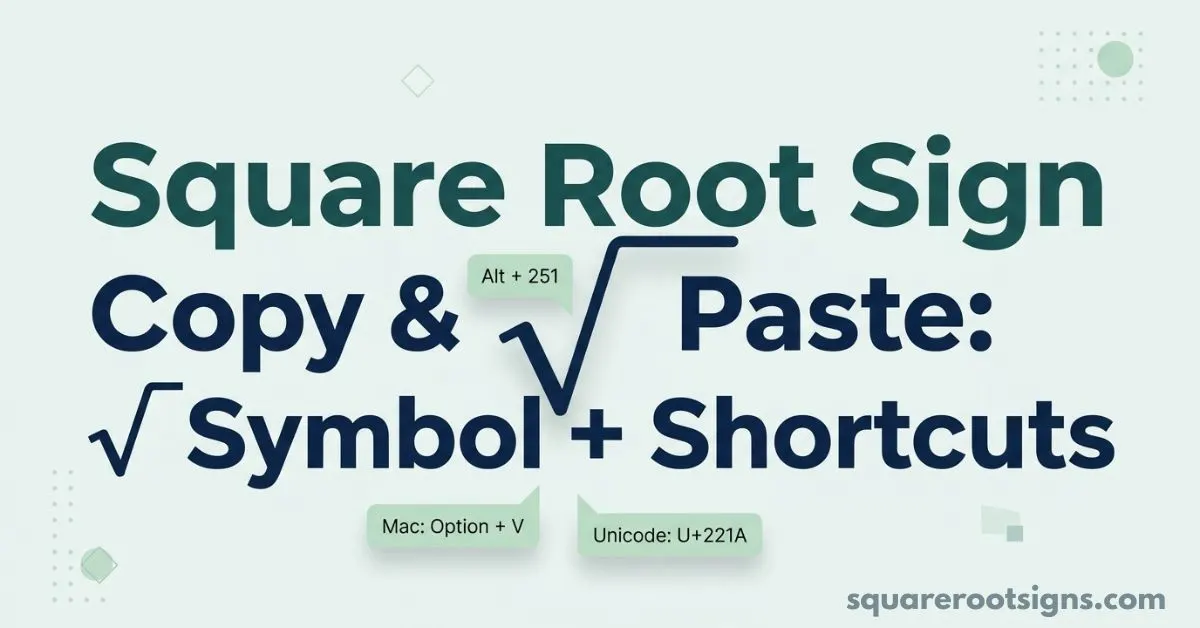
Square Root Sign Copy & Paste: √ Symbol + Shortcuts
Need a square root sign copy quickly? Here it is: √
Copy: √
The square root symbol is officially U+221A, named SQUARE ROOT in Unicode. It is also commonly called the radical sign. You can copy √ directly into Word, Excel, Google Docs, emails, messages, websites, social media posts, and other apps that support Unicode text.
If you do not want to copy and paste it every time, you can also type the symbol using keyboard shortcuts or Unicode input. The method depends on whether you are using Windows, Mac, Chromebook, Linux, iPhone, Android, Microsoft Word, or another application.
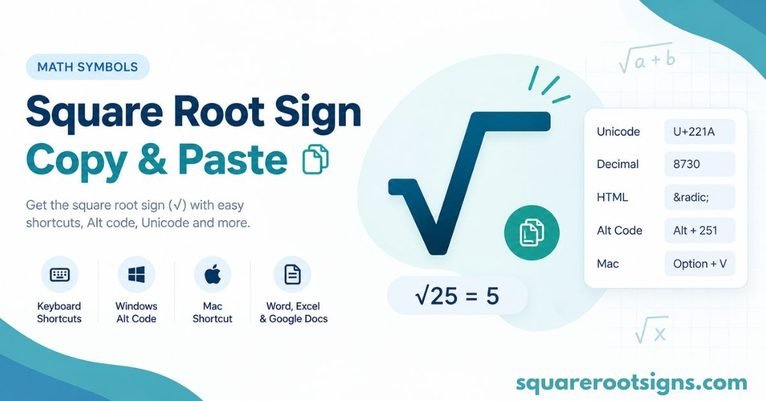
Quick Reference for the Square Root Sign
| Item | Details |
| Symbol | √ |
| Name | Square Root |
| Common name | Radical sign |
| Unicode | U+221A |
| HTML | √ |
| Windows | Alt + 251 |
| Mac | Option + V |
| LaTeX | \sqrt{x} |
| Cube root | ∛ |
| Fourth root | ∜ |
Unicode identifies √ as U+221A SQUARE ROOT and distinguishes it from the cube root ∛ (U+221B) and fourth root ∜ (U+221C).
For a simple text field, the fastest option is usually to copy √ directly. For mathematical expressions, however, an equation editor or mathematical notation may be better because it can format the radical and everything underneath its vinculum correctly.
Square Root Symbol Copy and Paste
Here is the standard square root sign:
√
Copy the square root symbol
√
You can select the character above, press Ctrl + C on Windows or Command + C on Mac, then paste it wherever you need it.
For example:
- √9 = 3
- √16 = 4
- √25 = 5
- √100 = 10
The character is plain Unicode text, so it can be inserted into many ordinary text fields without requiring a special mathematical font.
Square root symbols and related roots
If you need other root symbols, these are the most common:
Square root: √
Cube root: ∛
Fourth root: ∜
The Unicode Standard assigns separate characters to these radical operators.
Be careful when choosing a symbol for a mathematical document. The square root sign √ is not the same character as the check mark ✓, even though they can look somewhat similar in some fonts.
How to Paste After Copying
After copying √, place your cursor where you want the symbol and use the normal paste command.
On Windows, press Ctrl + V.
On Mac, press Command + V.
On a phone or tablet, tap and hold inside the text field and choose Paste.
For example, you can paste the symbol into a Google search box, email, document, note, message, spreadsheet cell, or social media caption.
The important point is that copying √ copies the actual Unicode character rather than an image. That means the receiving application can normally treat it as text.
Does It Work in Every App?
The √ character works in most modern applications that support Unicode text, including common document editors, browsers, messaging apps, email clients, and social platforms.
However, the way a square root expression appears can differ between applications. A plain-text √25 is not necessarily formatted in the same way as a professionally typeset mathematical expression.
Font support can also affect its appearance. The character itself remains U+221A, but different fonts may render the radical sign with slightly different proportions or stroke shapes.
Why Copy-Paste Instead of Typing?
Copying √ is often the quickest option when you only need the symbol once or twice.
It is particularly useful when you are writing a message, filling in an online form, preparing a social media post, editing notes, or working in an application where you do not remember the keyboard shortcut.
Typing becomes more useful when you frequently work with mathematical notation. In that situation, learning the appropriate shortcut, Unicode input method, or equation editor can save time.
For longer mathematical expressions, an equation tool is usually preferable to repeatedly inserting individual symbols because it can handle formatting that plain text cannot.
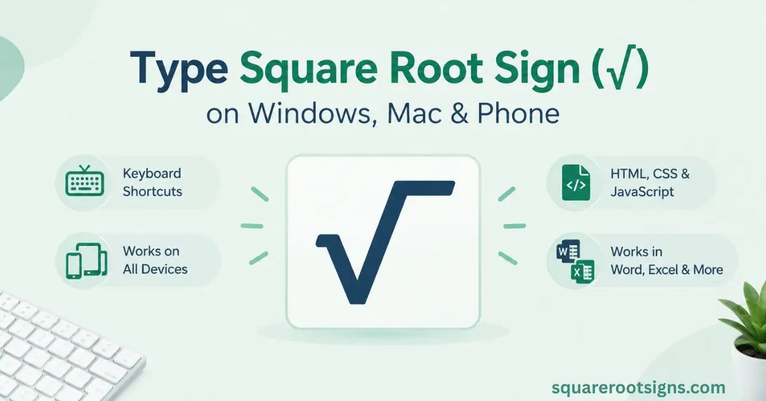
Square Root Symbol on Keyboard: Windows, Mac, and Phone
There is usually no dedicated √ key on a standard physical keyboard. Instead, you can use a shortcut, Unicode input, or copy and paste.
Windows
On Windows, a commonly used shortcut for √ is:
Alt + 251
If you have a numeric keypad, hold Alt, type 251, and release Alt.
You can also use Unicode input in applications that support it. The Unicode code point for √ is 221A.
Mac
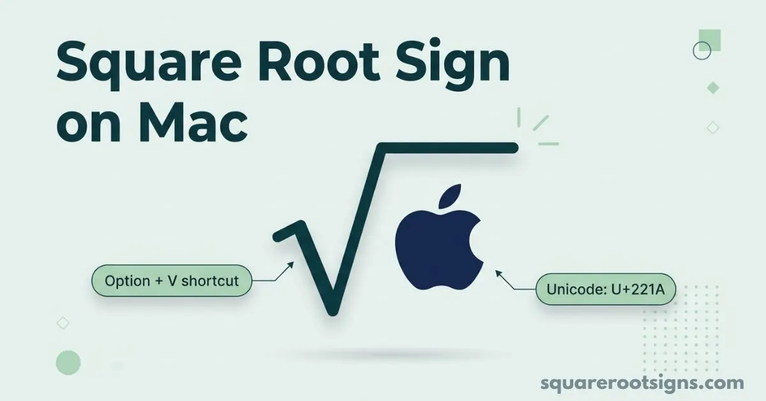
On macOS, a commonly used shortcut is:
Option + V
This inserts √ in applications that support the shortcut.
If the shortcut does not work in a particular application, copying the Unicode character is a reliable alternative.
Chromebook
Chromebooks can use Unicode input in supported text fields.
Press:
Ctrl + Shift + U
Then type:
221A
Press Enter or Space, depending on the application.
The result should be:
√
Linux
Many Linux desktop environments support Unicode input with:
Ctrl + Shift + U
Then type:
221A
Finish the input with Enter or Space.
Because desktop environments and applications can behave differently, the exact input behavior may vary.
iPhone and iPad
iOS does not normally provide a dedicated √ key on the standard keyboard.
The simplest method is to copy √ and paste it where needed.
For frequent use, you can create a text replacement:
- Open Settings.
- Go to General.
- Open Keyboard.
- Select Text Replacement.
- Add √ as the phrase.
- Choose a short shortcut such as sqrt.
After that, typing your chosen shortcut can insert the square root sign.
Android
On Android, keyboard layouts vary by device and keyboard application.
The easiest universal method is to copy √ and paste it where required. Some keyboards may also expose mathematical symbols through a symbols or long-press menu.
For frequent use, a personal dictionary or text-replacement feature may be available depending on the keyboard app.
Square Root Symbol in Word, Excel, and on a Mac
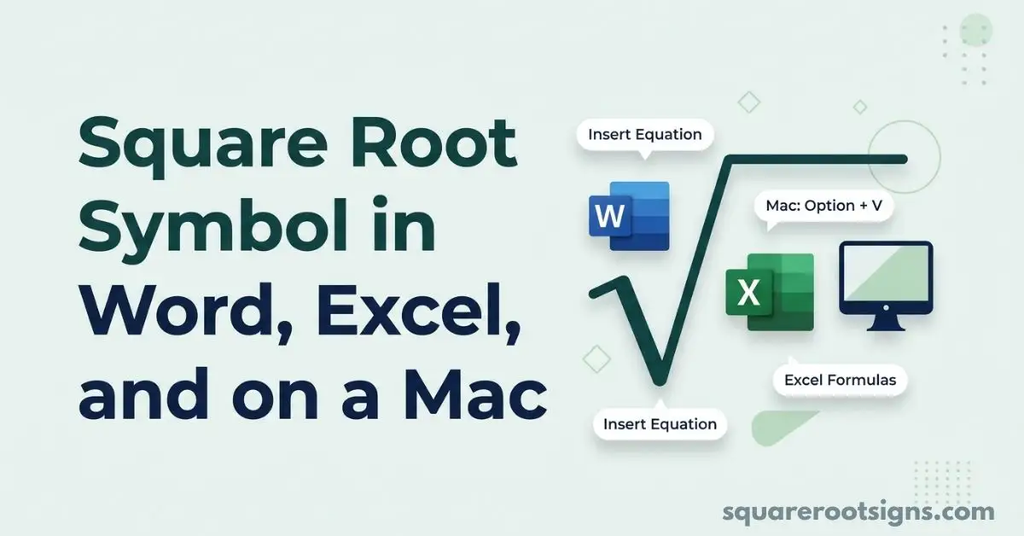
Microsoft Word provides several ways to work with square roots, and the best method depends on whether you need a simple text character or a properly formatted equation.
Microsoft Word
For the Unicode character, type:
221A
Then press:
Alt + X
In supported Word environments, this converts the Unicode code point into:
√
For a complete mathematical expression, Word’s Equation feature is usually better. An equation can format the number or expression underneath the radical rather than treating √ as an ordinary text character.
Microsoft Excel
If you only need the visible symbol, you can paste:
√
into a cell.
But if you want Excel to calculate a square root, use the SQRT function.
For example:
=SQRT(25)
returns:
5
This distinction matters: √ is a character used to display mathematical notation, while SQRT() is an Excel function used to perform a calculation.
Google Docs
In Google Docs, you can paste √ directly into normal text.
For mathematical work, Google Docs also provides an equation tool that can be more appropriate when you need structured mathematical notation.
If your goal is simply to insert the symbol into a sentence, copying √ is generally faster.
HTML
The HTML entity for the square root symbol is:
√
It renders as:
√
You can also use the Unicode character directly when your document encoding and workflow support it.
LaTeX
In LaTeX, the standard square root command is:
\sqrt{x}
For example:
\sqrt{25}
produces a properly formatted square root expression when rendered by a LaTeX system.
This is different from simply inserting the Unicode character √ because LaTeX controls the mathematical layout of the expression.
All Square Root Symbols
The standard square root character is:
√
But several related radical symbols are useful when working with mathematics.
| Symbol | Meaning | Unicode |
| √ | Square root | U+221A |
| ∛ | Cube root | U+221B |
| ∜ | Fourth root | U+221C |
Unicode classifies these as separate radical/root characters.
The distinction becomes important when you are copying mathematical symbols. For example, copying ∛ when you actually need √ changes the meaning of the mathematical expression.
Unicode’s plain-text mathematics guidance also describes √, ∛, and ∜ as radical characters that can begin mathematical expressions.
What Does the Square Root Symbol Look Like?
The square root sign looks like this:
√
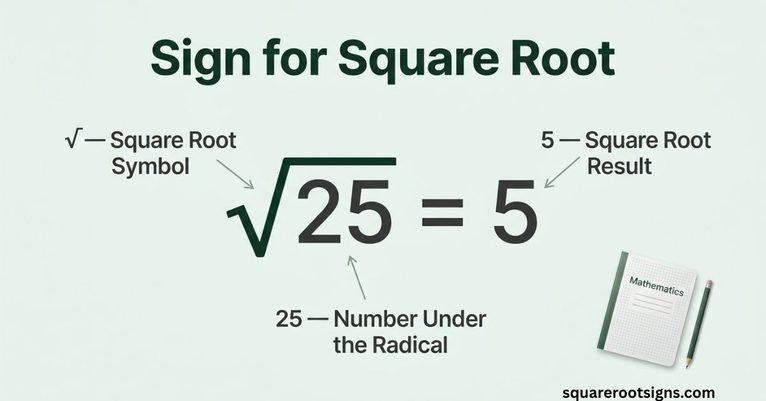
In ordinary text, the symbol consists of the radical shape followed by the number or expression it applies to.
For example:
√9
or:
√(x + 2)
In professionally typeset mathematics, the horizontal bar can extend over the complete radicand. Plain Unicode text does not automatically create every type of mathematical layout, so a full equation editor may display complex expressions differently.
This is one reason the same square root sign can look slightly different in a text message, Word document, equation editor, or mathematical typesetting system.
√ vs ✓: Are They the Same Symbol?
No.
√ is the square root symbol.
✓ is a check mark.
They are different Unicode characters and have different meanings. Unicode lists √ as U+221A SQUARE ROOT and ✓ as U+2713 CHECK MARK.
They can look somewhat similar at a glance, especially in certain fonts, but they should not be used interchangeably.
Use √ for mathematical square roots and ✓ for check marks, completed tasks, confirmations, or similar purposes.
Square Root Sign Copy Does Not Mean the Same Thing as a Square Root Calculation
A common source of confusion is the difference between a symbol and a calculation.
When you copy:
√
you are copying a text character.
That character does not automatically calculate anything.
For example, pasting:
√25
into an ordinary text field simply creates the text √25.
A spreadsheet or calculator needs a mathematical operation to calculate the result. In Excel, for example, you can use:
=SQRT(25)
which returns 5.
This distinction is especially important when moving between word processors, spreadsheets, calculators, coding environments, and mathematical applications.
Square Root Sign Has Another Meaning in Medicine
The phrase square root sign can also refer to a medical finding, which is completely different from the mathematical symbol √.
In cardiology, the term can describe the characteristic dip-and-plateau or square-root pattern seen during ventricular pressure measurement in certain cases of constrictive pericarditis.
If you were searching for the medical meaning rather than the mathematical character, see your article about the clinical and radiological signs of constrictive pericarditis.
Keeping these two meanings separate helps prevent confusion between a mathematical symbol search and a medical terminology search.
FAQs
How do I copy the square root sign?
Copy this character:
√
On a computer, select it and press Ctrl + C on Windows or Command + C on Mac. Then paste it with Ctrl + V or Command + V.
What is the square root symbol called?
The character √ is called the square root symbol and is also commonly called the radical sign. Its Unicode code point is U+221A.
What is the Unicode value of √?
The Unicode value of the square root character is:
U+221A
Its official Unicode name is SQUARE ROOT.
What is the Alt code for the square root symbol?
A commonly used Windows shortcut is:
Alt + 251
Use the numeric keypad when entering the Alt code.
How do I type the square root symbol on a Mac?
On Mac, the commonly used shortcut is:
Option + V
You can also copy and paste √ if the shortcut is unavailable in a particular application.
How do I type √ on a Chromebook?
Use Unicode input:
Ctrl + Shift + U → 221A → Enter/Space
The result is:
√
How do I type the square root sign on iPhone?
The easiest method is to copy √ and paste it.
For frequent use, create a text replacement such as sqrt that automatically expands to √.
Is √ the same as a check mark?
No.
√ means square root.
✓ is a check mark.
They are separate Unicode characters with different meanings.
Does copying √ make Excel calculate a square root?
No. Copying √ inserts a text character.
To calculate a square root in Excel, use a formula such as:
=SQRT(25)
The result is 5.
What is the HTML code for the square root sign?
The HTML entity is:
√
It displays as:
√
What is the LaTeX command for a square root?
The standard LaTeX command is:
\sqrt{x}
For example, \sqrt{25} creates a formatted square root expression when rendered in LaTeX.
Final Answer: Square Root Sign Copy
If you only need the symbol right now, copy this:
√
Its Unicode value is U+221A, and its official Unicode name is SQUARE ROOT.
For occasional use, copy and paste is the fastest method. For repeated use, learn the shortcut for your operating system or create a text replacement on your phone. For full mathematical expressions, use an equation editor or mathematical notation such as LaTeX rather than relying only on a plain-text character.
Related Square Root Resources
- Square Root Sign Copy Paste — copy the symbol and learn additional paste methods.
- Square Root Symbol on Keyboard — learn keyboard shortcuts for different devices.
- What Is the Sign for Square Root? — understand the meaning and mathematical use of √.
- Square Root Symbol on iPhone, iPad & Android — mobile-specific typing methods.
- How to Show Exactly What’s Under the Square Root Sign — learn how the radical applies to a complete expression.
- Square Root Symbol Unicode — explore Unicode values and related mathematical symbols.

Jack Harrison is a contributor at Square Root Signs, sharing creative ideas, useful information, and engaging content to help readers discover something valuable with every visit.

7 Comments