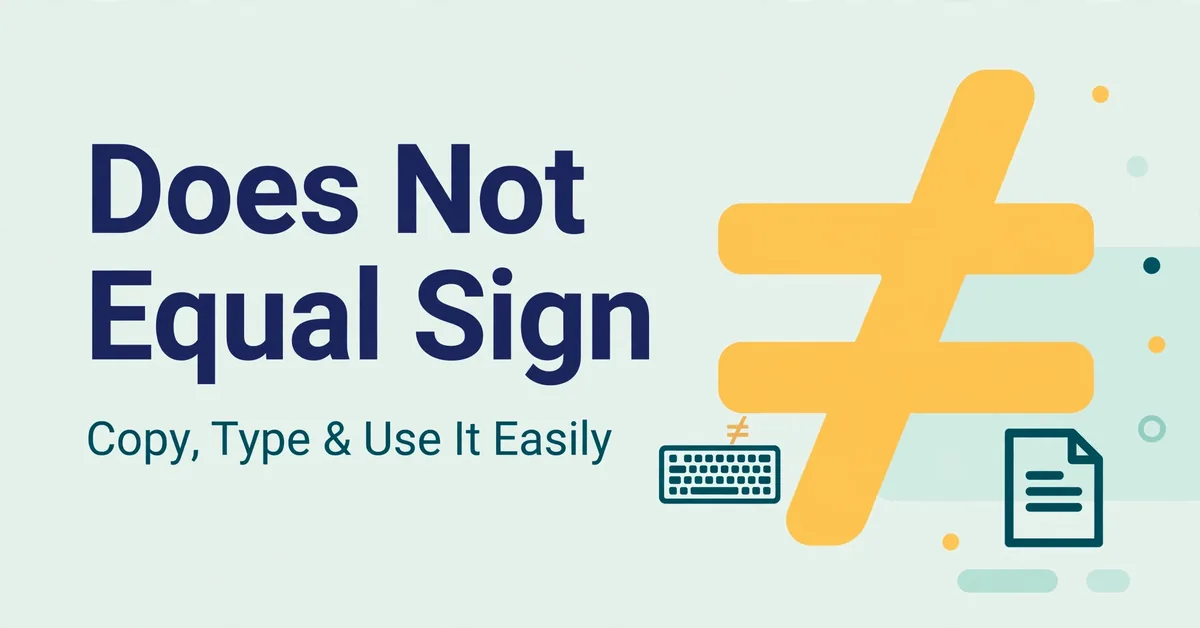
Does Not Equal Sign (≠): Copy, Type & Use It Easily
The does not equal sign (≠) means that two values are not the same. You can copy it here: ≠. This mathematical symbol is used in algebra, programming, spreadsheets, and digital documents to show that one value is different from another.
Finding the correct inequality symbol, understanding its meaning, and learning how to type it on Windows, Mac, iPhone, Android, Word, and Google Docs can save time. This guide explains the not equal symbol, its Unicode code point, keyboard shortcuts, HTML usage, programming alternatives, and practical examples.
Copy the Does Not Equal Sign
The easiest way to use the does not equal sign is to copy it directly:
≠
The symbol is called the not equal sign, does not equal symbol, or inequality symbol. It combines the traditional equals sign (=) with a diagonal slash to show that two numbers, expressions, or values are different.
For example:
5 ≠ 8
This statement means “5 is not equal to 8.”
The symbol is commonly used in mathematics, computer science, education, and technical documents because it provides a clear visual way to represent inequality.
The ≠ character belongs to the Unicode standard and has a unique code point that allows computers and devices to display the same symbol consistently. Unlike the normal equals sign, it is usually not printed on standard keyboards, which is why many users search for a quick copy option.
Common uses include:
| Area | Example |
|---|---|
| Mathematics | 10 ≠ 15 |
| Programming | value != number |
| Databases | status <> ‘active’ (SQL) |
| Documents | Mathematical notation |
| Education | Algebra equations |
How to Type the Does Not Equal Sign on Windows
Windows keyboards usually do not have a dedicated key for the does not equal sign. However, you can insert it through keyboard shortcuts, character tools, and applications.
Method 1: Alt code (works in many Windows programs)
- Make sure Num Lock is on.
- Hold down the Alt key.
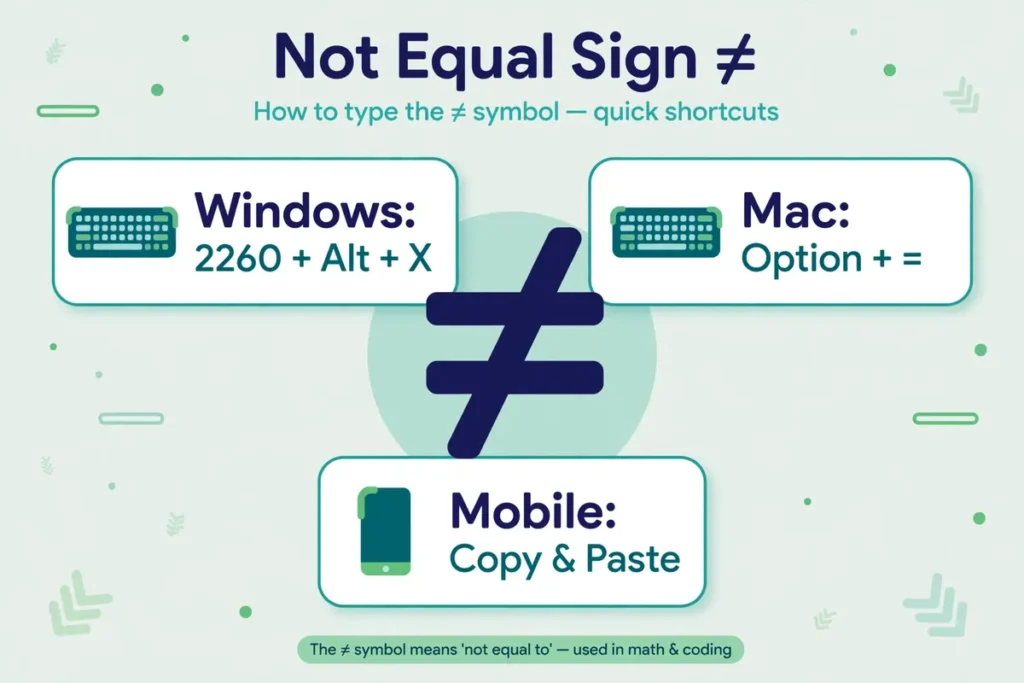
- Type 8800 on the numeric keypad.
- Release Alt — the characters convert into: ≠
Method 2: Unicode input in Microsoft Word
- Open the document or text field.
- Type: 2260
- Press: Alt + X
- The characters convert into: ≠
This method works in Microsoft Word and other Unicode-compatible programs.
Method 3: Windows Character Map
- Open Character Map from the Start menu.
- Search for “not equal.”
- Select the symbol: ≠
- Copy and paste it where needed.
The Character Map includes many special characters, including mathematical operators, currency symbols, and Unicode characters.
How to Type the Does Not Equal Sign on Mac
Mac users can insert the not equal symbol quickly using a keyboard shortcut.
Press: Option + =
The result will be: ≠
This shortcut works in many macOS applications, including Pages, Notes, browsers, and text editors that support Unicode characters.
If the shortcut does not work in a specific application, use the macOS Character Viewer:
- Press: Control + Command + Space
- Search: not equal
- Select: ≠
This method gives access to thousands of symbols, emojis, and mathematical characters available in macOS.
How to Type the Does Not Equal Sign on iPhone and Android
Mobile keyboards usually do not display the does not equal sign directly. The easiest solution is copying the symbol (≠) and saving it somewhere convenient.
On iPhone:
- Copy: ≠
- Add it to a note or a text replacement shortcut (Settings → General → Keyboard → Text Replacement).
- Use the shortcut whenever needed.
On Android:
- Copy the symbol: ≠
- Add it to your clipboard manager.
- Paste it into messages, documents, or apps.
Some advanced keyboards include mathematical symbols in their special character sections.
On Linux: press Ctrl + Shift + U, type 2260, then press Enter.
How to Use the Does Not Equal Sign in Microsoft Word and Google Docs
Microsoft Word and Google Docs both support the does not equal symbol through their special character tools.
Microsoft Word
To insert ≠:
- Open Word.
- Select Insert → Symbol.
- Select the mathematical operator: ≠
You can also use the Unicode shortcut: type 2260, then press Alt + X.
Google Docs
To insert the symbol:
- Open Google Docs.
- Select: Insert → Special characters.
- Search: not equal.
- Click: ≠
Google Docs also supports copy and paste, making the process simple for students, teachers, and writers.
HTML and Unicode for the Does Not Equal Sign
The does not equal sign is represented by Unicode and HTML codes that allow websites and applications to display it correctly.
| Format | Code |
|---|---|
| Symbol | ≠ |
| Unicode | U+2260 |
| HTML decimal | ≠ |
| HTML entity | ≠ |
Web developers use these codes when adding mathematical symbols to websites. For example, writing ≠ in HTML output displays as: ≠
Unicode ensures that the symbol remains consistent across browsers, operating systems, and devices. The U+2260 character belongs to the Mathematical Operators block in Unicode, which connects it with other mathematical characters used in equations, formulas, and scientific writing.
LaTeX: in LaTeX documents, type \neq to produce ≠.
Does Not Equal Sign in Programming Languages
In programming, the concept of “does not equal” exists, but most languages use text-based operators instead of the mathematical symbol, because standard programming keyboards contain characters like !, =, <, and > that are easier to type and process.
The most common programming version is:
!=
Examples:
Python:
if age != 18:
    print("Not equal")
JavaScript:
if (x !== y) {
  console.log("Different values");
}
SQL:
WHERE status <> 'active'
The meaning stays the same: ≠ means “not equal to” in mathematics, while != is the not-equal operator in code.
Does Not Equal Sign FAQs
What is the does not equal sign?
The does not equal sign (≠) is a mathematical symbol used to show that two values are different. It means “is not equal to” and is commonly used in algebra, equations, programming, spreadsheets, and technical documents. For example, 7 ≠ 10 means 7 is not equal to 10.
How do I copy the does not equal sign?
Copy the symbol directly here: ≠. This character works in most modern applications, including browsers, Microsoft Word, Google Docs, messaging apps, and text editors.
What is the keyboard shortcut for the does not equal sign?
The shortcut depends on your device:
| Device | Shortcut |
|---|---|
| Mac | Option + = |
| Windows (Word) | Type 2260, then press Alt + X |
| Windows (many apps) | Hold Alt and type 8800 on the numeric keypad |
| Linux | Ctrl + Shift + U, type 2260, press Enter |
| Mobile | Copy and paste ≠ |
Windows does not have one universal shortcut for every application, so Unicode input, the Alt code, or Character Map is usually the easiest method.
What is the Unicode for the does not equal sign?
The Unicode value is U+2260. This code point lets computers and websites represent the symbol consistently across different platforms.
What is the HTML code for the does not equal sign?
Use ≠ (decimal) or ≠ (entity). Both display as: ≠. Web developers commonly use these codes when adding mathematical notation to HTML pages.
What is the difference between ≠ and !=?
Both represent the same idea: “not equal.” The difference is context:
| Symbol | Usage |
|---|---|
| ≠ | Mathematics and written notation (5 ≠ 8) |
| != | Programming languages (5 != 8) |
Programming languages use text operators for easier coding compatibility.
Can I type the does not equal sign on iPhone?
Yes. The easiest way is to copy ≠ and paste it wherever needed. You can also create a text replacement shortcut on iPhone so typing a custom phrase automatically inserts the symbol.
How do I type the does not equal sign in Excel?
Excel formulas use <> for “not equal” instead of ≠. Example: =A1<>B1 checks whether two cells contain different values.

Jack Harrison is a contributor at Square Root Signs, sharing creative ideas, useful information, and engaging content to help readers discover something valuable with every visit.
5 Comments