Square Root Sign on Keyboard: Easy Shortcuts for Every Device
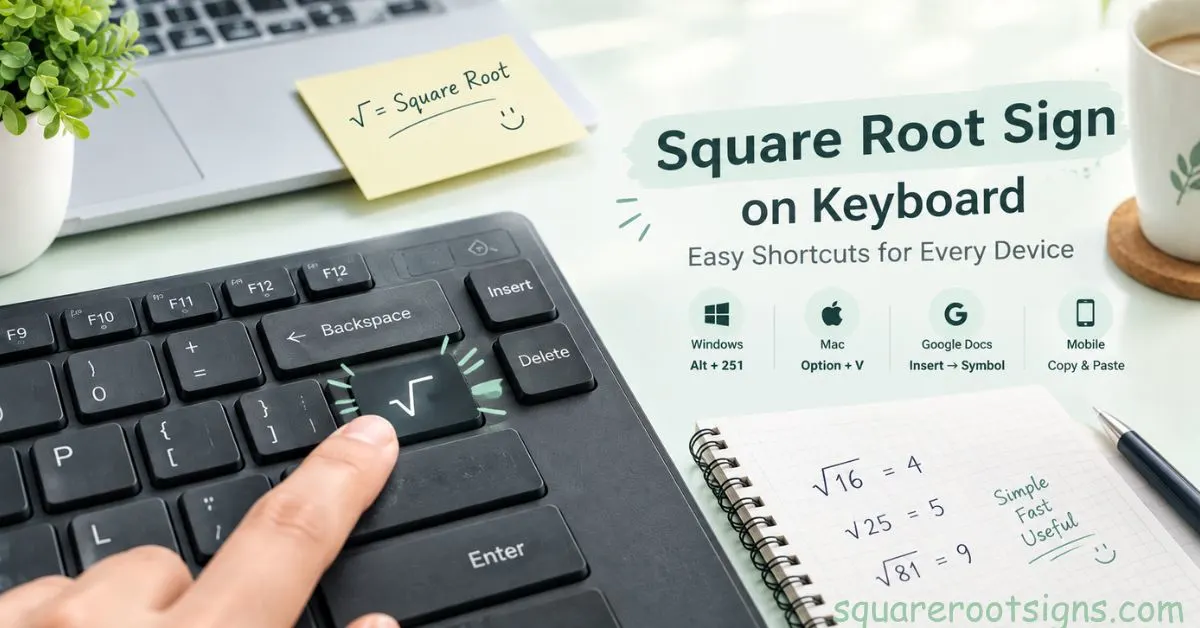
Need to type the square root sign (√) on your keyboard? On a Mac, press Option + V to insert it. In Microsoft Word, type 221A and press Alt + X. On Windows, you can also try Alt + 251 using the numeric keypad, although this method may not work in every application. This guide explains how to type the square root symbol on different devices without relying on copy and paste.
Whether you’re writing a math assignment, preparing a spreadsheet, or creating equations in Microsoft Word or Google Docs, you can insert the square root symbol in several ways. You’ll learn keyboard shortcuts for Windows and Mac, how to insert the symbol in documents, and what to do if your keyboard doesn’t support it. We’ll also cover Android and iPhone methods, along with simple troubleshooting tips.
How to Type the Square Root Sign on a Windows Keyboard
Windows users can try the Alt + 251 keyboard shortcut to type the square root sign (√). To use this method, make sure Num Lock is enabled, then hold the Alt key and type 251 using the numeric keypad. Release Alt to see whether the symbol appears.
This traditional Alt code may work in applications that support the relevant character encoding. However, it is not supported consistently across all Windows programs. If it doesn’t work, you can use Microsoft Word’s Unicode shortcut or Windows Character Map.
Windows Alt code: Alt + 251
Symbol: √
Alternative: Type 221A and press Alt + X in Microsoft Word.
If you’re using a laptop without a separate numeric keypad, the Alt code may not work. Some laptops have an embedded number pad that can be activated with the Fn key. Otherwise, use Word’s Unicode method or Character Map.
How to Type the Square Root Sign on a Mac Keyboard
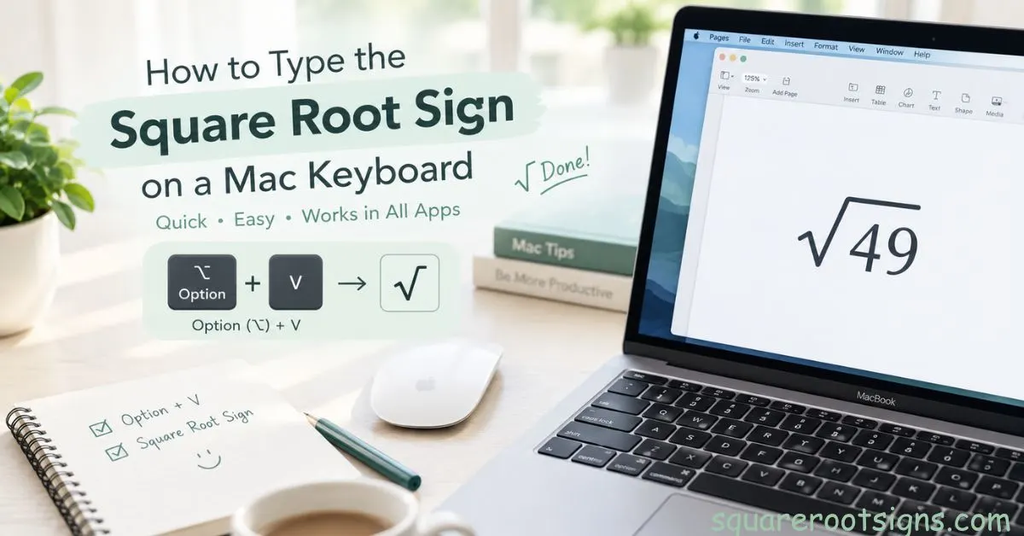
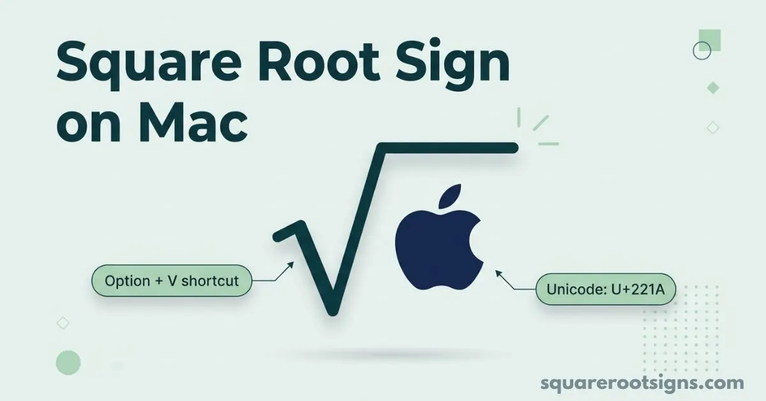
Mac users can type the square root symbol with a simple keyboard shortcut. Open the document or text field where you want to insert the symbol, place your cursor, and press Option + V. The square root character (√) should appear in applications that support the standard macOS input method.
This square root symbol shortcut is useful for students, teachers, and anyone who frequently types mathematical expressions. Unlike the traditional Windows Alt-code method, it doesn’t require a numeric keypad.
If the shortcut doesn’t work in a particular application or with your keyboard layout, use the macOS Character Viewer to find and insert the symbol.
Mac shortcut: Option + V
Symbol: √
How to Insert the Square Root Sign in Microsoft Word
Microsoft Word offers several ways to insert the square root sign. One of the quickest methods is Unicode conversion. Type 221A where you want the symbol, then immediately press Alt + X. Word converts the hexadecimal Unicode code into √.
This method is especially useful on laptops without a numeric keypad. You can also use Word’s built-in Symbol menu to find the character.
To insert the symbol through the menu:
- Open your Word document.
- Place the cursor where you want the square root sign.
- Select Insert from the ribbon.
- Choose Symbol, then More Symbols if needed.
- Find the square root character (√) and insert it.
If you’re writing a complete mathematical expression, Word’s equation editor is more suitable than inserting a standalone character. It can format the radical sign and its horizontal bar over numbers or variables.
Unicode code: U+221A
Word shortcut: Type 221A, then press Alt + X
Menu method: Insert → Symbol
How to Insert the Square Root Symbol in Google Docs
Google Docs allows you to insert the square root symbol through its Special Characters menu. This is useful when you don’t have a dedicated keyboard shortcut or when you’re using a device that doesn’t support one.
Follow these steps:
- Open your Google Docs document.
- Place the cursor where you want the symbol.
- Select Insert from the menu.
- Choose Special characters.
- Search for “square root.”
- Select √ from the results.
Google Docs also includes an equation editor. Select Insert → Equation to create mathematical expressions with properly formatted radicals. This is particularly helpful when a number or expression needs to appear beneath the radical’s horizontal bar.
Quick method: Insert → Special characters → Search for “square root”
Equation method: Insert → Equation
How to Insert the Square Root Sign Using Windows Character Map
Windows Character Map is a useful alternative when keyboard shortcuts fail or your laptop doesn’t have a numeric keypad. It lets you find and copy special characters, including the square root symbol.
To use Character Map:
- Open the Windows Start menu.
- Search for Character Map.
- Launch the application.
- Find and select the square root symbol (√).
- Click Select, if necessary, and then Copy.
- Return to your document and press Ctrl + V.
Character Map is helpful when you need mathematical symbols that aren’t available directly on your keyboard. You can also use it to find other characters, depending on the selected font.
How to Type the Square Root Symbol on Android
On Android, the availability of the square root sign depends on your keyboard app and its layout. Some versions of Gboard and other keyboard apps provide mathematical symbols in their symbols sections.
To check whether your keyboard supports the symbol:
- Open an app where you can type.
- Switch to the symbols or numbers keyboard.
- Look for the square root sign (√).
- If it isn’t available, use the copy-and-paste method.
For frequent mathematical typing, you can consider a compatible math keyboard or a text replacement feature if your keyboard supports one. The exact steps may vary depending on your phone, keyboard app, and software version.
Symbol: √
Alternative: Copy and paste the symbol.
How to Type the Square Root Sign on an iPhone or iPad
The standard iPhone and iPad keyboard doesn’t provide a dedicated square root key in its usual layout. If you only need the symbol occasionally, copying and pasting √ is a simple option.
For regular use, you can create a text replacement shortcut:
- Open Settings on your iPhone or iPad.
- Select General.
- Tap Keyboard.
- Choose Text Replacement.
- Tap the plus (+) button.
- Paste √ into the Phrase field.
- Enter a short abbreviation, such as sqrt, in the Shortcut field.
- Save your settings.
After setting this up, you can type your chosen abbreviation and select the square root symbol when the replacement appears.
Suggested shortcut: sqrt
Replacement: √
Square Root Symbol Keyboard Shortcuts at a Glance
Use this quick reference table to find a suitable method for your device or application.
| Device or Application | Shortcut or Method | Symbol |
| Windows (numeric keypad) | Alt + 251 (may vary by app) | √ |
| Mac | Option + V | √ |
| Microsoft Word | Type 221A, then Alt + X | √ |
| Google Docs | Insert → Special characters | √ |
| Windows Character Map | Find and copy the symbol | √ |
| Android | Depends on keyboard app | √ |
| iPhone or iPad | Text Replacement or copy and paste | √ |
Copy and Paste the Square Root Symbol
If you need the square root sign immediately, copying and pasting is a simple alternative to a keyboard shortcut.
Square root symbol: √
Select the symbol above and copy it. On Windows, press Ctrl + C to copy and Ctrl + V to paste. On a Mac, use Command + C and Command + V. On a phone or tablet, press and hold the symbol, select Copy, and then paste it into your chosen application.
Copy and paste is useful when you’re working on a device without a numeric keypad or when an application doesn’t support a particular keyboard shortcut. However, if you frequently type mathematical symbols, learning your device’s shortcut or setting up text replacement can save time.
Difference Between the Square Root, Cube Root, and Other Math Symbols
The square root sign is one of several mathematical symbols used in equations. These characters have different meanings and Unicode codes.
| Symbol | Name | Unicode |
| √ | Square root | U+221A |
| ∛ | Cube root | U+221B |
| ∜ | Fourth root | U+221C |
| π | Pi | U+03C0 |
| ² | Superscript two | U+00B2 |
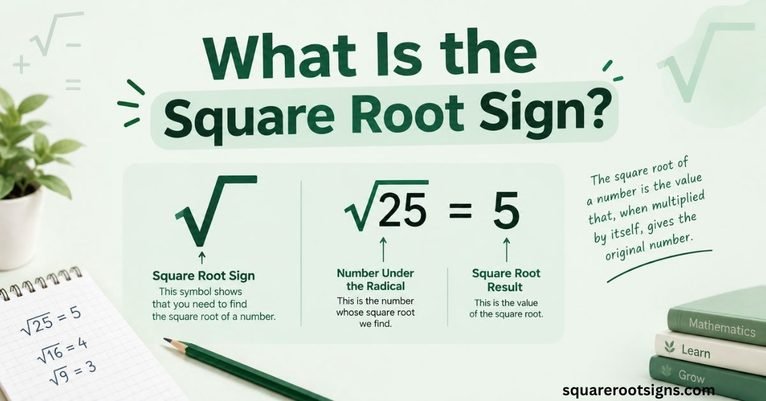
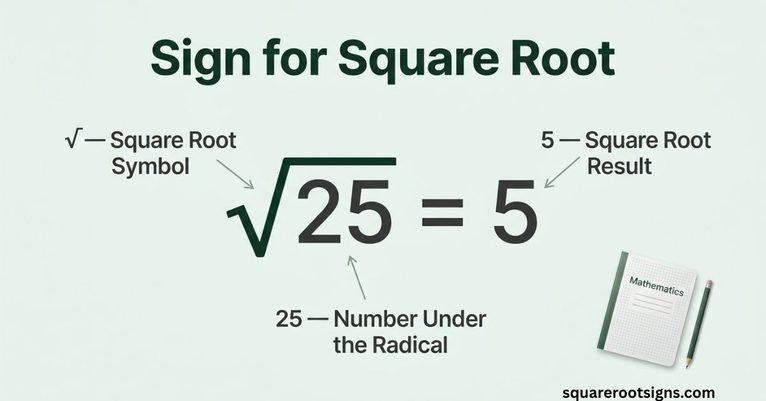
The square root symbol (√) represents a number that, when multiplied by itself, gives the original number. The cube root symbol (∛) represents a number that, when multiplied by itself three times, gives the original number.
These symbols can be inserted through character menus, Unicode input methods, or copy and paste. In Microsoft Word, you can type the Unicode code for a supported character and press Alt + X to convert it.
For complete mathematical expressions, use an equation editor to ensure the symbols and numbers are formatted correctly.
Why Is the Square Root Symbol Not Working?
If the square root sign doesn’t appear when you use a keyboard shortcut, the problem may be related to your device, application, keyboard layout, or input method.
Here are some common issues and ways to resolve them:
1. The Alt code doesn’t work on Windows
Make sure Num Lock is enabled and that you’re using the numeric keypad rather than the number row above the letters. Also, remember that Alt codes may behave differently across applications.
2. Your laptop doesn’t have a numeric keypad
Some laptops have an embedded numeric keypad that can be activated with the Fn key. If your laptop doesn’t support one, try Microsoft Word’s 221A followed by Alt + X, or use Character Map.
3. The Mac shortcut doesn’t work
Check that you’re using the standard macOS keyboard layout and that the application accepts the shortcut. You can also use Character Viewer to search for the square root symbol.
4. The symbol appears as a box or a question mark
The selected font or application may not support the character. Try changing to a font that includes mathematical symbols or insert the character through the application’s symbol menu.
5. The symbol appears, but the equation looks incorrect
A standalone square root character doesn’t automatically create a radical bar over an entire expression. Use an equation editor in Word or Google Docs when you need a properly formatted equation.
Conclusion
Typing the square root sign on a keyboard is simple once you know which method works for your device. Mac users can press Option + V, while Microsoft Word users can type 221A and press Alt + X. Windows users can try Alt + 251 with a numeric keypad, although compatibility may vary.
Google Docs provides a Special Characters menu, and mobile users can use supported keyboard symbols, text replacement, or copy and paste. Choose the method that suits your device and application. If you’re writing a complete mathematical expression, use an equation editor to format the radical correctly.
FAQs
How do I type the square root sign on my keyboard?
The method depends on your device. On a Mac, press Option + V. In Microsoft Word, type 221A and press Alt + X. On Windows, you can try Alt + 251 using the numeric keypad, although it may not work in every application. If none of these methods works, use your application’s symbol menu.
What is the square root symbol Alt code?
The commonly used Windows Alt code for the square root symbol is Alt + 251. To try it, enable Num Lock, hold Alt, and type 251 on the numeric keypad. Release Alt to insert the character. This method may depend on the application and system configuration.
How do I insert the square root sign in Word?
In Microsoft Word, type 221A and press Alt + X to convert the Unicode code into the square root symbol (√). You can also select Insert → Symbol and choose the character from the available symbols. For full mathematical expressions, use Word’s equation editor.
Can I type the square root sign without copy and paste?
Yes. You can type the square root sign without copy and paste by using a supported keyboard shortcut. Mac users can press Option + V, while Microsoft Word users can type 221A followed by Alt + X. Windows users can also try Alt + 251 with a numeric keypad.
Why doesn’t Alt + 251 work on my laptop?
Alt + 251 may not work if your laptop lacks a numeric keypad, Num Lock is disabled, or the application doesn’t support that input method. Try using an embedded numeric keypad if your laptop has one. Otherwise, use Word’s Unicode conversion method or Windows Character Map.
Does copy and paste insert the same square root symbol as a keyboard shortcut?
Yes. Copying and pasting √ inserts the same Unicode character as a supported keyboard shortcut. Its appearance may vary slightly depending on the font and application, but the underlying character is U+221A.
What’s the difference between the square root symbol and a radical in an equation editor?
The standalone √ character is a Unicode symbol. It doesn’t automatically create a horizontal bar that extends over an entire expression. An equation editor can format a radical properly, including the horizontal bar, known as the vinculum, above the number or expression.
Can I use the same methods for the cube root symbol?
Some methods also work for the cube root symbol, but its Unicode code is different. The cube root character is ∛ (U+221B), while the square root character is √ (U+221A). In Microsoft Word, type 221B and press Alt + X to insert ∛.
Can I create a shortcut to type the square root symbol automatically?
Yes. Some operating systems and applications support custom text replacements. On an iPhone or iPad, for example, you can set sqrt as a shortcut and √ as its replacement. Other devices may offer similar options through keyboard settings or third-party keyboard apps.

Jack Harrison is a contributor at Square Root Signs, sharing creative ideas, useful information, and engaging content to help readers discover something valuable with every visit.