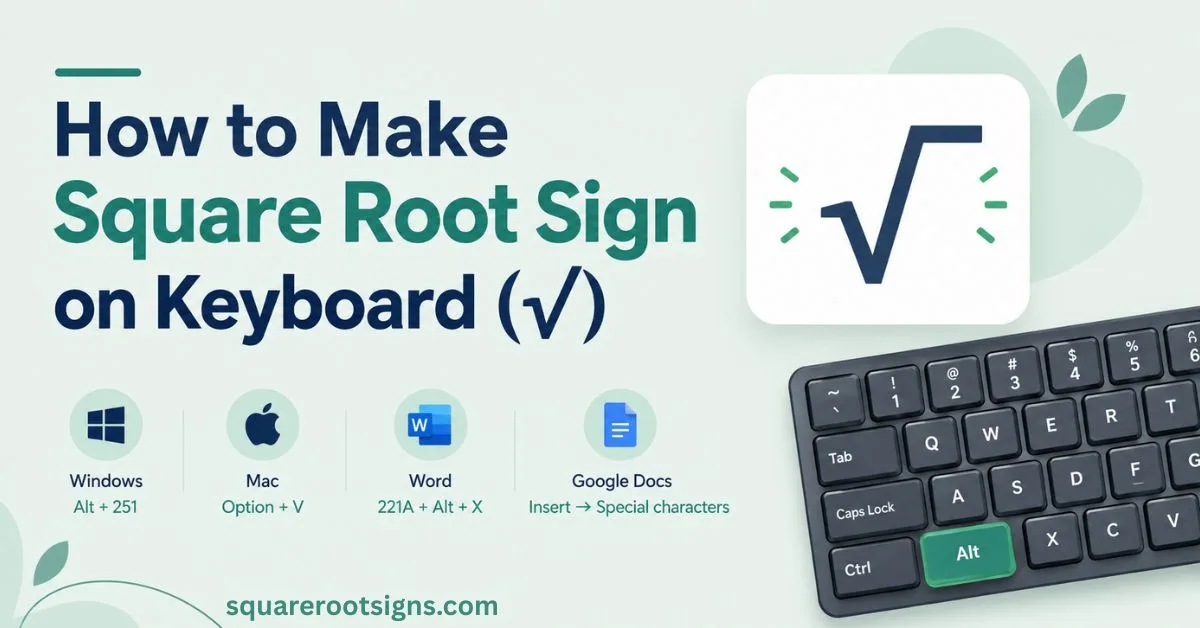
How to Make Square Root Sign on Keyboard (√) – Windows & Mac
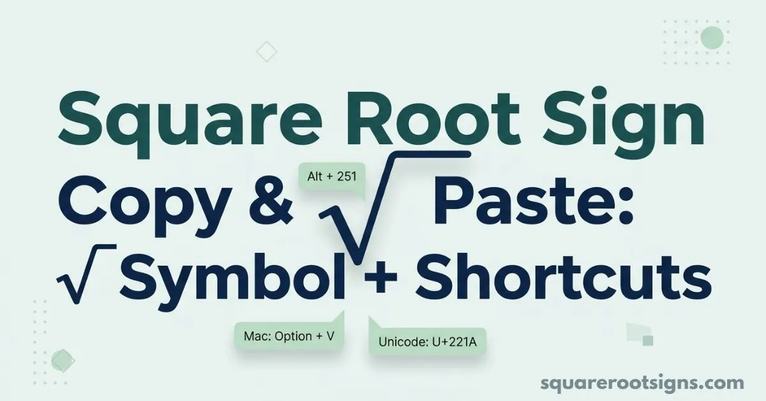
To make a square root sign (√) on your keyboard, press Alt + 251 on Windows using the numeric keypad or Option + V on a Mac with a US keyboard layout. You can also use Microsoft Word’s Unicode shortcut, Google Docs’ Special Characters menu, or copy and paste the symbol.
Whether you’re solving math problems, writing equations, or preparing a spreadsheet, knowing how to type the square root symbol on a keyboard can save time. This guide covers Windows, Mac, Chromebooks, Linux, Microsoft Word, Excel, and Google Docs, along with practical solutions for laptops without a numeric keypad.
Square Root Symbol Keyboard Shortcuts: Quick Reference
If you need the square root symbol quickly, use the shortcut that matches your device or application. The following table summarizes the most common methods for inserting √.
| Device or application | Shortcut or method |
| Windows (numeric keypad) | Alt + 251 |
| Windows laptop without a numpad | Character Map or copy and paste |
| Microsoft Word | Type 221A, then press Alt + X |
| Mac (US keyboard layout) | Option + V |
| Google Docs | Insert → Special characters |
| Microsoft Excel | Use the SQRT function or insert √ |
| Chromebook | Copy and paste or use supported Unicode input |
| Linux | Ctrl + Shift + U, then 221A, then Enter |
| HTML | √ or √ |
Copy the symbol: √
For a one-time task, copying the symbol is usually the quickest solution. If you regularly type mathematical expressions, learning your device’s shortcut can save time.
How to Type Square Root Symbol on a Windows Keyboard
Windows doesn’t have a dedicated square root key on standard keyboards. However, you can insert the radical sign using an Alt code, Microsoft Word’s Unicode conversion, or the built-in Character Map utility.
The easiest method depends on your keyboard. If your computer has a separate numeric keypad, try Alt + 251. If you’re using a laptop without one, Microsoft Word’s Unicode shortcut or Character Map may be more convenient.
Alt Code for Square Root: Alt + 251
The traditional Windows Alt code for the square root symbol is Alt + 251. This method requires a numeric keypad and may not work in every application.
Follow these steps:
- Open the document or text field where you want the symbol.
- Make sure Num Lock is enabled.
- Place your cursor at the desired location.
- Hold down the Alt key.
- Type 251 using the numeric keypad.
- Release the Alt key.
The square root symbol (√) should appear.
Important: Use the numeric keypad rather than the number row above the letters. If your laptop has an embedded numeric keypad, you may also need to hold the Fn key, depending on the model.
Type the Square Root Symbol Using Unicode in Word
Microsoft Word offers another way to insert the square root sign without using a numeric keypad.
- Open Microsoft Word.
- Place your cursor where you want the symbol.
- Type 221A.
- Immediately press Alt + X.
Word converts the hexadecimal Unicode code point U+221A into the square root symbol (√).
This method is especially useful on laptops without a dedicated number pad. However, it is a Microsoft Word feature and does not work as a universal Windows keyboard shortcut.
Insert the Square Root Symbol Using Character Map
Windows Character Map is a built-in utility that lets you find and copy special characters, including mathematical symbols.
To use it:
- Press the Windows key.
- Search for a Character Map and open it.
- Find the square root symbol in the character list.
- Select √.
- Click Select, then Copy.
- Return to your document and press Ctrl + V.
You can also enable Advanced view and search for “square root” to find the character more easily.
Character Map is a practical alternative when Alt codes don’t work or your keyboard lacks a numeric keypad.
How to Type the Square Root Symbol on a Mac Keyboard
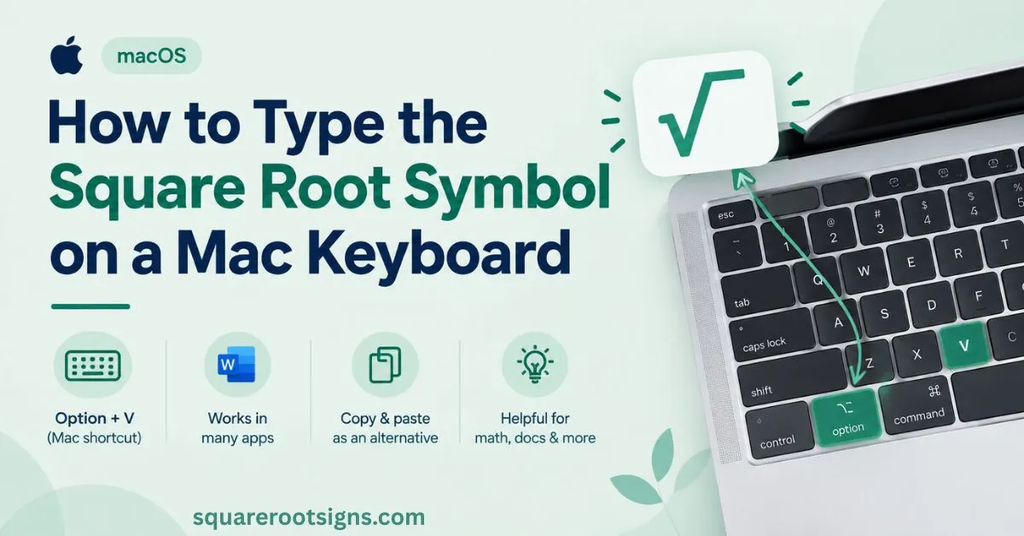
On a Mac with a US keyboard layout, press Option + V to insert the square root symbol (√). Place the cursor where you want the symbol, hold Option, and press V.
This shortcut works in many macOS applications, including text editors and document applications. However, keyboard layouts and application behavior can vary.
If the shortcut doesn’t work, use Character Viewer instead:
- Place your cursor in a text field.
- Press Control + Command + Space.
- Search for “square root.”
- Select the √ symbol to insert it.
You can also copy the symbol from this page and paste it into your document.
How to Insert the Square Root Symbol in Microsoft Word
Microsoft Word provides several ways to insert a square root symbol. You can use the Unicode shortcut, the Symbol menu, or the Equation Editor, depending on whether you need a standalone character or a complete mathematical expression.
Method 1: Unicode shortcut
- Type 221A in your document.
- Press Alt + X.
- Word converts the code into √.
Method 2: Insert Symbol
- Open the Insert tab.
- Select Symbol, then More Symbols.
- Find the square root symbol.
- Select it and click Insert.
Method 3: Equation Editor
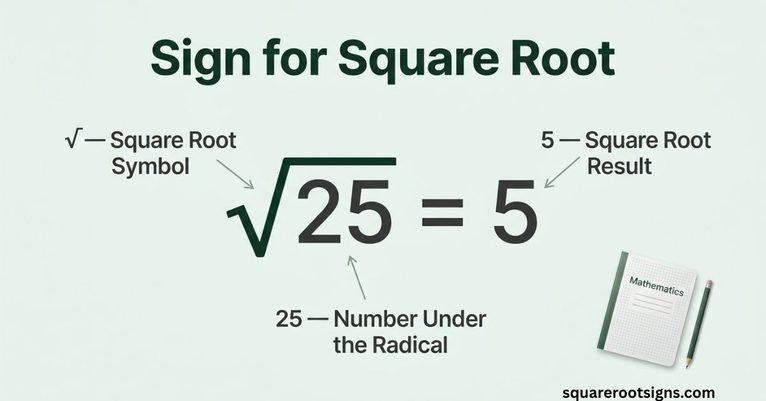
If you need to write a mathematical expression such as √16 = 4, use Word’s Equation Editor.
On Windows, press Alt + = to open an equation field. You can then use the equation tools to insert a radical and place a number or expression underneath its root bar.
A standalone √ character is suitable for simple text, while the Equation Editor is more useful for complex mathematical expressions.
How to Insert the Square Root Symbol in Google Docs
Google Docs lets you insert the square root symbol through its Special Characters menu.
Follow these steps:
- Open your Google Docs document.
- Place your cursor where the symbol should appear.
- Select Insert → Special characters.
- Search for “square root.”
- Click the √ symbol to insert it.
You can also draw or browse characters in the Special Characters window.
For occasional use, copying and pasting √ is another simple option. If you are writing complex mathematical expressions, use the equation tools available in Google Docs.
How to Type the Square Root Symbol on Chromebook
Chromebooks don’t have a universal dedicated square root shortcut that works across every keyboard layout and application.
For occasional use, copy √ and paste it into your document. You can also use Google Docs’ Special Characters menu if you’re working in a document.
To insert the symbol:
- Open Google Docs or another text editor.
- Place the cursor where you need the symbol.
- Copy √ from a reliable source.
- Press Ctrl + V to paste it.
If you regularly work with mathematical notation, consider using the equation tools in your preferred application.
The available input methods may differ depending on your Chromebook’s keyboard settings and the software you’re using.
How to Type the Square Root Symbol on Linux
Many Linux desktop environments support Unicode hexadecimal input. On supported systems, you can use the Unicode input method to enter the square root symbol.
Follow these steps:
- Place your cursor in a text field.
- Press Ctrl + Shift + U.
- Type 221A.
- Press Enter or Space, depending on your desktop environment.
The Unicode code point U+221A represents the square root symbol (√).
This method works in many Linux applications that support the desktop environment’s Unicode input feature. However, the exact behavior can vary between distributions, desktop environments, and applications.
If the shortcut doesn’t work, use your desktop’s character map or copy and paste the symbol.
How to Insert the Square Root Symbol in Excel
Microsoft Excel supports the square root symbol as text and provides a separate function for calculating square roots.
To insert the symbol:
- Select the cell where you want √.
- Copy the symbol from this page.
- Paste it into the cell.
You can also use Excel’s Symbol menu to insert mathematical characters.
To calculate a square root:
Use Excel’s SQRT function.
For example:
=SQRT(16)
The result is 4.
The distinction is important: √ is a character used to represent a mathematical operation, while SQRT() is an Excel function that calculates the square root of a number.
If you want to display an expression such as √16 in a cell, insert the symbol as text. If you want Excel to calculate the result, use the SQRT function.
How to Type the Square Root Symbol in HTML
If you’re creating a website or editing HTML, you can insert the square root symbol using a named character entity or a numeric character reference.
| HTML method | Code | Output |
| Named entity | √ | √ |
| Decimal reference | √ | √ |
| Hexadecimal reference | √ | √ |
All three methods represent the square root symbol.
For example, the HTML code below displays the symbol:
<p>The square root of 16 is √16 = 4.</p>
You can also use the entity directly:
<p>The square root of 16 is √16 = 4.</p>
CSS can control the symbol’s font, size, and color, but HTML is generally sufficient when you simply need to display √.
Troubleshooting: Why Is My Square Root Keyboard Shortcut Not Working?
If the square root symbol doesn’t appear after using a keyboard shortcut, the problem may be related to your keyboard, operating system, application, or font.
Here are common problems and practical solutions.
| Problem | Possible cause | Solution |
| Alt + 251 doesn’t work | Num Lock is off | Enable Num Lock and try again. |
| Shortcut fails on a laptop | No dedicated numeric keypad | Use Word’s Unicode method or Character Map. |
| Numbers appear instead of the symbol | Numbers were entered using the number row | Use the numeric keypad. |
| Alt code fails in an application | The application doesn’t support that input method | Try copying and pasting √. |
| Option + V doesn’t work on Mac | Different keyboard layout | Use Character Viewer. |
| Symbol appears as a box | Font doesn’t support the character | Change to a font that supports √. |
| Unicode shortcut doesn’t work | Application doesn’t support Unicode conversion | Use its Insert Symbol menu. |
Num Lock Is Turned Off
The Alt + 251 method usually requires an active numeric keypad. If Num Lock is disabled, the shortcut may not produce the expected symbol.
Turn on Num Lock and try again. If you’re using a laptop with an embedded numeric keypad, check whether the manufacturer’s Fn key combination is required.
You’re Using the Number Row Instead of the Numeric Keypad
The traditional Alt + 251 method uses the numeric keypad. Typing 251 from the number row above the letters may not work.
If your keyboard doesn’t have a separate number pad, use Microsoft Word’s Unicode conversion or Windows Character Map instead.
The Shortcut Doesn’t Work in Your Application
Not every application supports every keyboard input method.
For example, Word’s 221A followed by Alt + X conversion is application-specific. If it doesn’t work in another program, use that application’s symbol menu or paste the character directly.
The Mac Shortcut Doesn’t Work
Option + V is the familiar square root shortcut for a US Mac keyboard layout. Other keyboard layouts can behave differently.
Check your active input source or use Character Viewer to insert the symbol without relying on the keyboard shortcut.
The Symbol Appears as a Box
A square or empty box may appear if the selected font doesn’t support the character.
Try changing the font to a commonly supported font, such as Arial or Times New Roman. If the symbol still doesn’t display correctly, check the application and operating system’s Unicode support.
FAQs
How do I make a square root sign on my keyboard?
On Windows, hold Alt and type 251 on the numeric keypad. On a Mac with a US keyboard layout, press Option + V. You can also copy √ and paste it into your document.
What is the Alt code for the square root symbol?
The traditional Windows Alt code for the square root symbol is Alt + 251. You generally need a numeric keypad, and the shortcut may not work in every application.
How do I type the square root symbol without a numeric keypad?
On Windows, type 221A and press Alt + X in Microsoft Word. Alternatively, open Character Map, copy the symbol, and paste it into your document.
What is the square root symbol’s Unicode?
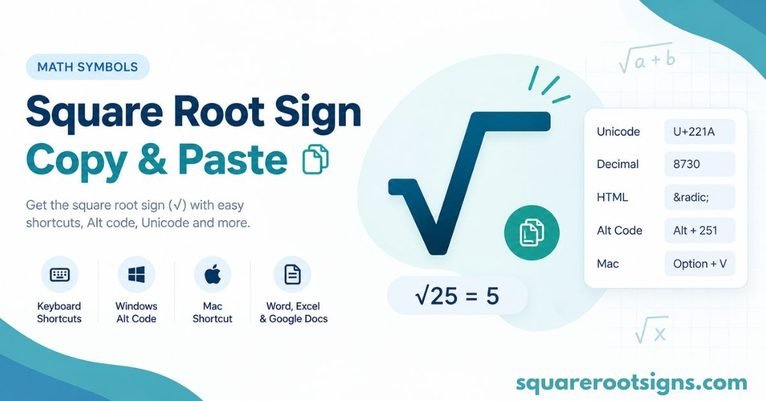
The square root symbol √ has the Unicode code point U+221A. It is also represented by decimal character code 8730.
How do I type the square root symbol on a Mac?
On a Mac with a US keyboard layout, press Option + V. If that doesn’t work, open Character Viewer using Control + Command + Space and search for “square root.”
Can I type the square root symbol in Excel?
Yes. You can insert √ as a character using the Symbol menu or by copying and pasting it. To calculate a square root, use Excel’s SQRT() function.
Is the square root symbol the same as a checkmark?
No. The square root symbol (√) and the checkmark (✓) are different Unicode characters. They can look similar in some fonts, so check the actual character when copying mathematical symbols.
How do I type a square root symbol in Linux?
On supported Linux desktop environments, press Ctrl + Shift + U, type 221A, and then press Enter or Space. If the method isn’t supported in your application, use a character map or copy and paste.
Can I use the square root symbol on a Chromebook?
Yes. You can copy and paste √ into a Chromebook document. In Google Docs, you can also select Insert → Special characters and search for “square root.”
Conclusion
Knowing how to make a square root sign on a keyboard makes writing mathematical expressions easier. Windows users can try Alt + 251 with a numeric keypad, while Mac users with a US keyboard layout can press Option + V. Microsoft Word, Google Docs, Excel, Chromebook, and Linux also provide alternative ways to insert or use the symbol.
For occasional use, copying √ is convenient. If you frequently write mathematical expressions, learn the shortcut that works with your device and application. You can also explore related mathematical symbols, such as the cube root sign (∛), when working with more advanced equations.

Jack Harrison is a contributor at Square Root Signs, sharing creative ideas, useful information, and engaging content to help readers discover something valuable with every visit.

One Comment