Square Root Sign Copy and Paste (√): Alt Code & Shortcuts
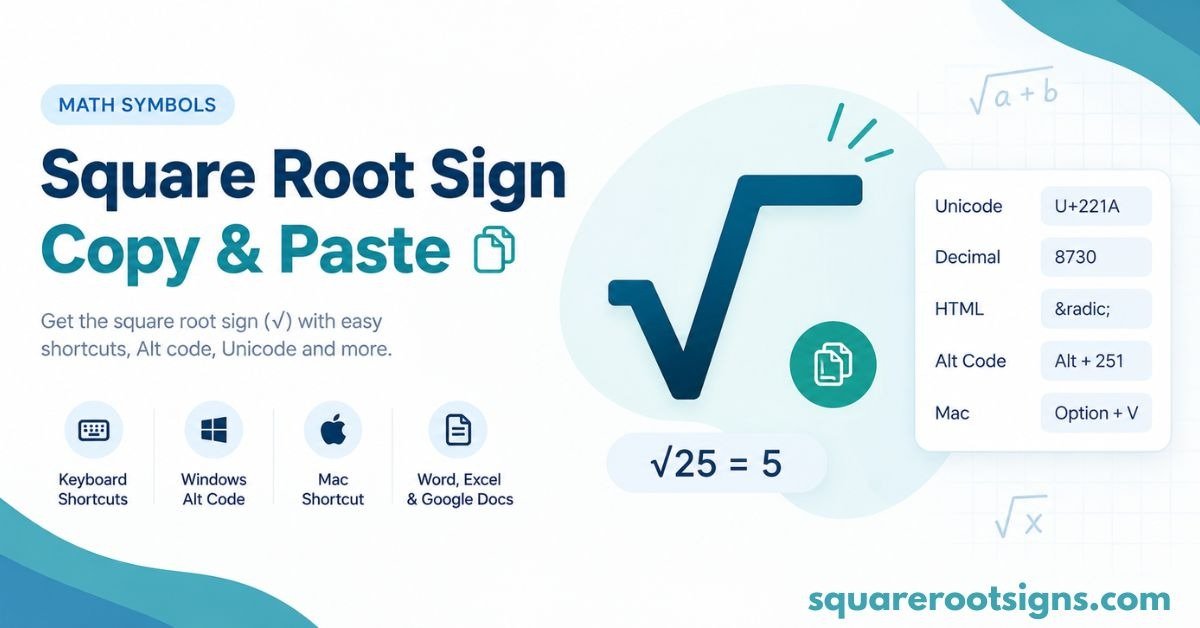
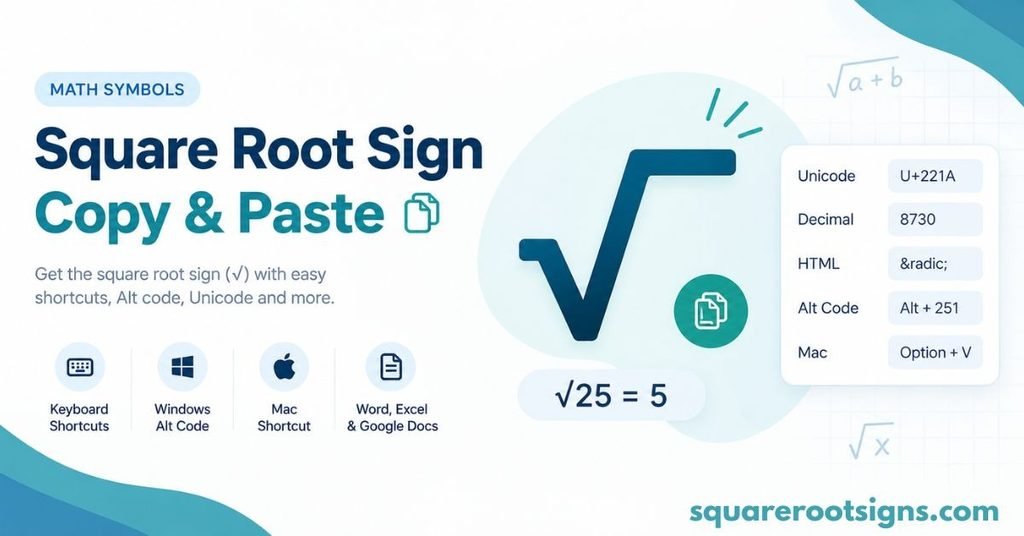
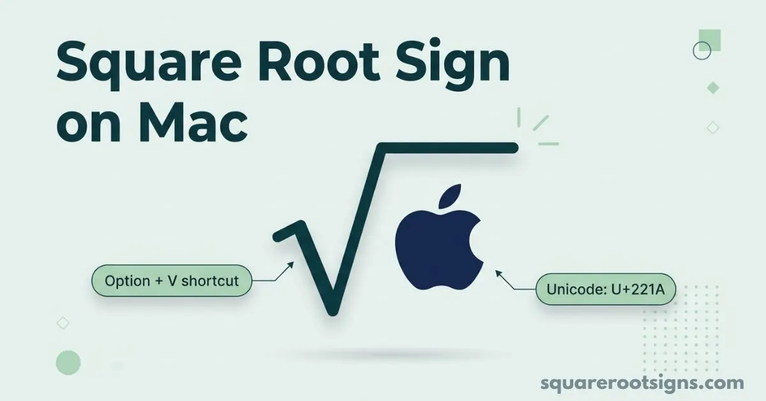
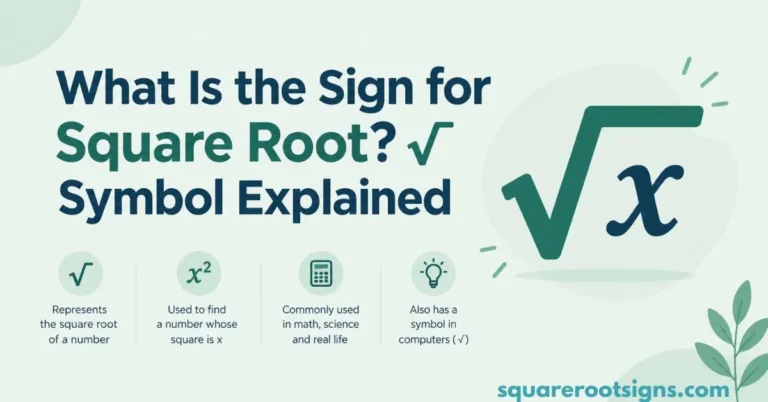
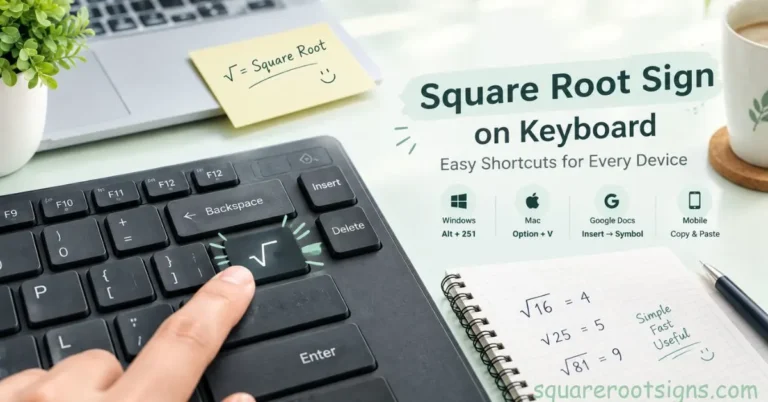
The square root sign (√) is a mathematical symbol used to represent the principal square root of a number or expression. You can copy and paste it instantly or type it using Alt + 251 on Windows, Option + V on Mac, or Unicode 221A in Microsoft Word. Its Unicode code point is U+221A.
Copy the square root sign here:
√
Symbol: √
Unicode: U+221A
Decimal: 8730
HTML: √
Name: Square root sign or radical sign
Whether you need the √ symbol for a school assignment, mathematical equation, spreadsheet, or online document, this guide explains how to copy it and type it on different devices. You’ll also find keyboard shortcuts, HTML codes, LaTeX notation, and examples to help you use the symbol correctly.
Copy and Paste the Square Root Symbol (√)
The easiest way to use the square root sign is to copy it directly from this page. Select the symbol below, copy it, and paste it into your document, message, or mathematical expression.
Square root sign:
√
How to copy and paste:
- Select the √ symbol above.
- Press Ctrl + C on Windows or Command + C on Mac.
- Open the document or application where you need the symbol.
- Press Ctrl + V or Command + V to paste it.
On an iPhone or Android device, tap and hold the symbol, select Copy, and then tap and hold the destination text field to select Paste.
The square root symbol is a Unicode character, so it works in most modern applications that support Unicode text. However, its appearance may vary slightly depending on the font.
If your browser makes selecting the symbol difficult, you can use one of the keyboard shortcuts below.
Square Root Symbol on Keyboard
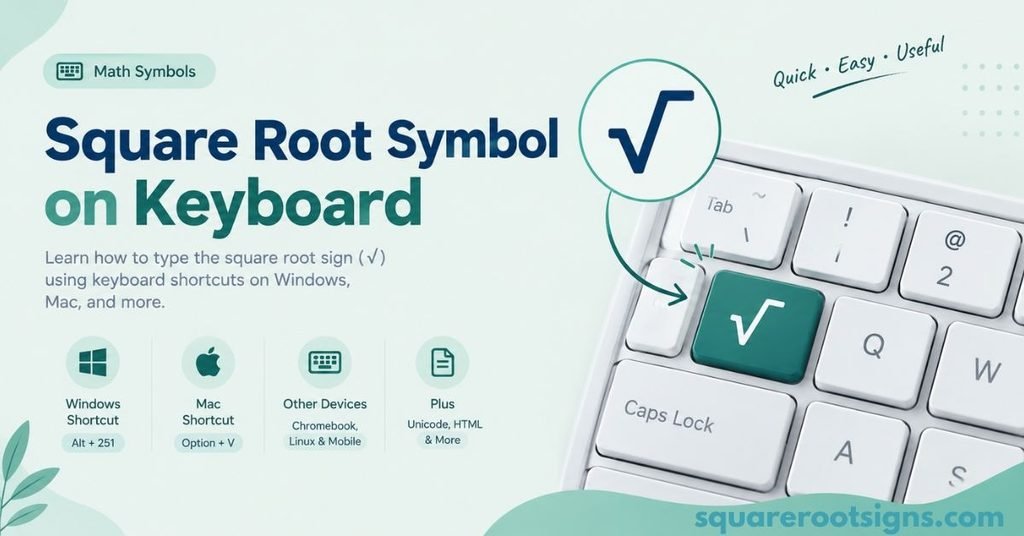
You can type the square root symbol using different keyboard shortcuts, depending on your operating system and application. Windows, Mac, and Microsoft Word offer convenient methods, while Chromebook and Linux users have alternative input options.
| Device or application | Shortcut or method | Result |
| Windows | Alt + 251 (numeric keypad) | √ |
| Microsoft Word | 221A + Alt + X | √ |
| Mac | Option + V (U.S. layout) | √ |
| Chromebook | Unicode input or copy and paste | √ |
| Linux | Ctrl + Shift + U, then 221A, then Enter | √ |
| iPhone | Copy and paste | √ |
| Android | Copy and paste | √ |
| Excel | =UNICHAR(8730) | √ |
| Google Sheets | =CHAR(8730) | √ |
Some shortcuts depend on the operating system, keyboard layout, and application. If a shortcut doesn’t work, use the copy-and-paste method or the application’s symbol menu.
Square Root Symbol Alt Code (Windows)
On Windows, you can type the square root sign using the Alt code Alt + 251 on a numeric keypad.
Follow these steps:
- Open the document or application where you want the symbol.
- Turn on Num Lock if your keyboard has it.
- Hold down the Alt key.
- Type 251 using the numeric keypad.
- Release Alt.
The square root symbol (√) should appear if the application supports this Alt code.
If you’re using a laptop without a dedicated numeric keypad, the shortcut may not work. In that case, copy the symbol from this page or use Microsoft Word’s Unicode conversion.
Square Root Symbol on Mac Keyboard
Mac users with a standard U.S. keyboard layout can type the square root sign using Option + V.
To insert it:
- Open a text editor or document.
- Place your cursor where you want the symbol.
- Press Option + V.
The √ symbol should appear.
If this shortcut doesn’t work with your keyboard layout, you can use the Character Viewer.
Press Control + Command + Space to open Character Viewer. Search for “square root” and select the symbol to insert it into your document.
Square Root Symbol on Chromebook
Chromebooks don’t have a universal dedicated square root keyboard shortcut. However, you can insert the symbol using Unicode input where supported or copy and paste it.
To copy the symbol, select √ on this page, copy it, and paste it into Google Docs, a text editor, or another application.
If you regularly use mathematical symbols, you can also explore the special-character options in Google Docs.
For most Chromebook users, copying and pasting is the simplest way to insert a standalone square root sign.
Square Root Symbol on Linux
Linux users can insert the square root sign using Unicode input on many desktop environments.
Follow these steps:
- Place your cursor in a text field.
- Press Ctrl + Shift + U.
- Type 221A.
- Press Enter or Space, depending on your desktop environment.
The square root symbol (√) should appear.
This method works in many Linux applications that support Unicode input. The exact behavior can vary depending on your desktop environment and application.
If Unicode input isn’t available, copy and paste the symbol instead.
Square Root Symbol in Microsoft Word
Microsoft Word provides several ways to insert the square root symbol. You can use Unicode conversion for a standalone character or the Equation Editor for properly formatted mathematical expressions.
Use the Unicode Shortcut in Word
To insert the square root sign using Unicode:
- Open Microsoft Word.
- Place your cursor where you want the symbol.
- Type 221A.
- Immediately press Alt + X.
Word converts the Unicode code into the square root symbol (√).
You can also use the Symbol menu.
- Open the Insert tab.
- Select Symbol.
- Choose More Symbols if necessary.
- Find the square root character.
- Select Insert.
Both methods are useful when you need a standalone square root symbol in a sentence or document.
Insert a Complete Square Root Expression in Word
If you need a square root with a horizontal bar extending over a number or expression, use Word’s Equation Editor.
Press Alt + = to open an equation field. You can then enter a mathematical expression using Word’s equation syntax.
For example, you can enter:
\sqrt{x}
Word’s equation editor can display the square root of x with a properly formatted radical bar.
This is particularly useful for school assignments, mathematical documents, and scientific writing.
Square Root Symbol in Google Docs
Google Docs allows you to insert the square root sign through its special-character menu or by copying and pasting it.
To insert the symbol using the menu:
- Open your Google Docs document.
- Select Insert from the menu.
- Choose Special characters.
- Search for “square root.”
- Select √ from the results.
You can also copy the square root symbol from this page and paste it directly into your document.
For longer mathematical expressions, use the equation features available in Google Docs. These are more suitable than a standalone character when you need properly formatted mathematical notation.
Square Root Symbol in Excel and Google Sheets
You can insert the square root character into a spreadsheet using a formula or by copying and pasting it.
In Microsoft Excel, enter:
=UNICHAR(8730)
This formula returns the square root symbol (√).
In Google Sheets, use:
=CHAR(8730)
Both formulas return the Unicode square root character.
However, displaying the symbol is different from calculating a square root.
For example, to calculate the square root of 25 in Excel, use:
=SQRT(25)
The result is 5.
Use the √ character when you need to display mathematical notation. Use the SQRT function when you need to calculate a numerical result.
Square Root Symbol Unicode and HTML Codes
The square root sign is represented by Unicode code point U+221A. It is supported by modern text systems and can be used in documents, websites, and applications.
Here are the most useful technical representations.
| Format | Code | Result |
| Square root symbol | √ | √ |
| Unicode | U+221A | √ |
| Decimal code | 8730 | √ |
| HTML named entity | √ | √ |
| HTML decimal entity | √ | √ |
| HTML hexadecimal entity | √ | √ |
| CSS escape | \221A | √ |
| JavaScript escape | \u221A | √ |
| Python escape | \u221A | √ |
HTML Square Root Symbol
If you’re adding the square root sign to an HTML document, you can use its named entity:
√
You can also use its decimal or hexadecimal representation:
√
√
All three represent the square root character.
Square Root Symbol in CSS and JavaScript
In CSS, you can represent the symbol using a Unicode escape:
\221A
For example, in a CSS pseudo-element:
.example::before {
content: “\221A”;
}
In JavaScript, use the Unicode escape:
const symbol = “\u221A”;
The variable contains the square root character.
These methods are particularly useful for developers who need to display mathematical symbols on websites.
Square Root Symbol in LaTeX
LaTeX is commonly used to create mathematical expressions in academic papers, textbooks, and scientific documents.
To create a square root in LaTeX, use the \sqrt{} command.
Example:
\sqrt{x}
This produces the square root of x.
You can also use the command with numbers and more complicated expressions.
| LaTeX code | Mathematical expression |
| \sqrt{4} | √4 |
| \sqrt{x} | √x |
| \sqrt{a+b} | √(a + b) |
| \sqrt{x^2+1} | √(x² + 1) |
| \sqrt[3]{8} | ∛8 |
The optional argument in \sqrt[3]{8} creates a cube root instead of a square root.
Unlike the standalone √ character, LaTeX’s \sqrt{} command creates a properly formatted mathematical radical with a bar extending over the expression.
Square Root Symbol Examples
The square root sign is used in mathematics to represent the principal square root of a number or expression.
Here are some common examples:
| Expression | Meaning |
| √4 | Square root of 4 |
| √9 | Square root of 9 |
| √16 | Square root of 16 |
| √25 | Square root of 25 |
| √2 | Square root of 2 |
| √x | Square root of x |
| √(a + b) | Square root of the expression a + b |
For example, √9 equals 3 because 3 × 3 = 9.
The expression √2 represents the positive square root of 2, which is an irrational number. Its decimal expansion begins with 1.414.
When typing expressions in plain text, parentheses can make the intended meaning clearer. For instance, √(a + b) indicates that the entire expression a + b is under the square root.
Related Root Symbols
Several mathematical symbols look similar to the square root sign but represent different roots.
| Symbol | Name | Unicode |
| √ | Square root | U+221A |
| ∛ | Cube root | U+221B |
| ∜ | Fourth root | U+221C |
The square root sign represents a root of index 2. The cube root sign represents a root of index 3, while the fourth root sign represents a root of index 4.
You can copy these symbols directly:
Square root: √
Cube root: ∛
Fourth root: ∜
For example, ∛8 equals 2 because 2 × 2 × 2 = 8. Similarly, ∜16 equals 2 because 2 raised to the fourth power is 16.
If you frequently use mathematical symbols, you may want to bookmark a dedicated symbols reference page.
Conclusion
The square root sign (√) is easy to copy and paste or type on different devices. Whether you need it for a math equation, school assignment, document, or spreadsheet, you can use the copy-and-paste method or the appropriate keyboard shortcut. On Windows, Mac, Linux, Microsoft Word, and Google Docs, there are several ways to insert the symbol.
For quick access, simply copy √ from this page and paste it wherever you need it. You can also use Unicode U+221A or the relevant shortcut to insert the square root symbol whenever you need it.
FAQs
What is the square root sign?
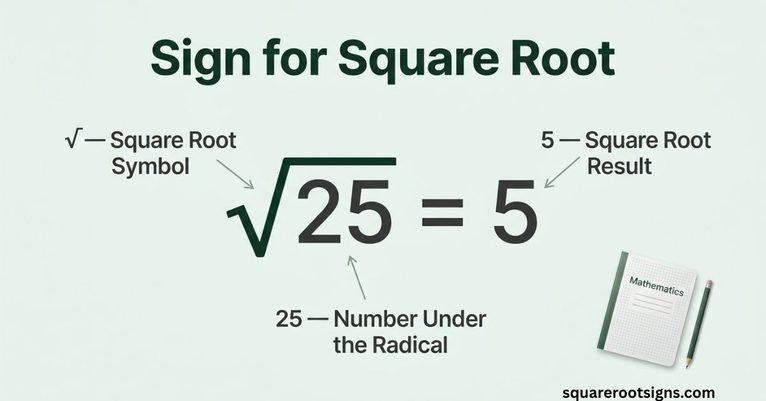
The square root sign (√), also called the radical sign, is a mathematical symbol used to represent the principal square root of a number or expression. For example, √25 = 5 because 5 × 5 = 25.
How do I copy and paste the square root symbol?
Select the √ character, copy it using Ctrl + C on Windows or Command + C on Mac, and paste it using the corresponding paste shortcut. On a mobile device, tap and hold the symbol and select Copy or Paste.
What is the Alt code for the square root symbol?
The commonly used Windows Alt code for the square root symbol is Alt + 251. Hold Alt and enter 251 using the numeric keypad. The method may depend on the application and keyboard configuration.
How do I type the square root symbol without a numeric keypad?
You can copy and paste √, use Microsoft Word’s Unicode conversion by typing 221A and pressing Alt + X, or use your operating system’s character picker. On a Mac with a U.S. keyboard layout, Option + V is another option.
What is the Unicode for the square root sign?
The square root sign has Unicode code point U+221A and decimal value 8730. Its HTML named entity is √.
Is the square root symbol the same as a checkmark?
No. The square root sign (√) is Unicode U+221A, while the standard checkmark (✓) is U+2713. Although they may look similar in certain fonts, they have different meanings and uses.
How do I type the square root sign in LaTeX?
Use the \sqrt{} command in LaTeX. For example, \sqrt{x} produces the square root of x. You can also enter expressions such as \sqrt{a+b} to place an entire expression under the radical.
Can I use the square root symbol in HTML?
Yes. You can use √, √, or √ in HTML to display the square root sign. All three represent the same Unicode character.
Why does the square root sign look different in some fonts?
The appearance of the square root sign depends on the font and application. Some fonts have a longer or shorter radical shape. If you need a mathematical expression with a bar extending over multiple characters, use an equation editor rather than a standalone symbol.
Square Root Sign Copy and Paste: Final Answer
The square root sign √ is a Unicode character (U+221A) that you can copy and paste into most modern applications. Windows users can try Alt + 251, Mac users with a U.S. keyboard can use Option + V, and Microsoft Word users can type 221A followed by Alt + X.
For a simple mathematical symbol, copying and pasting is usually sufficient. For complete equations, use an equation editor or LaTeX to create correctly formatted mathematical expressions.

Jack Harrison is a contributor at Square Root Signs, sharing creative ideas, useful information, and engaging content to help readers discover something valuable with every visit.

4 Comments