Sign for Square Root (√): Copy, Type & Use It on Any Device
The sign for square root is √. You can copy it instantly here: √. If you’re trying to type the square root sign on a Windows PC, Mac, Microsoft Word, Google Docs, iPhone, Android phone, or website, the right method depends on the device and app you’re using.
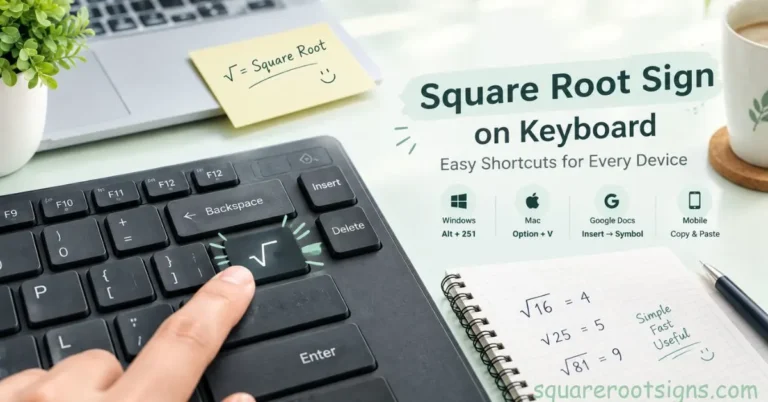
If you’ve ever searched for a square root symbol on your keyboard and couldn’t find it, you’re not missing a key—most standard keyboards simply don’t have a dedicated √ key. In this guide, you’ll learn the quickest ways to copy and paste the radical symbol, use keyboard shortcuts, insert it into documents, and create properly formatted mathematical expressions. The character is Unicode U+221A, officially named SQUARE ROOT.
Sign for Square Root: Copy and Paste √
√
If you only need the sign for square root once, copying it is the fastest solution. Select √, copy it with Ctrl + C on Windows or Command + C on Mac, and paste it wherever you need it.
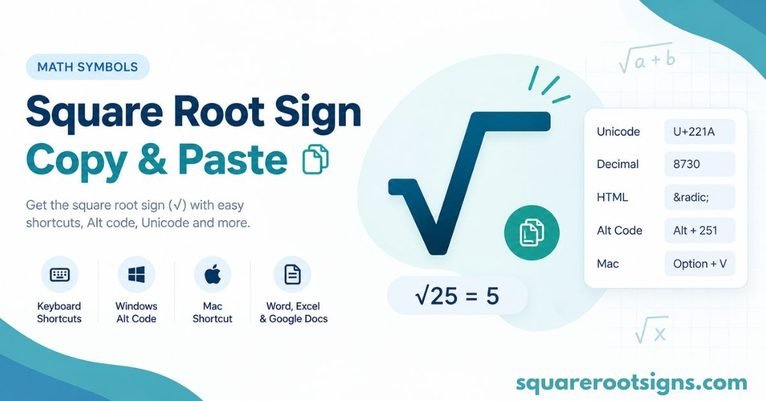
The √ character is a real Unicode character rather than an image. Its Unicode code point is U+221A, and its decimal character value is 8730. That makes it useful in ordinary text, emails, websites, notes, messages, documents, and short mathematical expressions.
Quick square root symbol reference
| Item | Value |
| Square root sign | √ |
| Unicode name | SQUARE ROOT |
| Unicode | U+221A |
| Decimal value | 8730 |
| HTML entity | √ |
| HTML decimal | √ |
| HTML hexadecimal | √ |
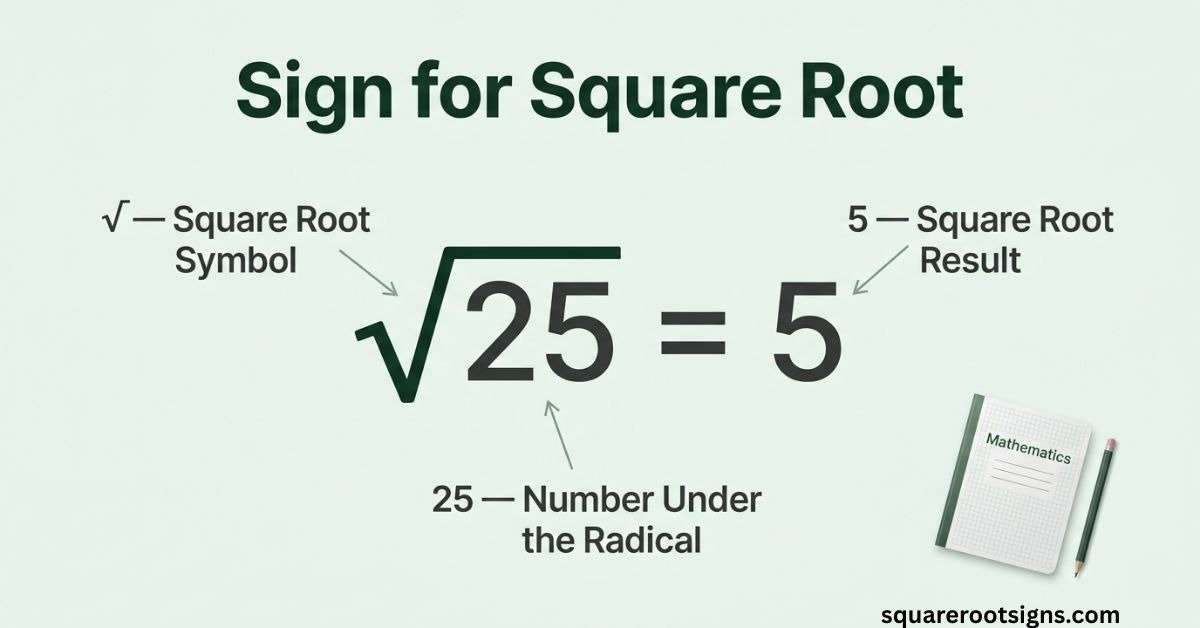
| Example | √25 = 5 |
If you’re writing a longer mathematical expression, however, a standalone character may not be enough. An equation editor can create a radical with a bar that extends over the entire expression.
Sign for Square Root on Windows
Windows does not normally have a dedicated square root key on a standard keyboard. You have several practical options, including the Windows symbol picker, Character Map, and application-specific Unicode input.
Windows symbol panel
On Windows 10 and Windows 11, press:
Windows key + . (period)
Then open the symbols section and look through the mathematical symbols for √.
This is particularly useful on laptops that don’t have a physical numeric keypad. You can select the symbol directly instead of memorizing a code.
Windows Character Map
Character Map is another reliable visual method:
- Open the Windows Start menu.
- Search for Character Map.
- Open the application.
- Find the √ character.
- Select and copy it.
- Paste it where you need it.
This method is useful when a keyboard shortcut doesn’t work or when you’re unsure which symbol you need.
What is the square root symbol Alt code?
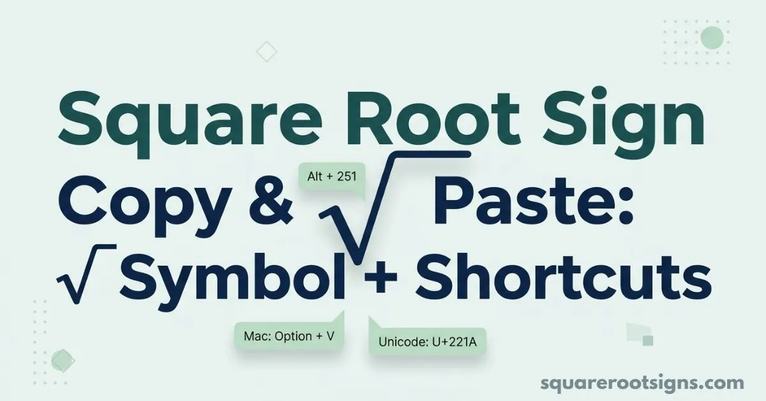
You’ll often see Alt + 251 listed as the square root symbol Alt code online. It can work in some Windows environments when you use the numeric keypad, but legacy Alt-code behavior can depend on the application and character encoding.
For a more predictable method in Microsoft Word, use the Unicode method described below: type 221A, then press Alt + X. Microsoft officially documents 221A + Alt + X for √.
If you’re using a laptop without a numeric keypad, don’t waste time trying random Alt codes. Character Map, the Windows symbol panel, or direct copy and paste is usually easier.
Sign for Square Root on Mac
On a Mac with a standard US keyboard layout, the commonly used shortcut for the square root sign is:
Option + V → √
This shortcut has been documented for the Mac US keyboard layout for many years.
If Option + V doesn’t produce the expected character, your keyboard layout, application, or shortcut configuration may be different. In that situation, use Character Viewer instead.
Use Mac Character Viewer
- Place your cursor where you want the symbol.
- Press Control + Command + Space.
- Search for square root.
- Select √.
- Double-click it to insert the character.
Character Viewer is especially convenient when you need other mathematical symbols such as ∛, ∜, ∞, π, or ±.
For occasional use, Character Viewer is often easier than remembering multiple keyboard combinations.
Sign for Square Root in Microsoft Word & Google Docs
Microsoft Word and Google Docs can both insert the square root sign, but there’s an important distinction between a standalone Unicode character and a formatted mathematical radical.
Microsoft Word: Use 221A + Alt + X
Microsoft’s official documentation lists the following method for the √ character:
- Place your cursor in the Word document.
- Type 221A.
- Immediately press Alt + X.
- Word converts 221A into √.
Microsoft specifically lists √ as 221A+ALT+X in its Unicode character instructions.
This method is often better than relying on a Windows Alt code because it directly uses the Unicode value of the character.
Microsoft Word: Insert the symbol from the menu
You can also insert the symbol through Word’s interface:
- Open the Insert tab.
- Choose Symbol.
- Select More Symbols.
- Find the square root character.
- Click Insert.
This is useful if you don’t remember the Unicode value.
Create a properly formatted radical in Word
If you need something like:
√(x + 5)
or a radical extending across a fraction or longer expression, don’t rely on a standalone √ character.
In Word, press:
Alt + =
This opens an equation box. Microsoft documents this shortcut for creating a new equation in Word and other Office applications.
Inside an equation, Word can format mathematical expressions properly instead of treating √ as ordinary text.
Google Docs: Insert a standalone square root sign
For a normal text character in Google Docs, you can copy √ and paste it directly.
You can also use Google’s special-character interface where available:
Insert → Special characters
Search for square root, then select the √ character.
This is the better option when you simply need the symbol inside a sentence, note, heading, or short expression.
Google Docs: Create a formatted square root equation
If you’re writing mathematics rather than ordinary text, use the equation tool.
Open the equation interface through the Insert menu, then enter the square-root command within the equation context. Current guides document the practical sqrt followed by a space workflow for creating a structured radical.
The distinction matters:
Standalone text: √25 = 5
Formatted equation: a radical structure where the bar extends over the complete expression.
For schoolwork, algebra, engineering, or scientific documents, the equation editor is generally the cleaner choice.
Sign for Square Root on iPhone, iPad & Android
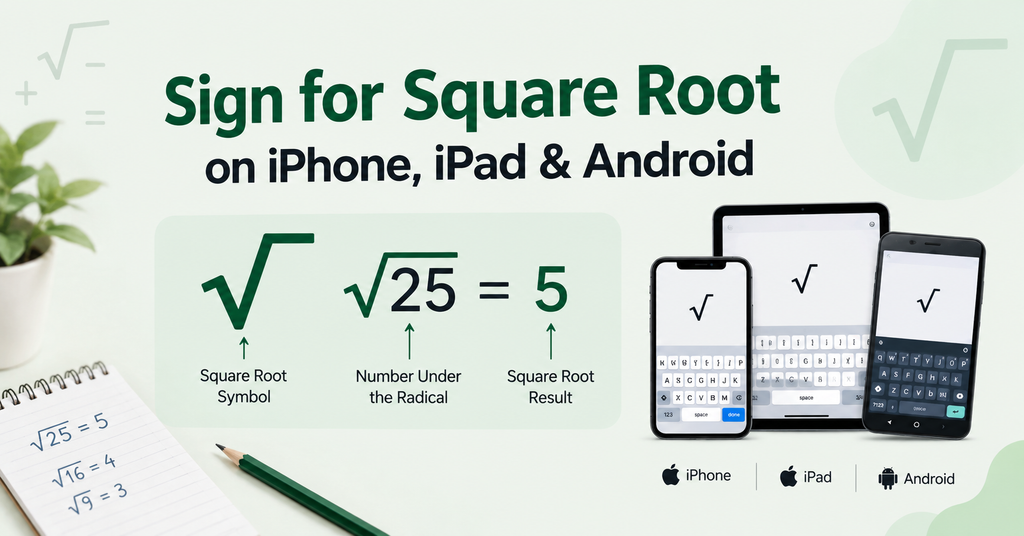
Most phone keyboards don’t provide a universal dedicated square root shortcut that works across every keyboard and device.
The simplest option is therefore:
Copy √ → Paste
If you use the symbol frequently, a keyboard text replacement can make the process much faster.
iPhone and iPad
On an iPhone or iPad, you can save √ as a text replacement:
- Open Settings.
- Go to General → Keyboard.
- Select Text Replacement.
- Add a new replacement.
- Put √ in the phrase field.
- Choose a shortcut such as sqrt.
Then typing your chosen shortcut can insert the square root character.
The exact behavior can vary with Apple’s current keyboard settings and the application you’re using, so copy and paste remains the simplest universal fallback.
Android
Android keyboard features vary between Gboard, Samsung Keyboard, and other input methods.
If √ isn’t visible in your keyboard’s secondary symbol layout, copy it from this page.
For frequent use, many Android keyboards also support personal dictionary shortcuts. You can save √ and assign a shortcut such as sqrt.
This turns a symbol that normally takes several taps into a short text command.
Sign for Square Root in HTML, CSS & Code
If you’re a developer, designer, blogger, or website owner, you can represent the square root character in several ways.
HTML codes for √
| Method | Code |
| Direct character | √ |
| HTML named entity | √ |
| Decimal HTML | √ |
| Hexadecimal HTML | √ |
| Unicode | U+221A |
For a normal HTML page, √ or √ can be useful when you don’t want to place the literal character directly in the source.
CSS
In CSS generated content, the Unicode escape can be represented as:
“\221A”
The exact implementation depends on the CSS property and context.
JavaScript
In JavaScript, the Unicode escape for √ is:
“\u221A”
This represents the same Unicode character.
LaTeX
If you’re creating a mathematical expression in LaTeX, use:
\sqrt{x}
For example:
\sqrt{25}
produces a properly formatted square root expression in a LaTeX environment.
This is different from simply inserting the Unicode character √ because LaTeX can construct mathematical layouts around the radical.
Square Root Sign vs Radical Symbol
The terms square root sign, square root symbol, and radical sign are commonly used for √.
Mathematically, the symbol indicates a root operation. For example:
√9 = 3
because 3 × 3 = 9.
The number or expression underneath the radical is called the radicand. In √25, the radicand is 25.
The square root symbol is useful for short mathematical expressions, but it has an important limitation in plain text: it doesn’t automatically create a long radical bar over an entire expression.
For example, if you need to represent the square root of:
x + 2
plain text might be written as:
√(x + 2)
In a proper equation editor, the radical can be formatted so its horizontal bar extends over the complete expression.
Square Root Sign vs Cube Root and Fourth Root
The square root is only one member of the root-symbol family.
| Root | Symbol | Unicode |
| Square root | √ | U+221A |
| Cube root | ∛ | U+221B |
| Fourth root | ∜ | U+221C |
The small number associated with a root is called the index. A square root normally has an implied index of 2, so the 2 isn’t written.
A cube root has an explicit 3:
∛8 = 2
A fourth root has an explicit 4:
∜16 = 2
This distinction is useful when searching for mathematical symbols because copying the wrong root character can change the meaning of an expression.
Square Root Sign Copy Paste: Quick Reference
If you’re in a hurry, use this table.
| Where you need √ | Quick method |
| Any website or app | Copy √ and paste |
| Windows | Windows + . → Symbols |
| Windows Character Map | Search Character Map → find √ |
| Microsoft Word | 221A + Alt + X |
| Word equation | Alt + = → equation tools |
| Mac | Option + V on a US keyboard |
| Mac Character Viewer | Control + Command + Space |
| Google Docs | Insert → Special characters |
| iPhone | Copy/paste or Text Replacement |
| Android | Copy/paste or keyboard shortcut |
| HTML | √ or √ |
| JavaScript | \u221A |
| LaTeX | \sqrt{x} |
The fastest choice depends on what you’re doing. For one symbol, copy and paste wins. For repeated Word work, 221A + Alt + X is convenient. For a full mathematical expression, use an equation editor.
Fix the Square Root Sign When It Doesn’t Work
Sometimes a shortcut appears to fail even though the character itself is valid. The problem is usually the keyboard layout, application, input method, or the difference between a text character and an equation.
The Alt code doesn’t work
If you’re trying an Alt-code method on Windows, remember that traditional Alt codes generally require the numeric keypad. A laptop without a physical number pad may not behave the same way.
Instead, try:
- Windows symbol panel
- Character Map
- Copy and paste
- 221A + Alt + X in Microsoft Word
Microsoft officially documents the Word Unicode conversion method.
Option + V doesn’t work on Mac
The Option + V shortcut is associated with the square root character on the standard US Mac keyboard layout. If your keyboard uses another input source or an application overrides the shortcut, open Character Viewer instead.
Use:
Control + Command + Space
Then search for square root.
The symbol looks like a check mark
Be careful with these two characters:
Square root: √
Check mark: ✓
They may look similar at a glance, but they are different Unicode characters and have different meanings.
If you need a mathematical radical, make sure you’re inserting √, not ✓.
The symbol appears as a box
A blank box or replacement glyph usually means the selected font or application doesn’t have an appropriate glyph available.
Try:
- A common Unicode-compatible font.
- Another application.
- Copying the character again.
- Using the application’s symbol picker.
The underlying character is still U+221A.
The radical doesn’t extend over my whole equation
That’s not a problem with the √ character.
A standalone Unicode character is not the same thing as a fully formatted mathematical radical.
If you need:
√(x² + 4x + 4)
with the radical bar extending over the complete expression, use Word, Google Docs, LaTeX, or another equation editor designed for mathematical notation.
Conclusion
Finding the sign for square root (√) is simple once you know the right method for your device. If you need it immediately, you can copy and paste √. On Windows, Microsoft Word supports 221A + Alt + X, while on a standard US Mac keyboard, Option + V inserts the symbol. You can also use Character Viewer, Special Characters, or your device’s built-in symbol tools when a keyboard shortcut is unavailable.
The square root sign √ is the Unicode character U+221A, and it is widely supported across Word, Google Docs, browsers, websites, phones, and coding environments. Whether you’re writing a math equation, preparing a document, creating a webpage, or simply looking for a square root sign copy and paste, the methods in this guide give you a quick way to insert and use the symbol correctly.
FAQs
What is the sign for square root?
The sign for square root is √. It is also commonly called the square root symbol or radical sign. Its Unicode code point is U+221A.
How do I copy the square root sign?
Copy this character: √. On Windows, use Ctrl + C and Ctrl + V. On Mac, use Command + C and Command + V.
What is the Unicode for the square root sign?
The Unicode code point for √ is U+221A. Its decimal value is 8730.
What is the square root symbol Alt code?
You may see Alt + 251 or Alt + 8730 listed online, but traditional Alt-code behavior can vary with the application and input method. In Microsoft Word, the documented Unicode method is 221A + Alt + X.
How do I type √ on Windows?
On Windows 10 or 11, press Windows + ., open the symbols panel, and find the mathematical symbols. You can also use Character Map. In Microsoft Word, type 221A and press Alt + X.
How do I type √ on a Mac?
On the standard US Mac keyboard layout, press Option + V. If that doesn’t work, open Character Viewer with Control + Command + Space and search for “square root.”
How do I type √ in Microsoft Word?
Type 221A, then press Alt + X. Microsoft documents this exact Unicode conversion method for the square root character.
How do I put a square root in Google Docs?
For a simple √ character, use Insert → Special characters or copy and paste the symbol. For a formatted mathematical radical, use Google Docs’ equation feature.
Is √ the same as a radical symbol?
Yes. √ is commonly called the radical sign or square root symbol. The terminology can vary by context, but the character is the same.
What is the difference between √ and ∛?
√ represents a square root, while ∛ represents a cube root. Their Unicode code points are U+221A and U+221B respectively.
Can I use the square root sign in HTML?
Yes. You can insert the character directly as √, or use √, √, or √.
Is there a square root key on a keyboard?
Most standard keyboards don’t have a dedicated √ key. The usual alternatives are a keyboard shortcut, symbol picker, Unicode input, or copy and paste.
Sign for Square Root: The Easiest Method for You
If you only need the sign for square root, simply copy this:
√
For Windows, the most dependable general options are the symbol picker or Character Map, while Microsoft Word provides the convenient 221A + Alt + X Unicode conversion. On a standard US Mac keyboard, Option + V inserts √, and Character Viewer provides a visual alternative.
For Google Docs and other document editors, choose between a standalone Unicode character and a structured equation depending on what you’re writing. If your expression contains fractions, exponents, variables, or a long radicand, use an equation editor rather than forcing everything into plain text.
In short: √ is the square root sign, U+221A is its Unicode code point, and copy/paste is the simplest method when you just need the character.

Jack Harrison is a contributor at Square Root Signs, sharing creative ideas, useful information, and engaging content to help readers discover something valuable with every visit.