
Square Root Sign Copy Paste (√): Keyboard Shortcuts & Alt Code
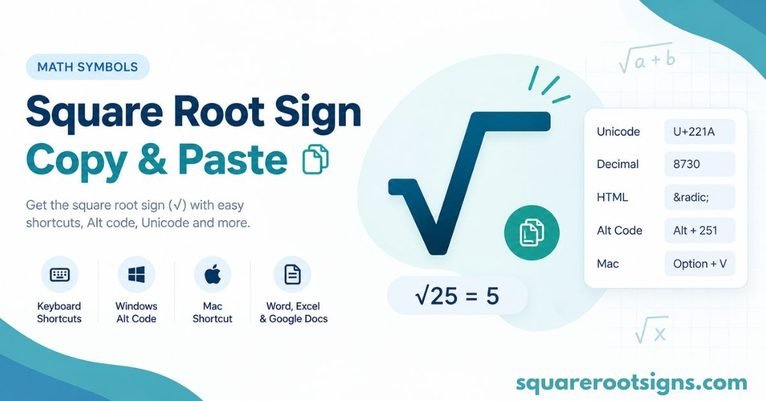
Need a square root sign to copy and paste? Here it is: √. You can copy this square root symbol and use it in Microsoft Word, Excel, Google Docs, emails, and mathematical equations. Its Unicode code point is U+221A, and Windows users can also try Alt + 251 to type it.
Whether you’re completing homework, writing a report, or working with mathematical expressions, finding the right symbol shouldn’t take more than a few seconds. This guide explains how to copy the square root sign, use keyboard shortcuts on Windows and Mac, insert it on mobile devices, and work with it in popular applications.
Quick Answer: Square Root Sign Copy Paste
Symbol: √
Copy: √
Unicode: U+221A
Windows Alt code: Alt + 251 (numeric keypad)
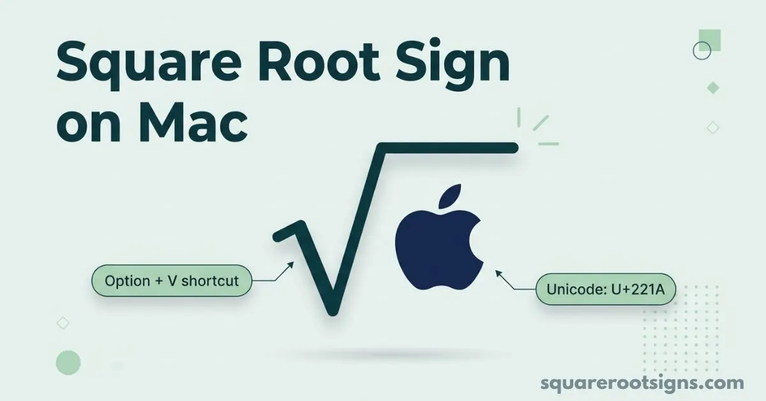
Mac shortcut: Option + V (US keyboard layout)
HTML: √
LaTeX: \sqrt{x}
Square Root Symbol Copy and Paste (√)
The easiest way to get the square root symbol is to copy it directly from this page. Select the character below, copy it, and paste it into your document, message, spreadsheet, or other application.
Copy the Square Root Sign
√
You can use this square root sign in mathematical expressions, school assignments, online forms, and digital documents. It is a Unicode character, so it works in many applications that support Unicode text.
If you need the symbol frequently, consider saving it in a document or creating a text shortcut on your device.
More Mathematical Symbols to Copy
Here are some other commonly used mathematical symbols:
| Symbol | Name | Copy |
| √ | Square root | √ |
| ∛ | Cube root | ∛ |
| ∜ | Fourth root | ∜ |
| π | Pi | π |
| ∞ | Infinity | ∞ |
| ² | Superscript two | ² |
| ³ | Superscript three | ³ |
| ≠ | Not equal to | ≠ |
| ≤ | Less than or equal to | ≤ |
| ≥ | Greater than or equal to | ≥ |
| ∑ | Summation | ∑ |
These symbols can be copied and pasted into compatible applications. Their appearance may vary depending on the font and software you use.
Square Root Symbol Alt Code and Shortcut on Windows
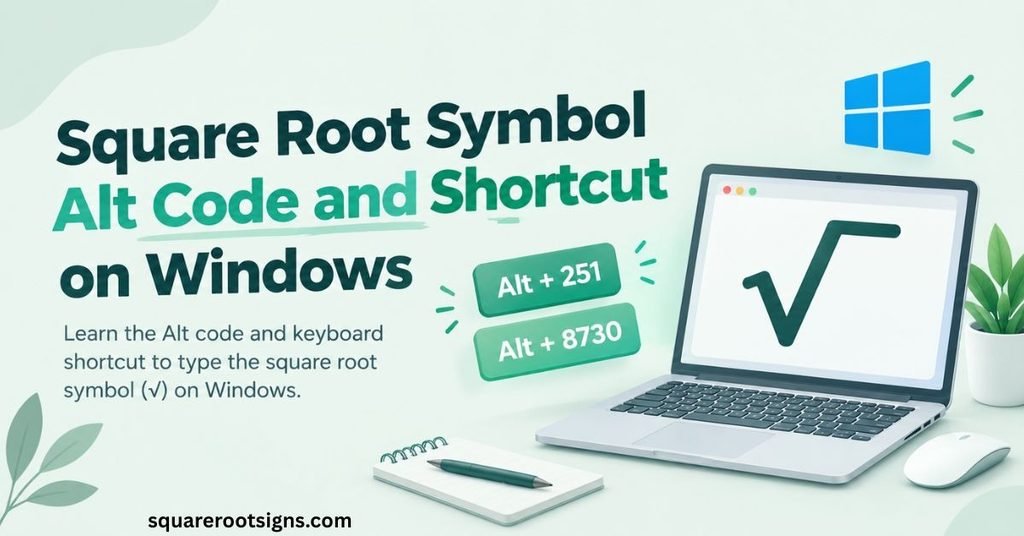
Windows offers several ways to insert the square root symbol. You can use an Alt code, Microsoft Word’s Unicode conversion feature, or the built-in Character Map application.
The Alt code is a convenient option if your keyboard has a numeric keypad. Hold the Alt key, type 251 on the numeric keypad, and release Alt. In applications that support this input method, the square root sign (√) should appear.
| Method | Shortcut or instructions |
| Alt code | Alt + 251 using the numeric keypad |
| Microsoft Word | Type 221A, then press Alt + X |
| Character Map | Search for the square root symbol and copy it |
| Copy and paste | Copy √ and press Ctrl + V |
How to Use the Square Root Alt Code
Follow these steps to try the Windows Alt code:
- Open the document or application where you want the symbol.
- Make sure Num Lock is enabled if your keyboard has a numeric keypad.
- Press and hold the Alt key.
- Type 251 using the numeric keypad.
- Release Alt.
The square root symbol should appear if the application supports this input method.
Note: Alt + 251 is a commonly used Windows shortcut, but it may not work in every application or keyboard configuration. If it doesn’t work, use the Unicode method in Word or copy the symbol directly.
How to Insert the Square Root Symbol Using Windows Character Map
Windows Character Map provides access to many special characters, including mathematical symbols.
- Open the Windows Start menu.
- Search for Character Map.
- Open the Character Map application.
- Find the square root symbol (√).
- Select the character and click Select.
- Click Copy.
- Paste the symbol into your document using Ctrl + V.
This method is useful if your keyboard doesn’t have a numeric keypad or the Alt code doesn’t work.
How to Type the Square Root Symbol on a Mac
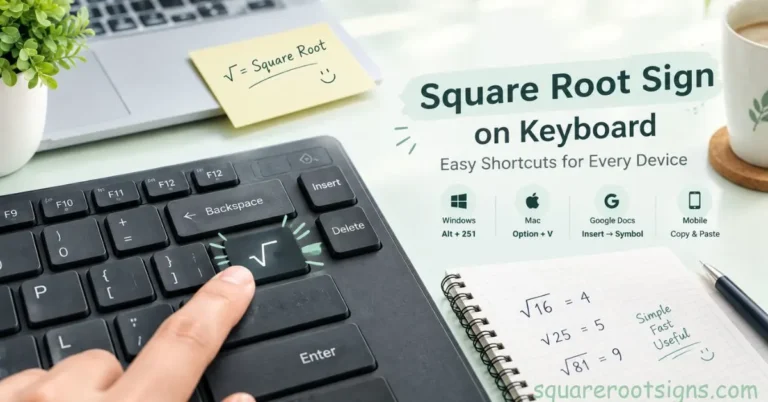
Mac users can type the square root symbol using a keyboard shortcut on supported keyboard layouts. On a standard US keyboard layout, press Option + V to insert √ in many applications.
If the shortcut doesn’t work, you can use Character Viewer to search for the character and insert it manually.
| Method | Instructions |
| Keyboard shortcut | Option + V on a US keyboard layout |
| Character Viewer | Control + Command + Space |
| Copy and paste | Copy √ and use Command + V |
Use the Mac Keyboard Shortcut
To insert the square root symbol:
- Open the application where you want to type it.
- Place your cursor in the text field.
- Hold the Option key.
- Press V.
The square root symbol should appear in applications that support the shortcut and the selected keyboard layout.
Insert the Symbol Using Character Viewer
If you cannot remember the shortcut, use the macOS Character Viewer.
- Open your document or text field.
- Press Control + Command + Space.
- Search for “square root.”
- Select the √ symbol.
- Double-click the character or insert it using the available controls.
Character Viewer is especially useful when you need mathematical symbols that aren’t available directly on your keyboard.
How to Type the Square Root Symbol on iPhone and iPad
The simplest way to insert a square root symbol on an iPhone or iPad is to copy it from a webpage and paste it into your preferred application.
Follow these steps:
- Find the square root symbol: √.
- Touch and hold the symbol.
- Select Copy from the pop-up menu.
- Open Notes, Pages, Google Docs, or another application.
- Touch and hold the text field.
- Select Paste.
The symbol should appear wherever your cursor is positioned.
Create a Square Root Text Replacement on iPhone
If you regularly use the square root symbol, you can create a text replacement shortcut.
- Open the Settings app.
- Select General.
- Tap Keyboard.
- Choose Text Replacement.
- Tap the plus (+) button.
- Enter √ in the Phrase field.
- Enter a short shortcut, such as sqrt.
- Tap Save.
Now, when you type your shortcut in a supported text field, your iPhone can suggest the square root symbol as a replacement.
Text replacement is useful for students, teachers, and anyone who frequently writes mathematical expressions.
The exact menu appearance may differ slightly between iOS versions.
How to Type the Square Root Symbol on Android
On Android, you can copy and paste the square root symbol into most applications that support Unicode text.
Follow these steps:
- Find the square root symbol: √.
- Touch and hold the character.
- Select Copy.
- Open your preferred application.
- Touch and hold the text field.
- Tap Paste.
You can use this method in messaging applications, note-taking apps, compatible document editors, and many other text fields.
Find the Square Root Symbol in Gboard
Some Android keyboards provide mathematical symbols through their symbols menus. The exact layout depends on the keyboard version and device.
If you’re using Gboard:
- Open an application with a text field.
- Tap the text field to display the keyboard.
- Open the symbols keyboard using the available ?123 key.
- Check the additional symbols pages for mathematical characters.
- If √ is available, tap it to insert the character.
Not every Gboard version displays the square root symbol in the same location. If you cannot find it, copying and pasting is the simplest alternative.
Save the Square Root Symbol for Frequent Use
If your keyboard supports personal dictionaries or text shortcuts, you may be able to save √ as a shortcut.
For example, you could set sqrt as the shortcut and √ as the replacement.
The exact procedure depends on the keyboard application and Android version.
Square Root Symbol in Microsoft Word
Microsoft Word supports several ways to insert the square root symbol. You can copy and paste it, use the Unicode conversion shortcut, or select it from the Symbol menu.
For a simple character, copying √ is usually sufficient. If you’re creating a mathematical equation, Word’s equation editor provides better formatting.
Method 1: Use the Unicode Shortcut
Word can convert the Unicode code point into the corresponding character.
- Open Microsoft Word.
- Place your cursor where you want the symbol.
- Type 221A.
- Immediately press Alt + X.
Word should convert 221A into √.
Method 2: Insert the Symbol from the Menu
You can also use Word’s built-in symbol menu.
- Open your Word document.
- Select the Insert tab.
- Choose Symbol.
- Open More Symbols if necessary.
- Find the square root character.
- Select it and click Insert.
The available menus can vary slightly depending on your version of Word.
Method 3: Use the Equation Editor
If you need a square root with a number or expression underneath the radical bar, use Word’s equation editor.
- Open your document.
- Press Alt + = to insert an equation in supported versions of Word.
- Open the equation tools.
- Choose the radical structure.
- Enter the number or expression under the radical.
For example, you can create an expression such as √(x + 5) with a properly extended radical bar.
You can also use equation input commands, such as \sqrt, in supported equation input modes.
Square Root Symbol in Microsoft Excel
In Excel, the square root symbol and the square root function serve different purposes.
The character √ is a visual mathematical symbol. The SQRT() function actually calculates the square root of a number.
For example, if cell A1 contains 25, the formula =SQRT(A1) returns 5.
You can also calculate the square root using exponentiation:
=A1^(1/2)
Both formulas calculate the square root when the input is a suitable nonnegative number.
| Method | Example | Result |
| SQRT function | =SQRT(25) | 5 |
| Cell reference | =SQRT(A1) | Square root of A1 |
| Exponentiation | =25^(1/2) | 5 |
| Insert symbol | √ | Displays the character |
How to Insert the Square Root Symbol in Excel
To display the square root character in a cell:
- Select the cell.
- Copy √ from this page.
- Paste it into the cell.
- Press Enter.
You can also use Excel’s Insert Symbol feature where available.
Remember that inserting √ into a cell does not calculate a square root. Use SQRT() or an appropriate mathematical formula when you need a numerical result.
Square Root Symbol in Google Docs
Google Docs supports the square root symbol through copy and paste and its built-in special character menu.
Copy and Paste the Symbol
- Copy √ from this page.
- Open your Google Docs document.
- Place your cursor where you want the character.
- Press Ctrl + V on Windows or Command + V on Mac.
The symbol should appear in your document.
Use the Special Characters Menu
You can also insert the symbol directly from Google Docs.
- Open your document.
- Select Insert.
- Choose Special characters.
- Search for “square root.”
- Select the √ character.
For more complex mathematical expressions, use the Google Docs equation tools instead of relying on a standalone character.
Square Root Symbol in HTML, CSS, and LaTeX
The square root symbol is Unicode U+221A. Web developers and people working with mathematical documents can use several different representations of the character.
Square Root Symbol in HTML
HTML supports both named and numeric character references for the square root symbol.
| Format | Code |
| Character | √ |
| Named HTML entity | √ |
| Decimal entity | √ |
| Hexadecimal entity | √ |
For example, you can display the character directly in HTML:
<p>Square root symbol: √</p>
Or use its named entity:
<p>Square root symbol: √</p>
Both approaches can display the square root character in a browser that supports it.
Square Root Symbol in CSS
CSS can insert the character using its Unicode escape sequence.
For example:
content: “\221A”;
This can be used with the CSS content property in suitable situations.
However, generated content should not replace meaningful text when that text is important to understanding the page.
Square Root Symbol in JavaScript
JavaScript supports Unicode escape sequences.
For example:
const squareRoot = “\u221A”;
The variable contains the square root character √.
You can also use the Unicode code point directly:
const squareRoot = String.fromCodePoint(0x221A);
Both approaches produce the same character.
Square Root Symbol in LaTeX
LaTeX provides the \sqrt command for mathematical expressions.
For example:
\sqrt{25}
This produces the mathematical expression √25.
For a variable:
\sqrt{x}
For an expression:
\sqrt{x+5}
LaTeX is particularly useful when you need properly formatted equations rather than a standalone square root character.
Square Root Symbol Unicode Details
The square root symbol is part of the Unicode standard, which provides a consistent way to represent text characters across compatible systems.
Its official Unicode name is SQUARE ROOT, and its code point is U+221A.
| Property | Value |
| Symbol | √ |
| Unicode name | SQUARE ROOT |
| Unicode code point | U+221A |
| Decimal value | 8730 |
| HTML entity | √ |
| HTML decimal | √ |
| HTML hexadecimal | √ |
| JavaScript escape | \u221A |
| CSS escape | \221A |
| LaTeX command | \sqrt{x} |
Unicode identifies the character, but it does not dictate exactly how every font must draw it. The symbol’s appearance can therefore differ slightly across applications and operating systems.
For technical reference, consult the Unicode Consortium’s official character chart for the relevant mathematical symbols.
Related Mathematical Root Symbols
The square root symbol belongs to a family of radical symbols used in mathematics. The most common related characters are the cube root and fourth root symbols.
| Symbol | Name | Unicode | Example |
| √ | Square root | U+221A | √16 = 4 |
| ∛ | Cube root | U+221B | ∛27 = 3 |
| ∜ | Fourth root | U+221C | ∜16 = 2 |
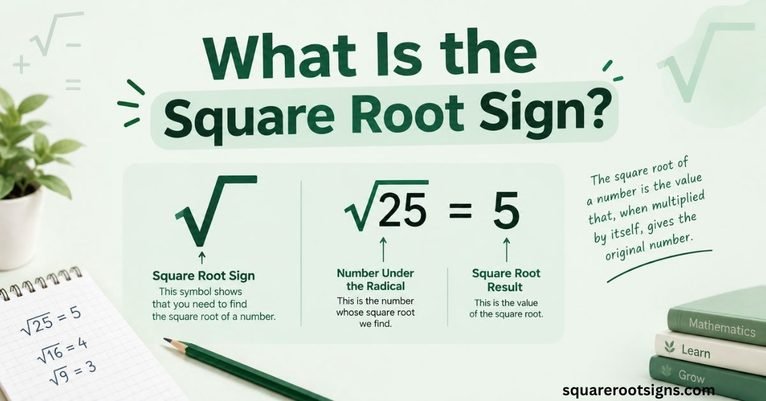
The square root of a number is a value that, when multiplied by itself, gives the original number. A cube root is a value that produces the original number when multiplied by itself three times.
A fourth root works similarly but involves four factors.
These symbols are useful when writing mathematical expressions, but they are not interchangeable. Choose the character that matches the operation you want to represent.
Common Square Root Symbol Mistakes
When copying or typing the square root symbol, a few common mistakes can cause confusion.
Confusing √ with ✓
The square root symbol √ and the checkmark ✓ may look similar in some fonts, but they are different Unicode characters.
- Square root: √ (U+221A)
- Checkmark: ✓ (U+2713)
Using a standalone symbol for a complete equation
Copying √ does not automatically create a properly formatted radical expression. If you need a bar that extends over several characters, use an equation editor or mathematical typesetting system.
Using the wrong root symbol
The square root, cube root, and fourth root have different meanings. Make sure you choose the correct character for your expression.
Expecting identical appearance in every font
Fonts can display the same Unicode character differently. This is normal and does not necessarily mean the wrong symbol was inserted.
Conclusion
The square root sign copy paste method is a quick way to insert √ into documents, spreadsheets, messages, and mathematical expressions. Its Unicode code point is U+221A, and you can copy the character directly or use a suitable keyboard shortcut.
For occasional use, copying and pasting is usually the easiest solution. If you regularly work with mathematical expressions, use the keyboard shortcuts or equation tools available on your device. Choosing the right method makes writing mathematical content faster and clearer.
FAQs
How do I copy and paste the square root sign?
Copy this character: √. Select it, copy it, and paste it into your document or text field. On Windows, use Ctrl + C and Ctrl + V. On Mac, use Command + C and Command + V.
What is the square root symbol?
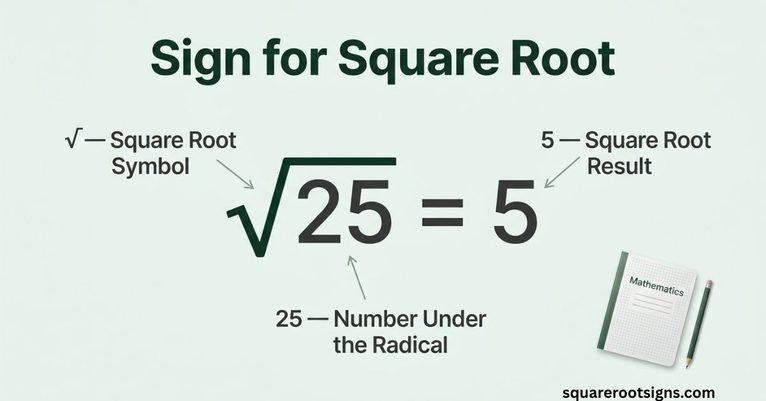
The square root symbol is √. It is also called the radical sign and represents the principal square root of a number or expression. For example, √25 = 5.
What is the square root symbol’s Unicode?
The square root symbol’s Unicode code point is U+221A. Its decimal value is 8730. You can use the character directly or insert it through a supported Unicode input method.
What is the square root Alt code?
A commonly used Windows Alt code is Alt + 251. Hold Alt, type 251 on the numeric keypad, and release Alt. The shortcut may not work in every application or keyboard configuration.
How do I type the square root symbol on a Mac?
On many US Mac keyboard layouts, press Option + V to type √. You can also open Character Viewer using Control + Command + Space and search for the square root symbol.
How do I insert the square root symbol in Word?
You can copy and paste √ into Word, use the Insert > Symbol menu, or type 221A followed by Alt + X. For a complete mathematical expression, use Word’s equation editor.
How do I insert a square root symbol in Excel?
Copy √ and paste it into a cell to display the character. If you need to calculate a square root, use the SQRT() function. For example, =SQRT(25) returns 5.
Can I use the square root symbol in Google Docs?
Yes. Copy √ and paste it into Google Docs, or select Insert > Special characters and search for the square root symbol. Use the equation tools for more complex mathematical expressions.
How do I type the square root symbol on an iPhone?
Copy √ from this page, then open your preferred application. Touch and hold the text field and select Paste. You can also create a text replacement shortcut in your keyboard settings.
How do I type the square root symbol on Android?
Copy √ and paste it into your Android application. Some keyboard versions also offer mathematical symbols in their symbols menus. Availability depends on the keyboard and device.
Is the square root sign the same as a radical sign?
Yes. The terms square root sign and radical sign commonly refer to the same character, √. In mathematical notation, a radical expression includes the symbol and the number or expression under it.
Why is there no horizontal bar over my square root symbol?
A standalone Unicode square root character may not include an extended bar over the expression that follows it. Use an equation editor or LaTeX if you need a properly formatted radical with a longer horizontal bar.

Jack Harrison is a contributor at Square Root Signs, sharing creative ideas, useful information, and engaging content to help readers discover something valuable with every visit.
2 Comments